1. Navigate to Revsure App and Click "Data Hub"
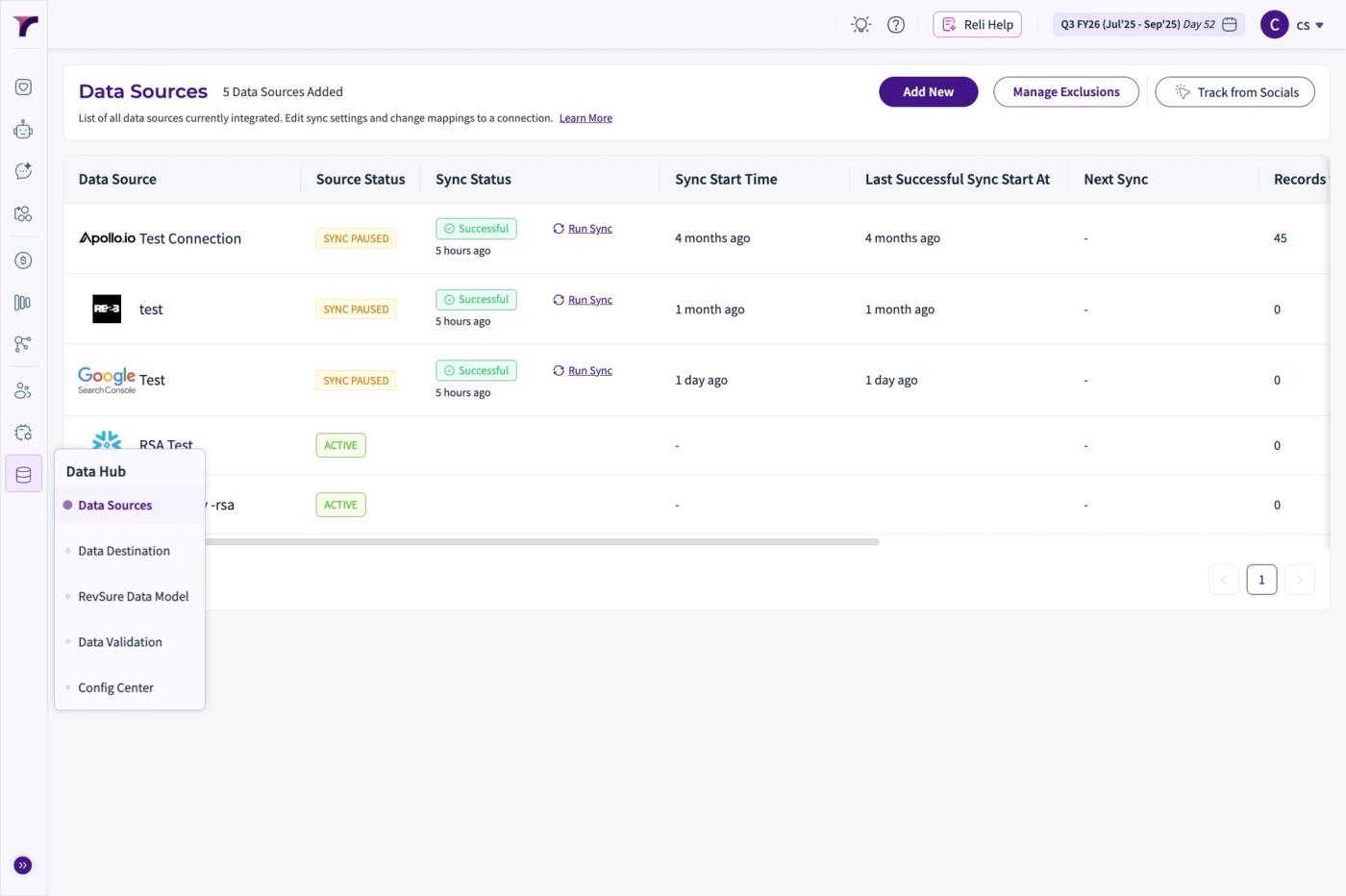
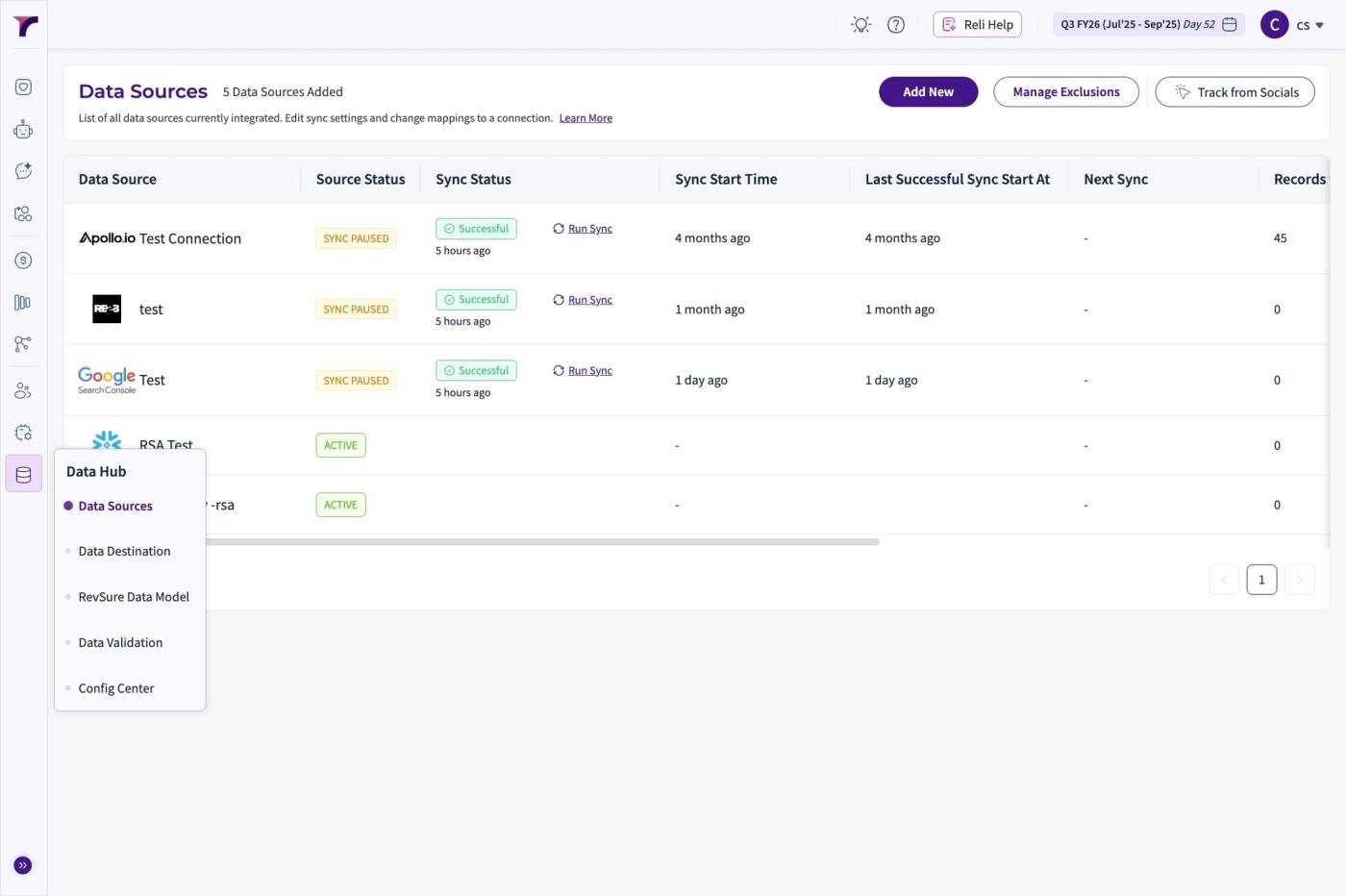
2. Click "Data Sources"
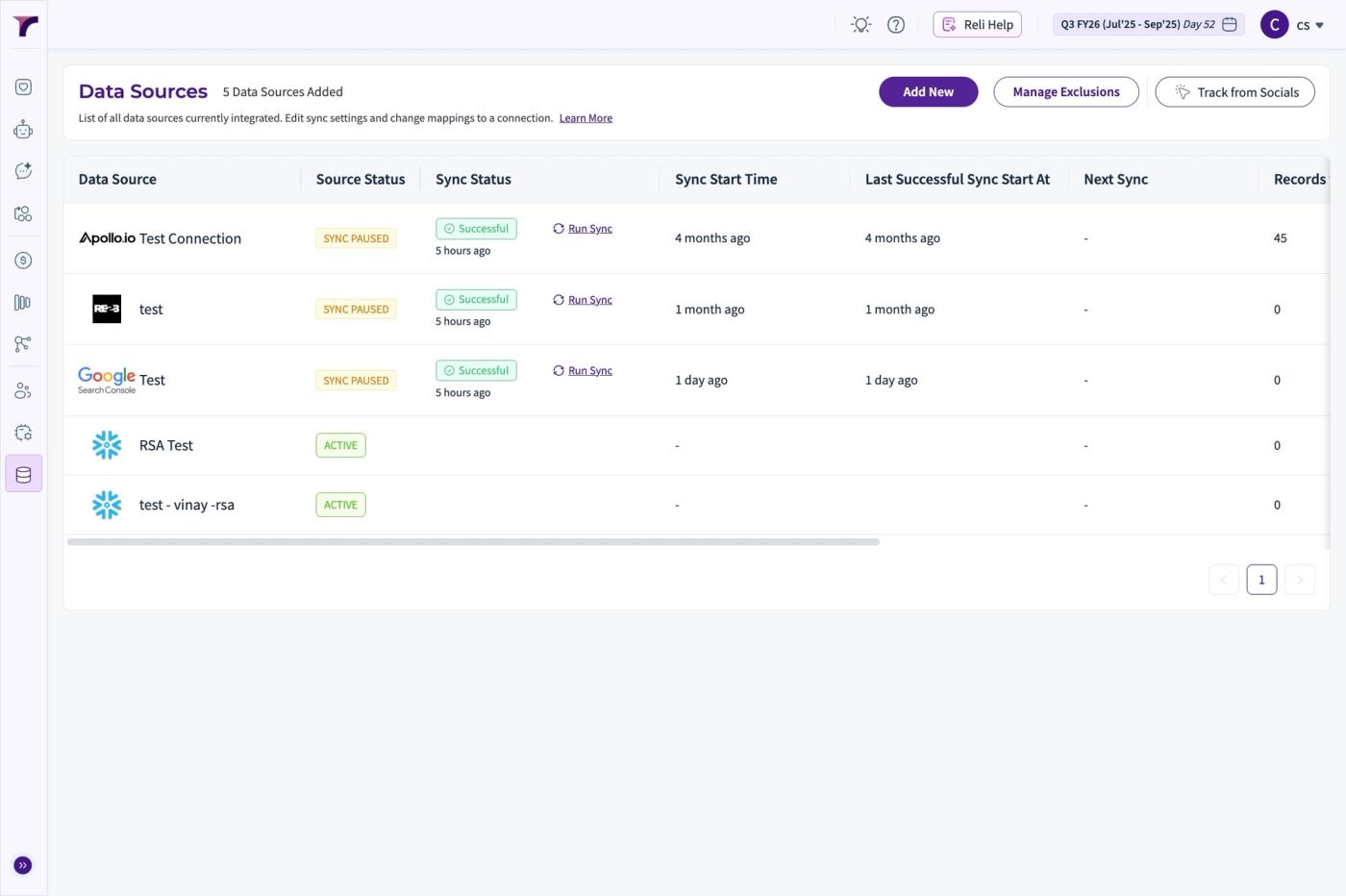
3. Click "Add New"
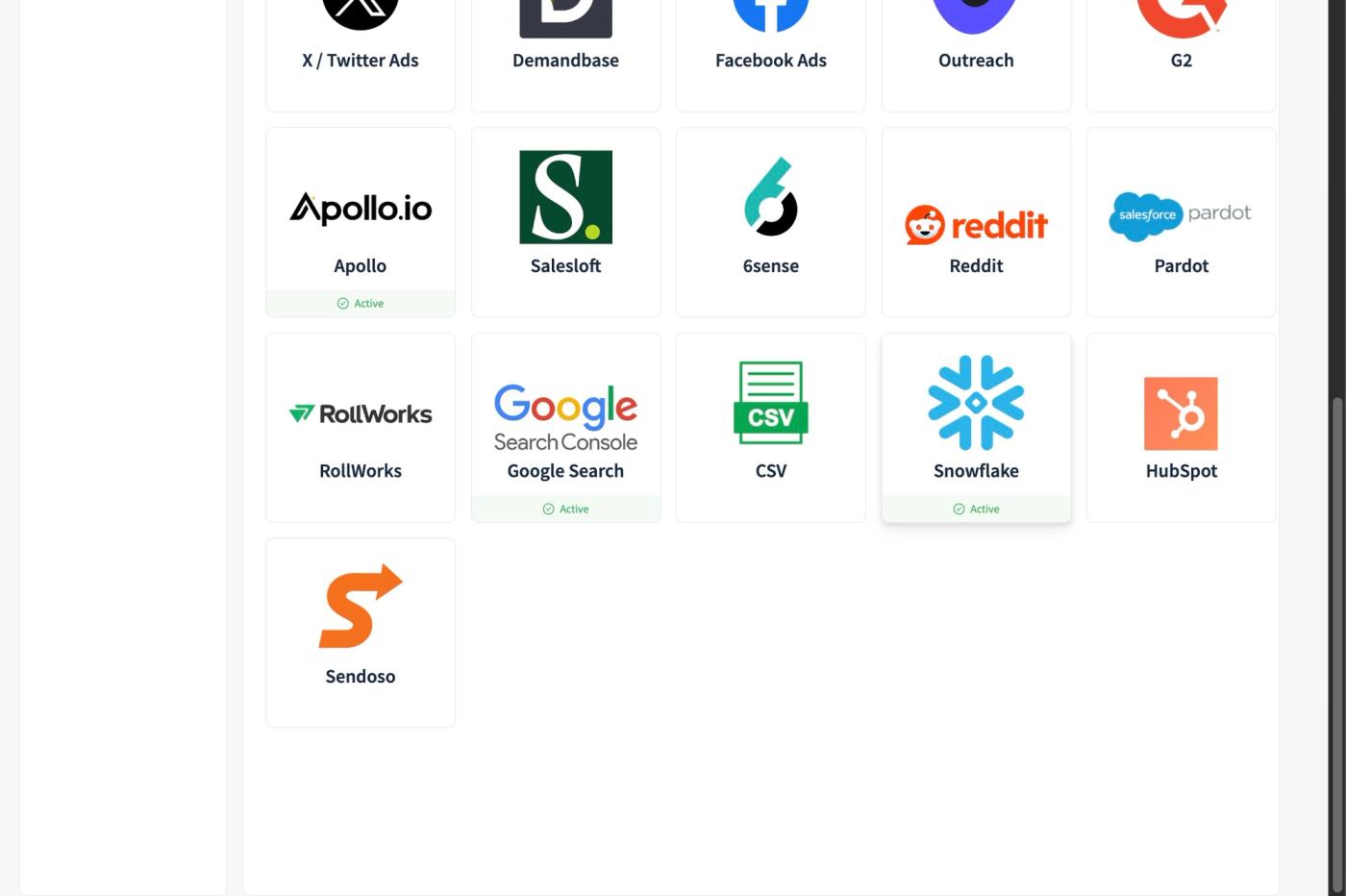
4. Click Snowflake among the list of Integrations
5. Set the "Connection Name *" field
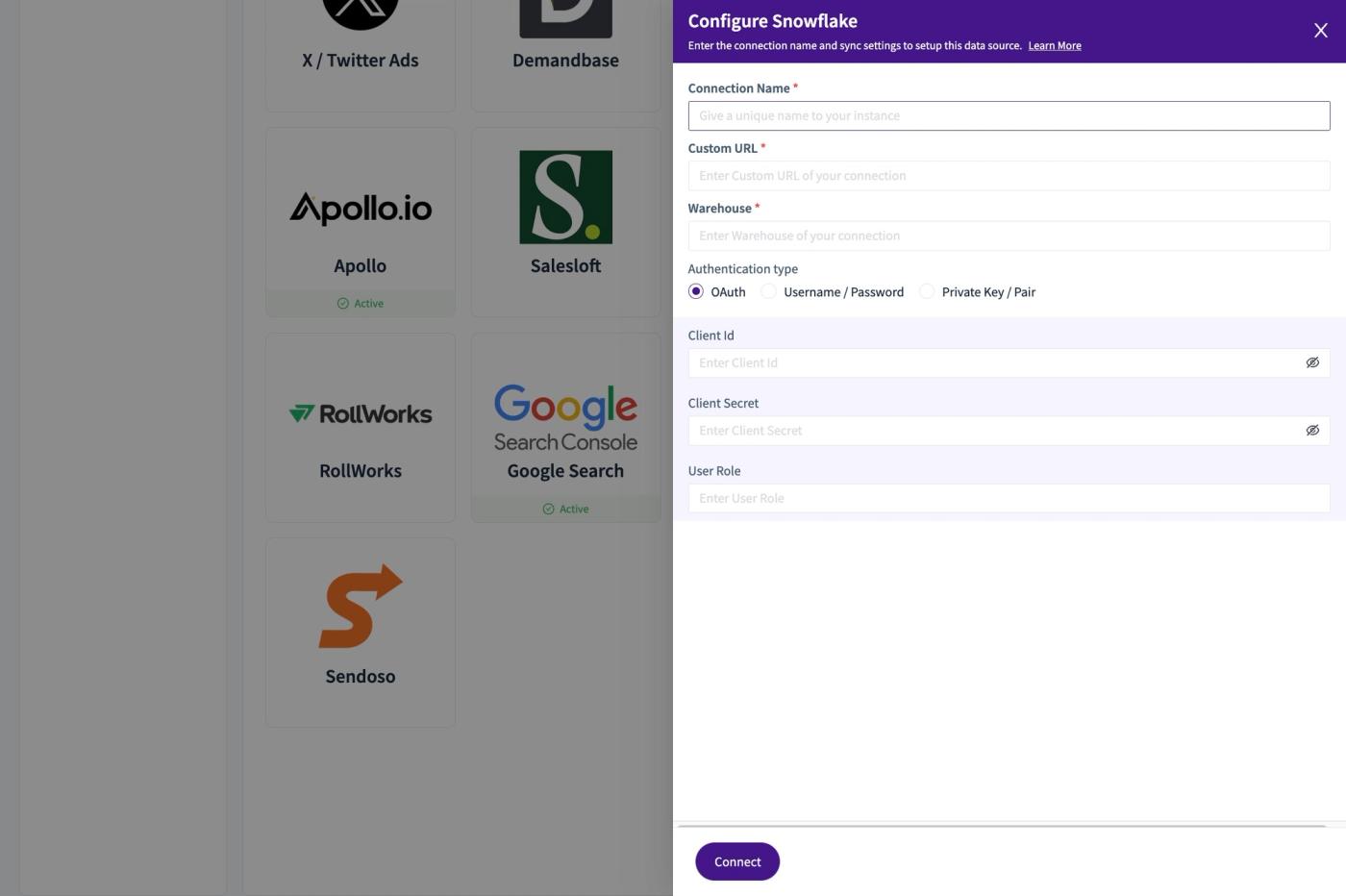
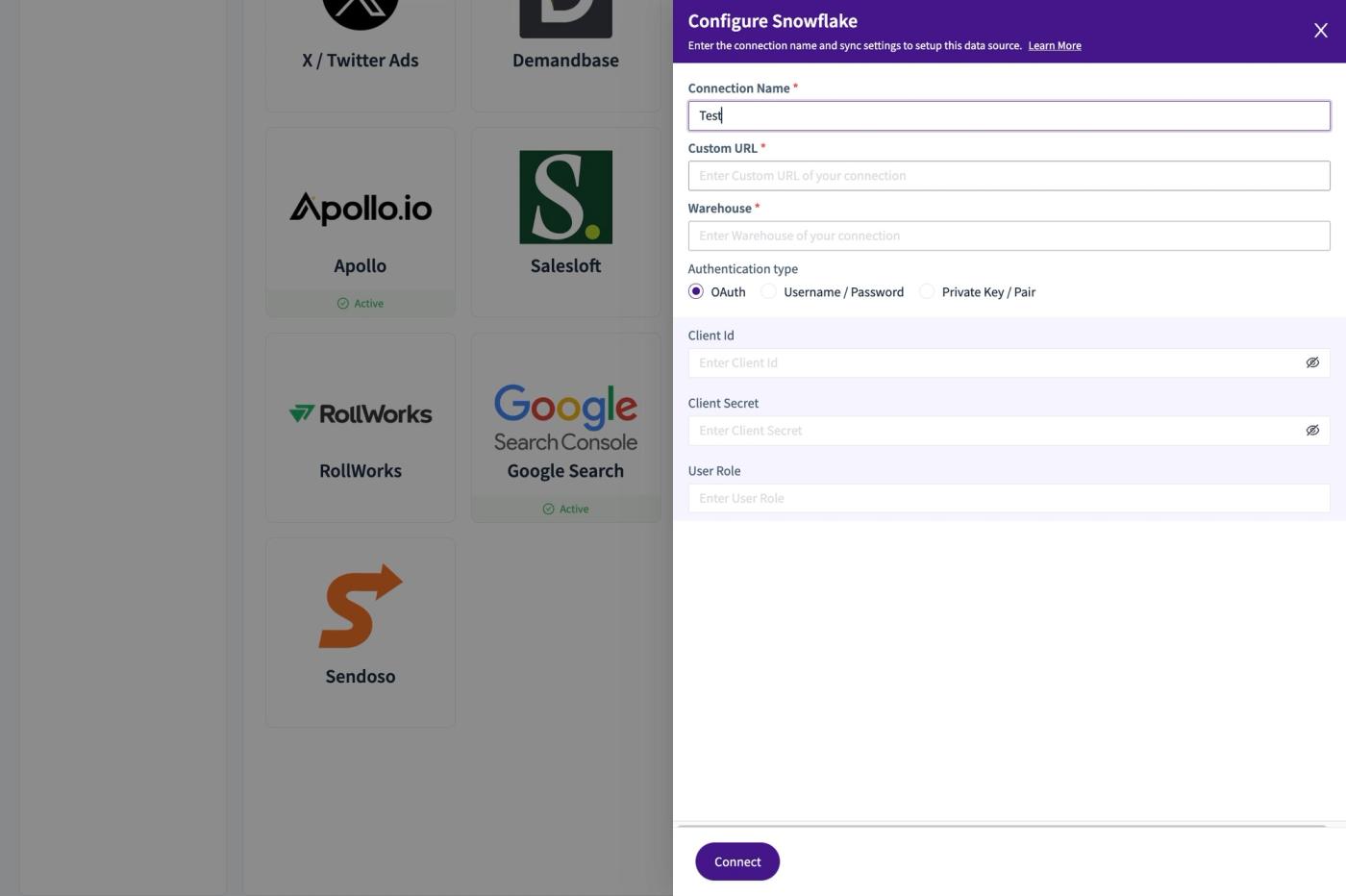
6. Fill the "Custom URL *" field
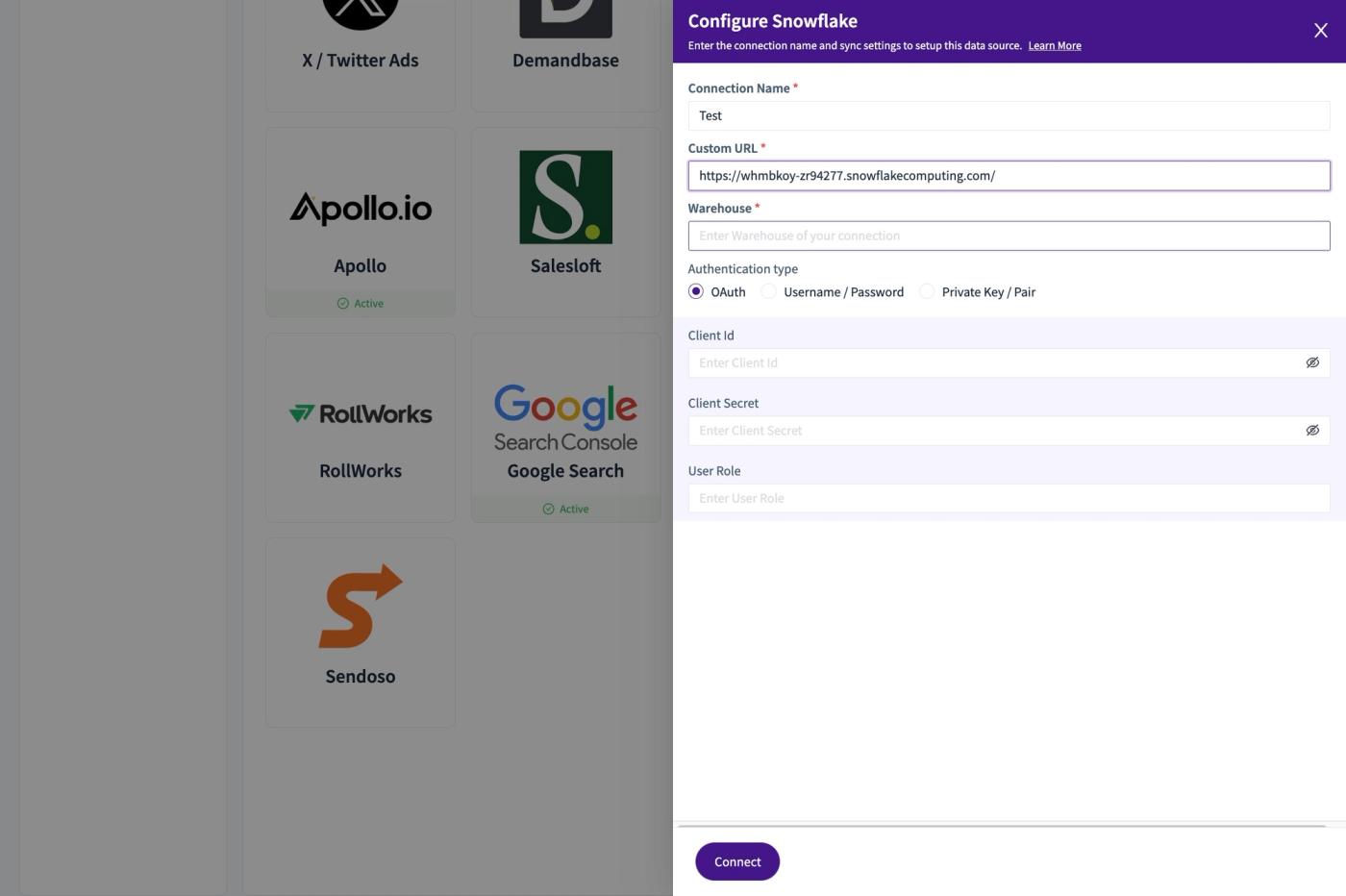
7. Fill the "Warehouse *" field
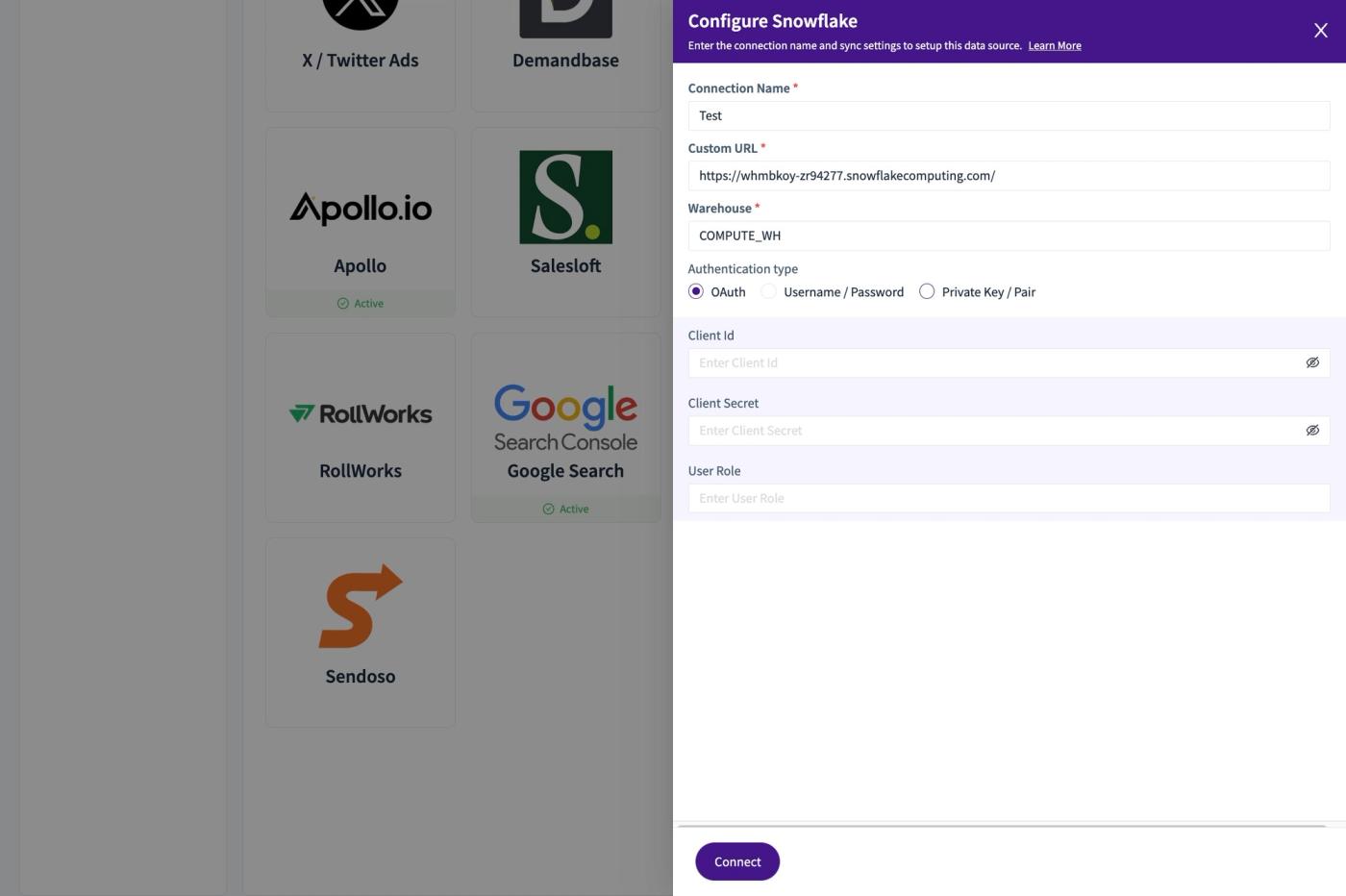
8. Choose the "Private Key / Pair" field
9. Give the "User Name"
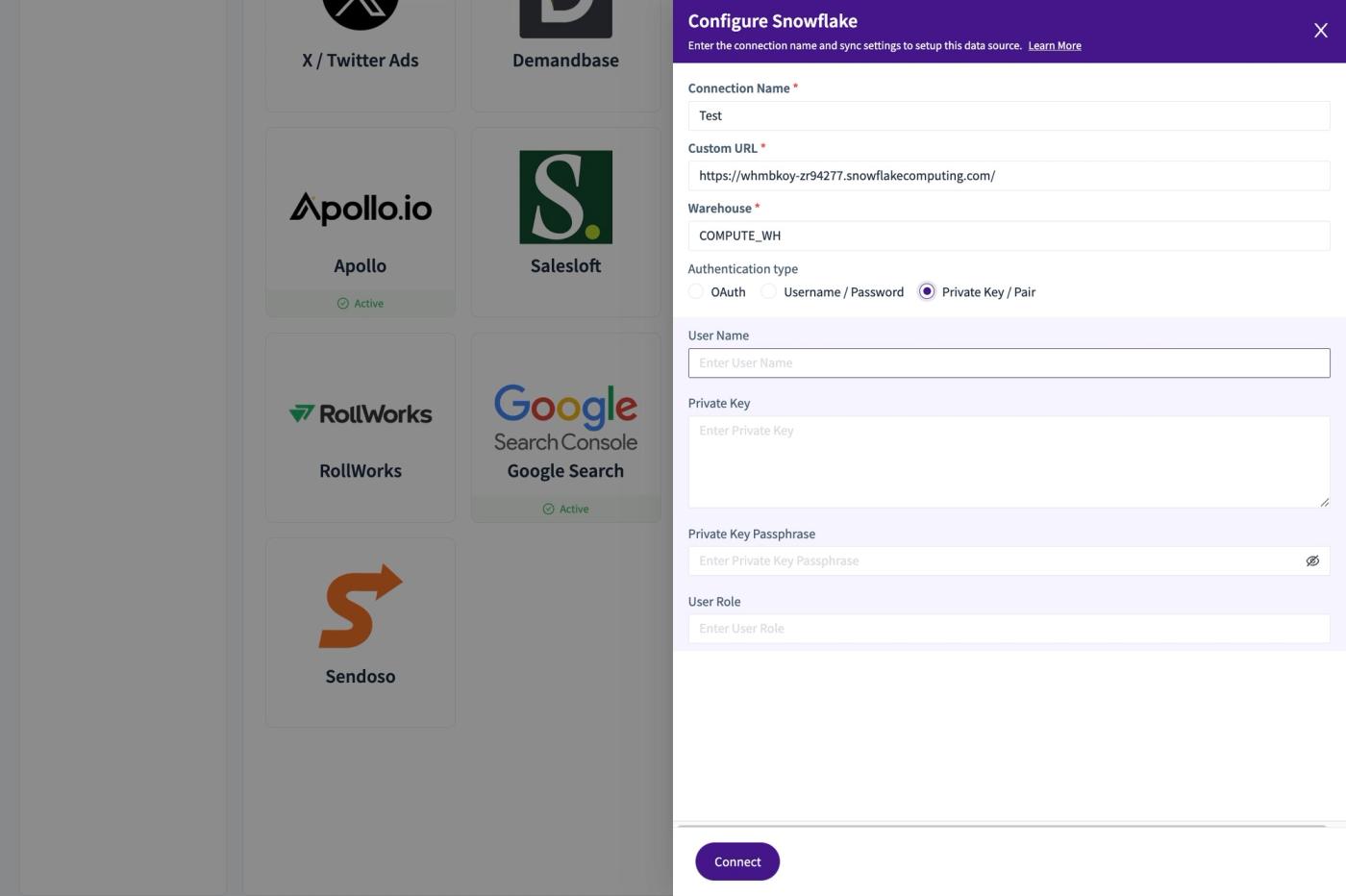
10. From the .p8 file for Private Key of RSA, Copy paste to the "Private Key" field
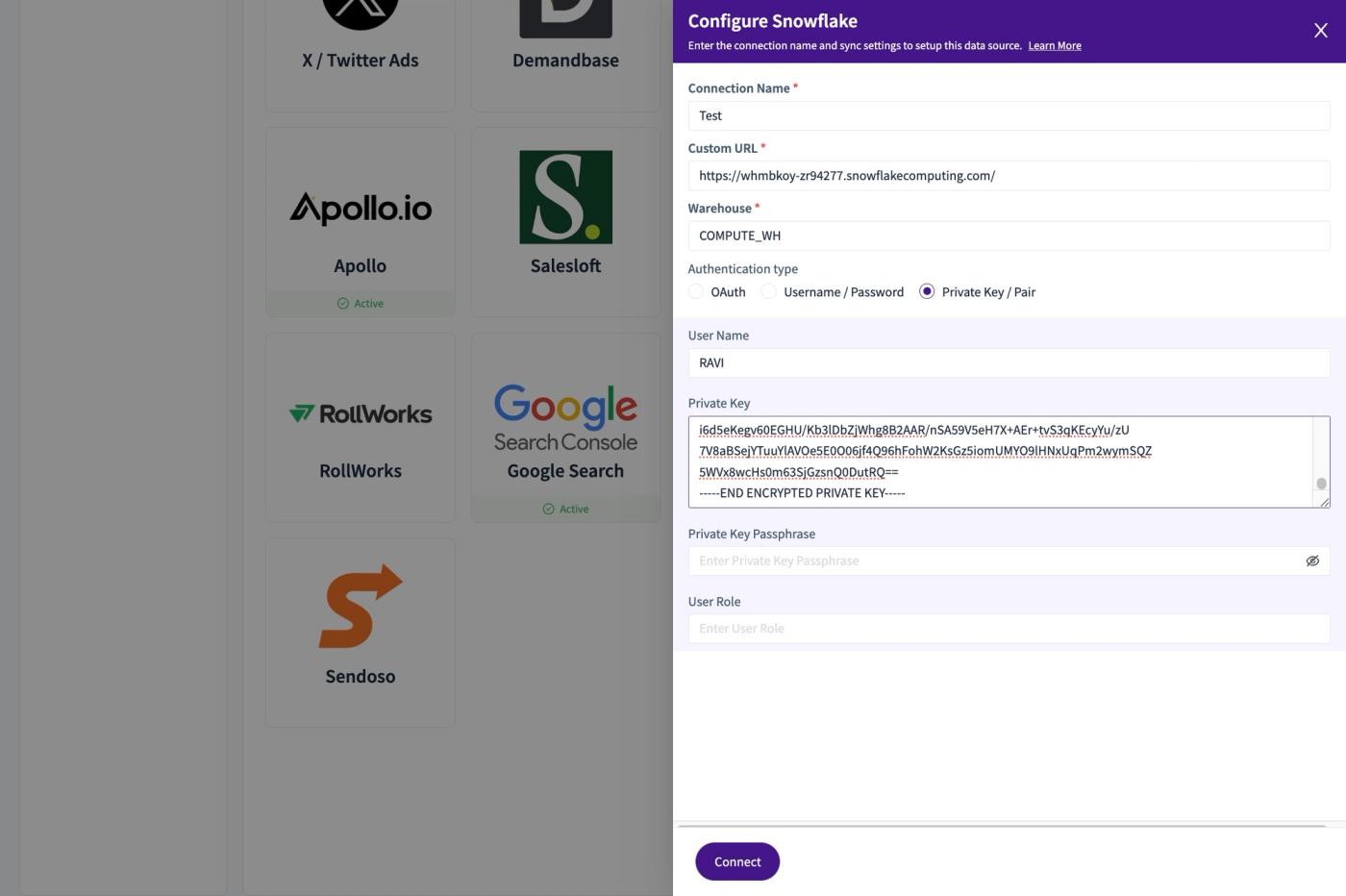
11. Set the "Private Key Passphrase" field
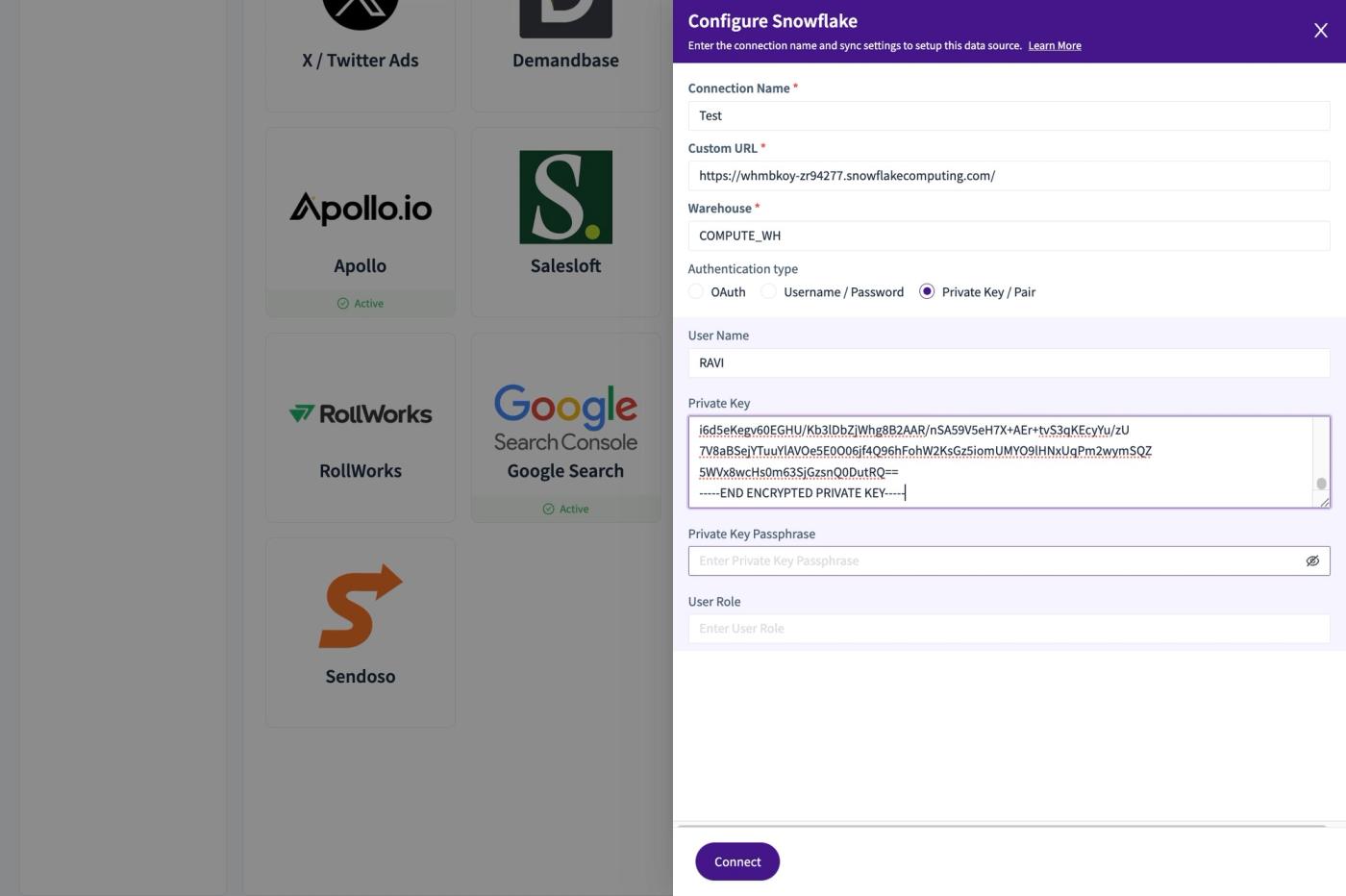
12. Set the "User Role" field
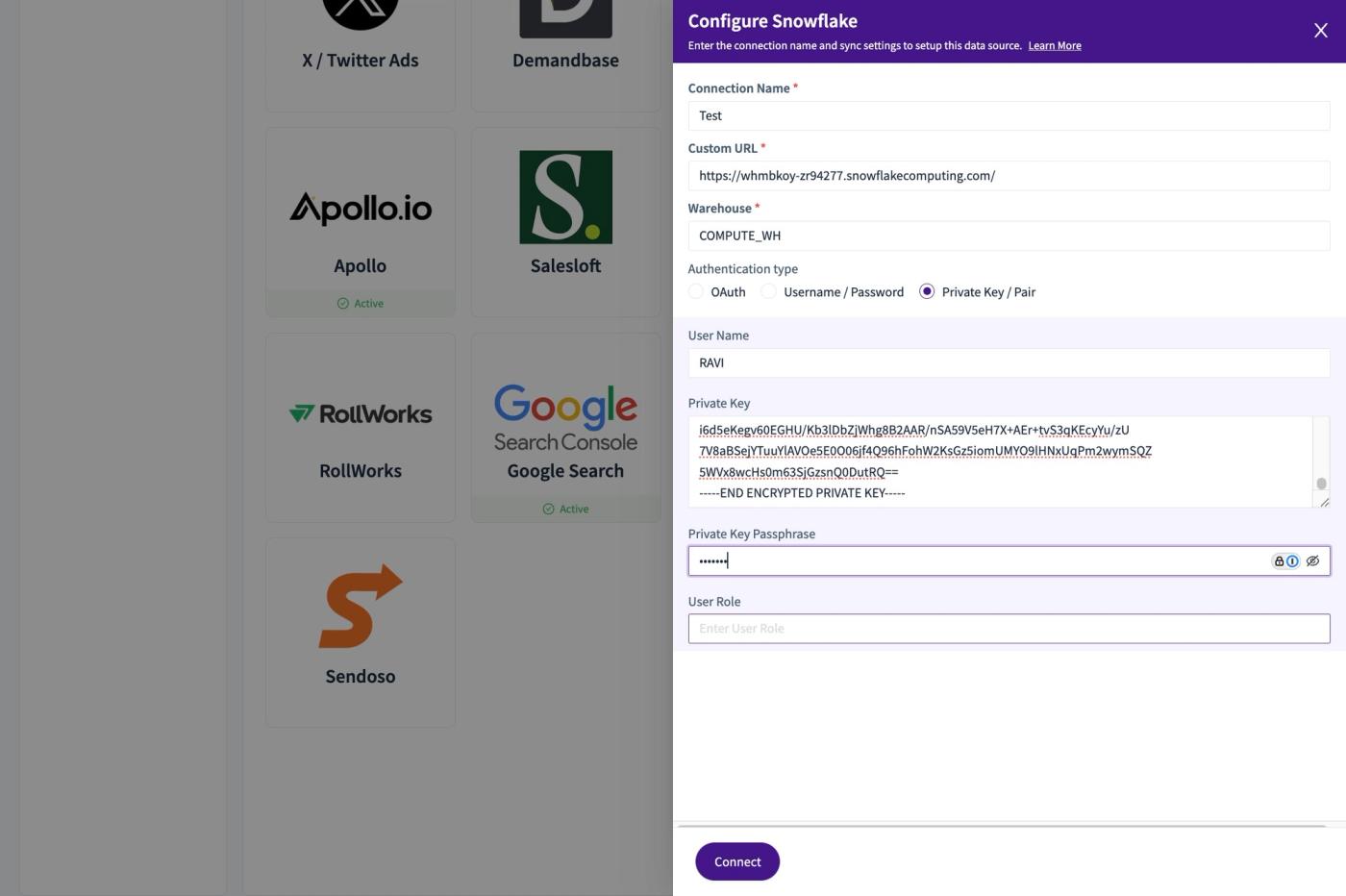
13. Click "Connect"
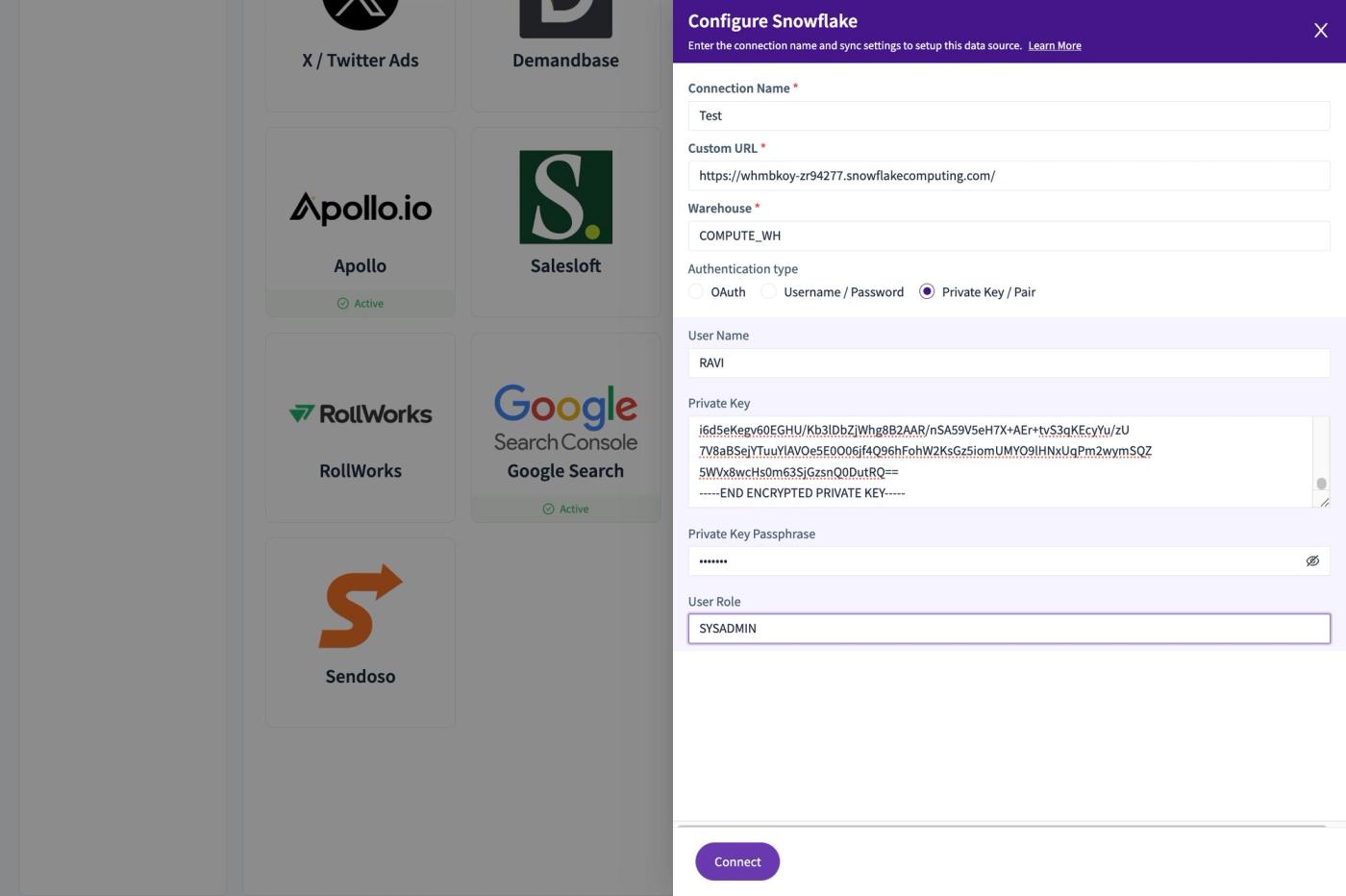
The connection is created!
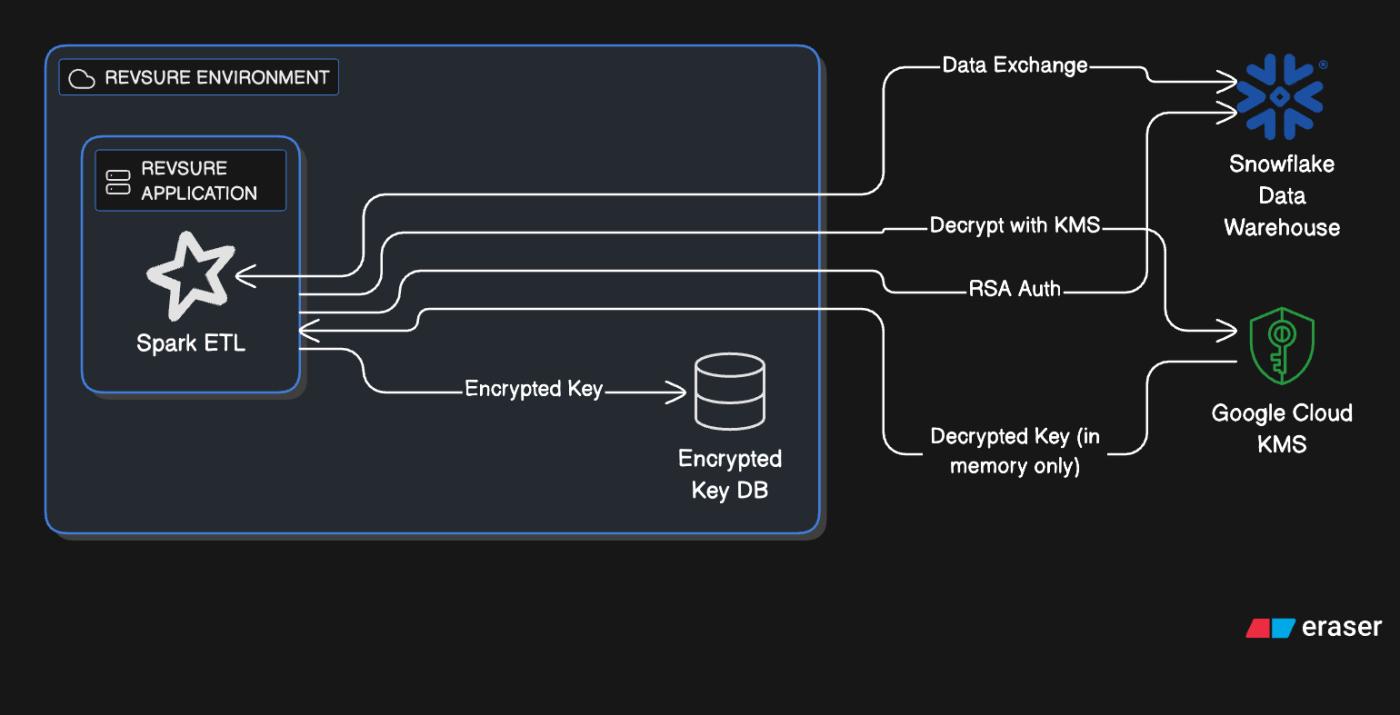
The Keys and Tokens Used for Authentication are stored with Revsure in a Secure Manner utilizing Google's Key Management System
- All keys and tokens are encrypted with Google Cloud KMS before being stored, ensuring plaintext values are never persisted.
- Multiple CryptoKeys are maintained for different services and use cases, enabling isolation, fine-grained access control, and independent rotation.
- Only ciphertext is stored in the database, making the data unreadable without authorized access to the correct KMS key.
- Security of Keys, Credentials and Tokens in Revsure
14. Snowflake Source Connection using RSA - Integration Architecture
Data Security Practices
- All Customer Data is encrypted at rest in our GCP environment (using AES256) and in transit (using HTTP over TLS)
- RevSure Data-Hub Service that manages the connection uses Java based Snowflake Driver.
- RevSure ETL workflows connecting to Snowflake are executed as Apache Spark batch jobs. The Spark connector relies on the Snowflake JDBC driver to handle the low-level connection details.
- Both Data-Hub and Spark connectors establish a secure, encrypted connection using TLS1.2+. This ensures that all the data transferred between the Spark and Snowflake environments is protected.
- All the RevSure Data-Hub Services and ETL Workflows are residing within a VPC (Virtual Private Cloud) and connected to a VPN (Virtual Private Network), thereby the services are isolated from the public internet.