FAQs/Integrations & tracking/Revsure Snowflake Destination Setup Implementation Guide - UI Flow
Integrations & tracking · RevSure FAQs

Revsure Snowflake Destination Setup Implementation Guide - UI Flow

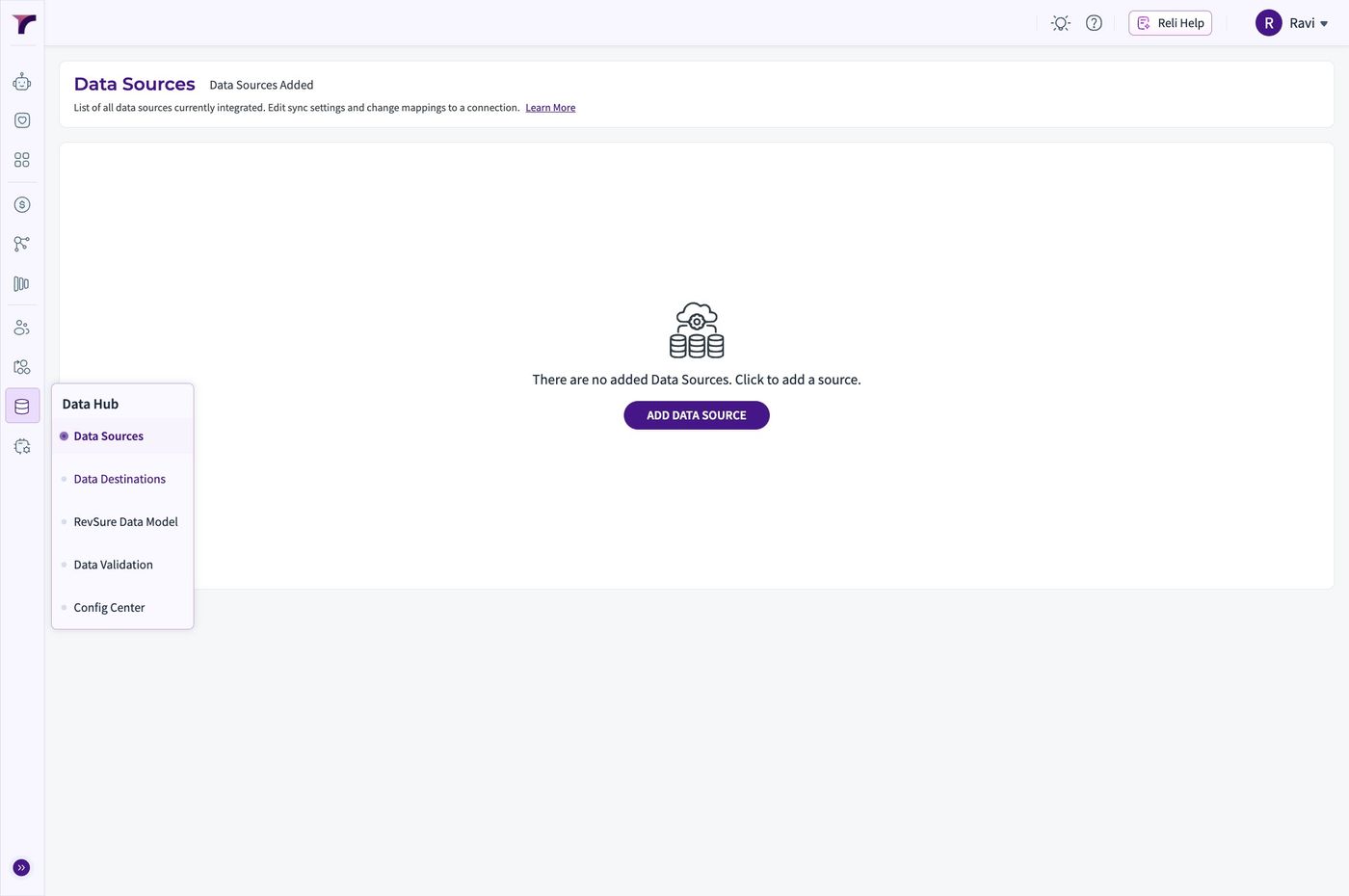
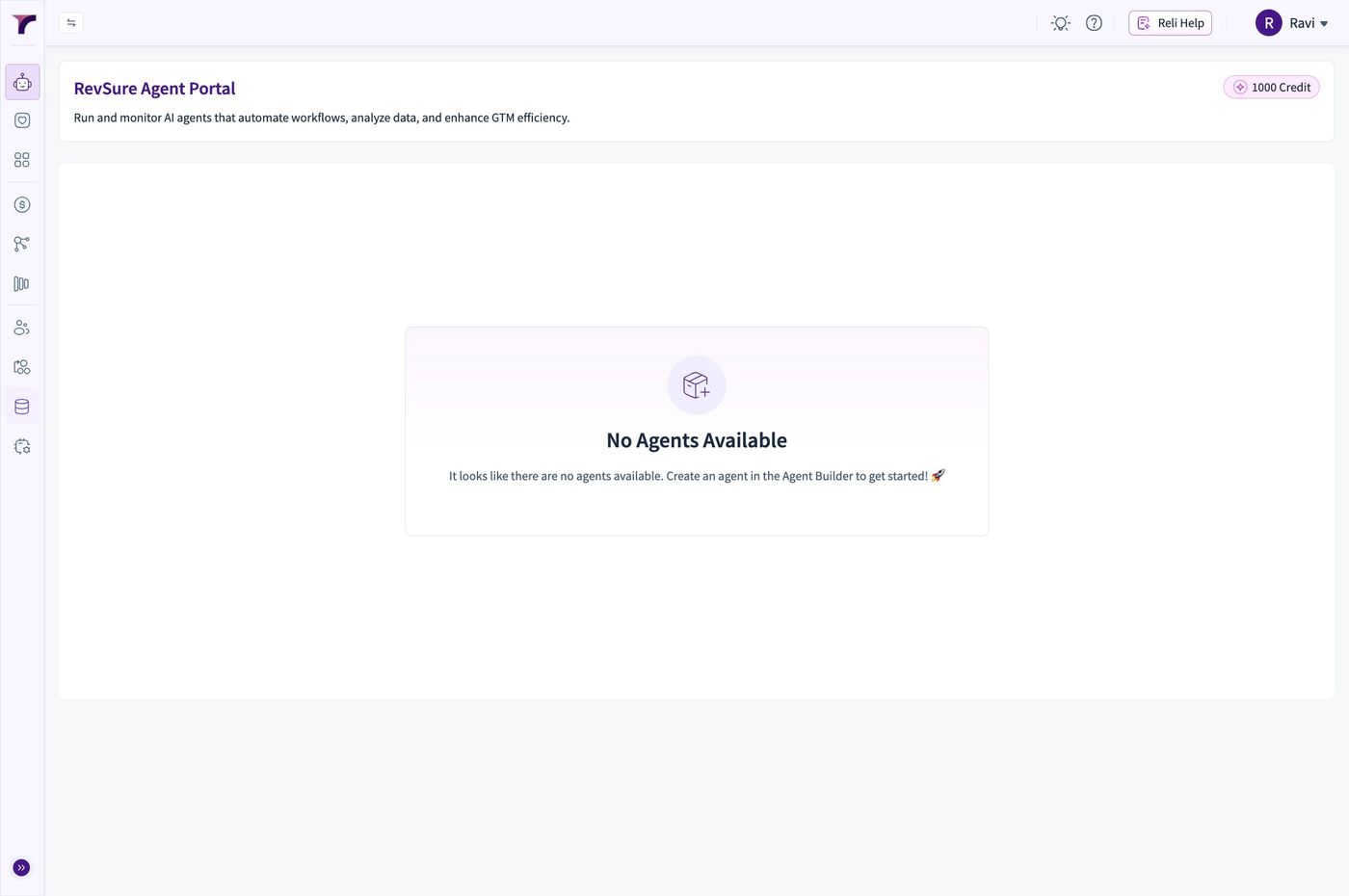
1. Click "Data Hub"

Revsure Snowflake Destination Setup Implementation Guide - UI Flow (figure 1)

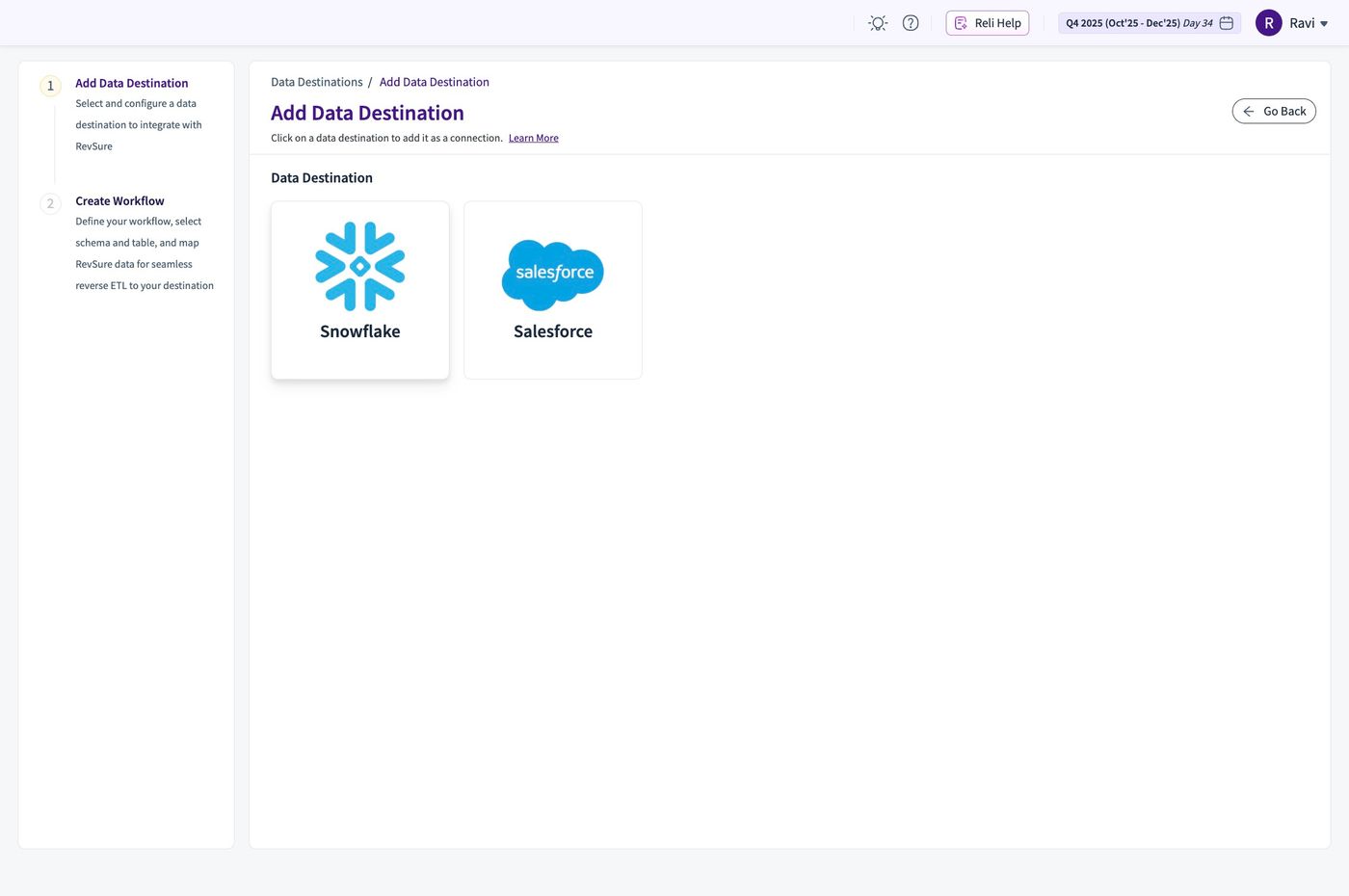
2. Click "Data Destinations"

Revsure Snowflake Destination Setup Implementation Guide - UI Flow (figure 2)

3. Click this image

Revsure Snowflake Destination Setup Implementation Guide - UI Flow (figure 3)

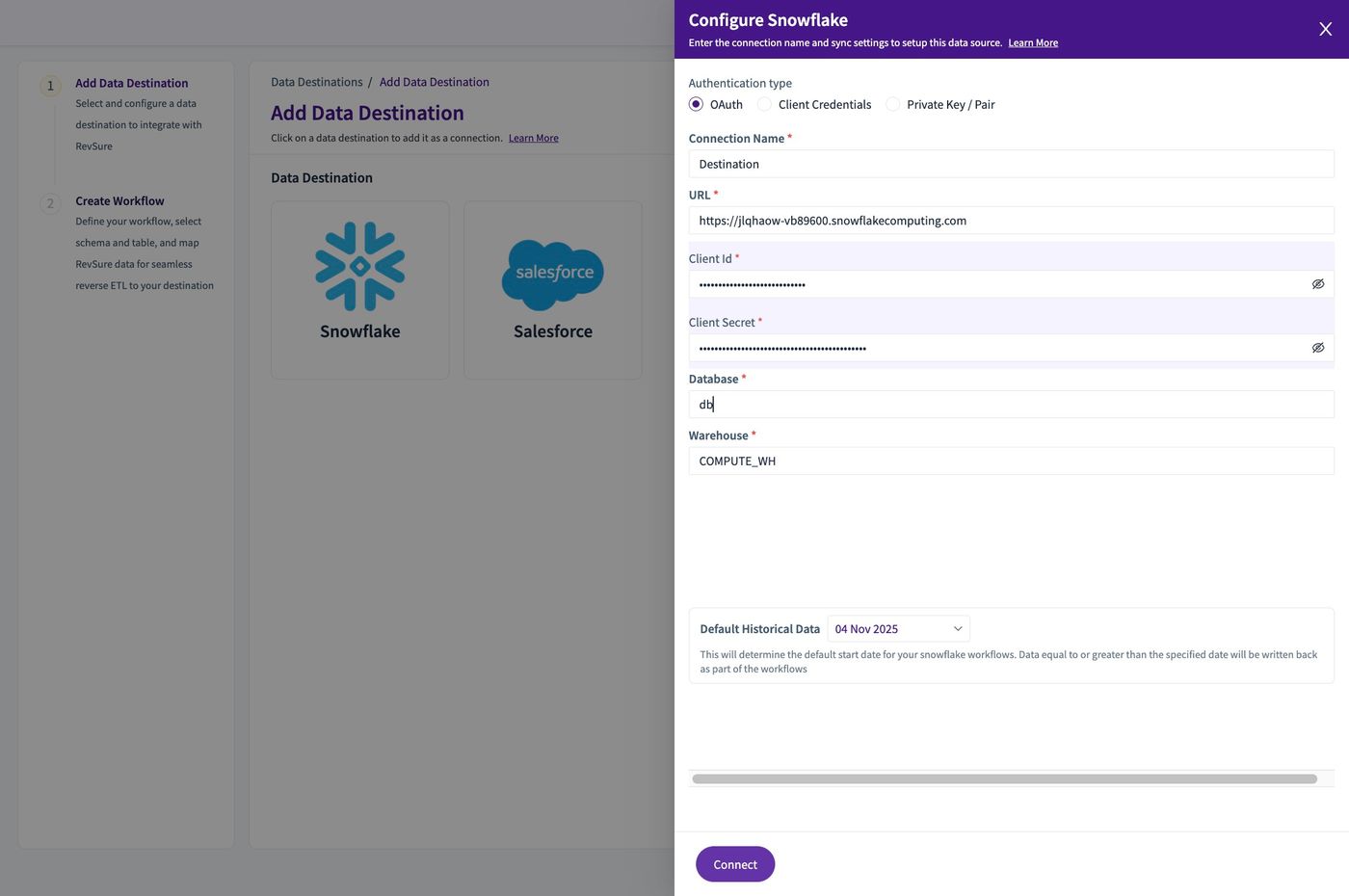
4. Select the Authentication Type and enter details
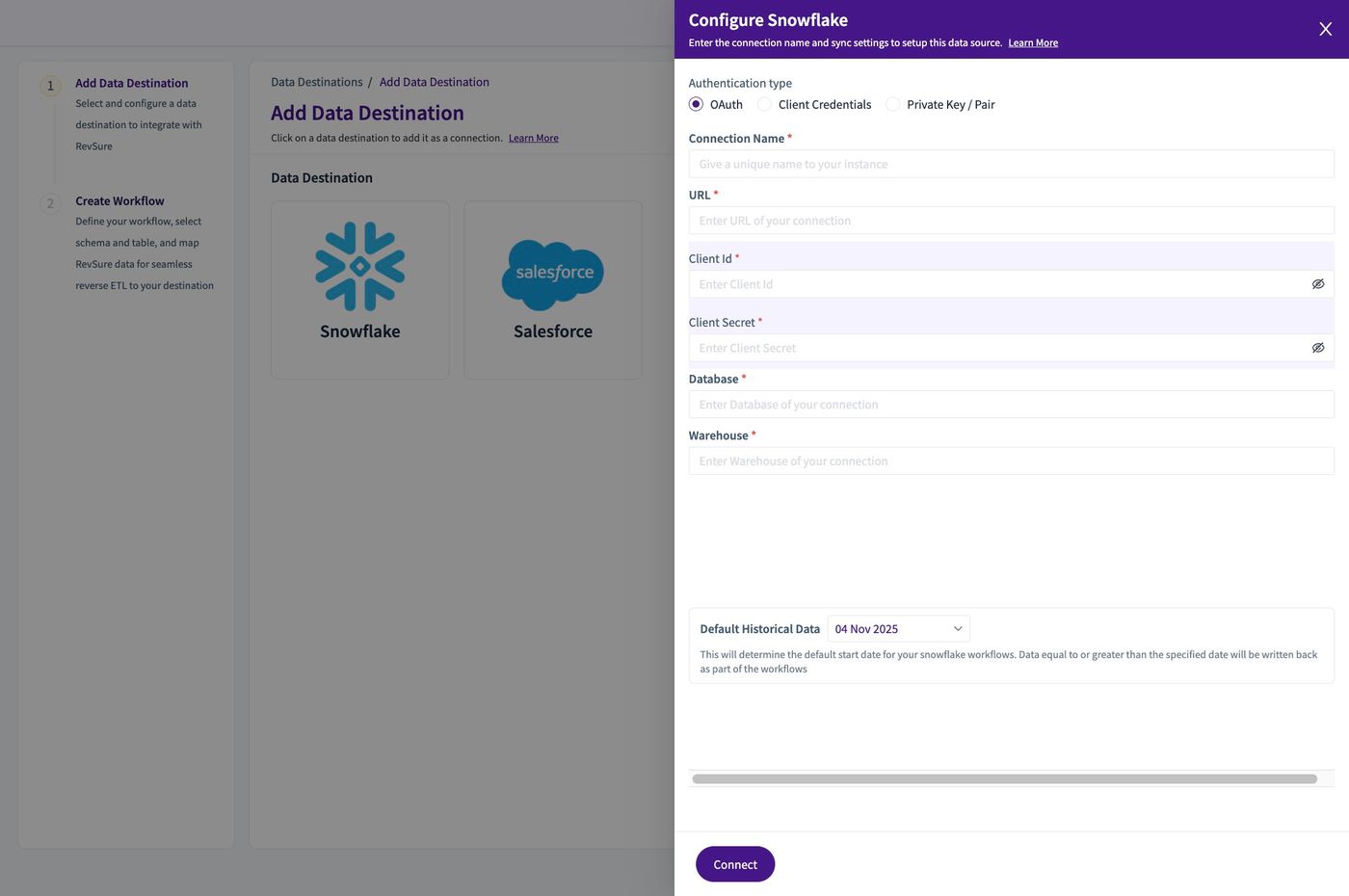
Revsure Snowflake Destination Setup Implementation Guide - UI Flow (figure 4)

5. Click "Connect"

Revsure Snowflake Destination Setup Implementation Guide - UI Flow (figure 5)

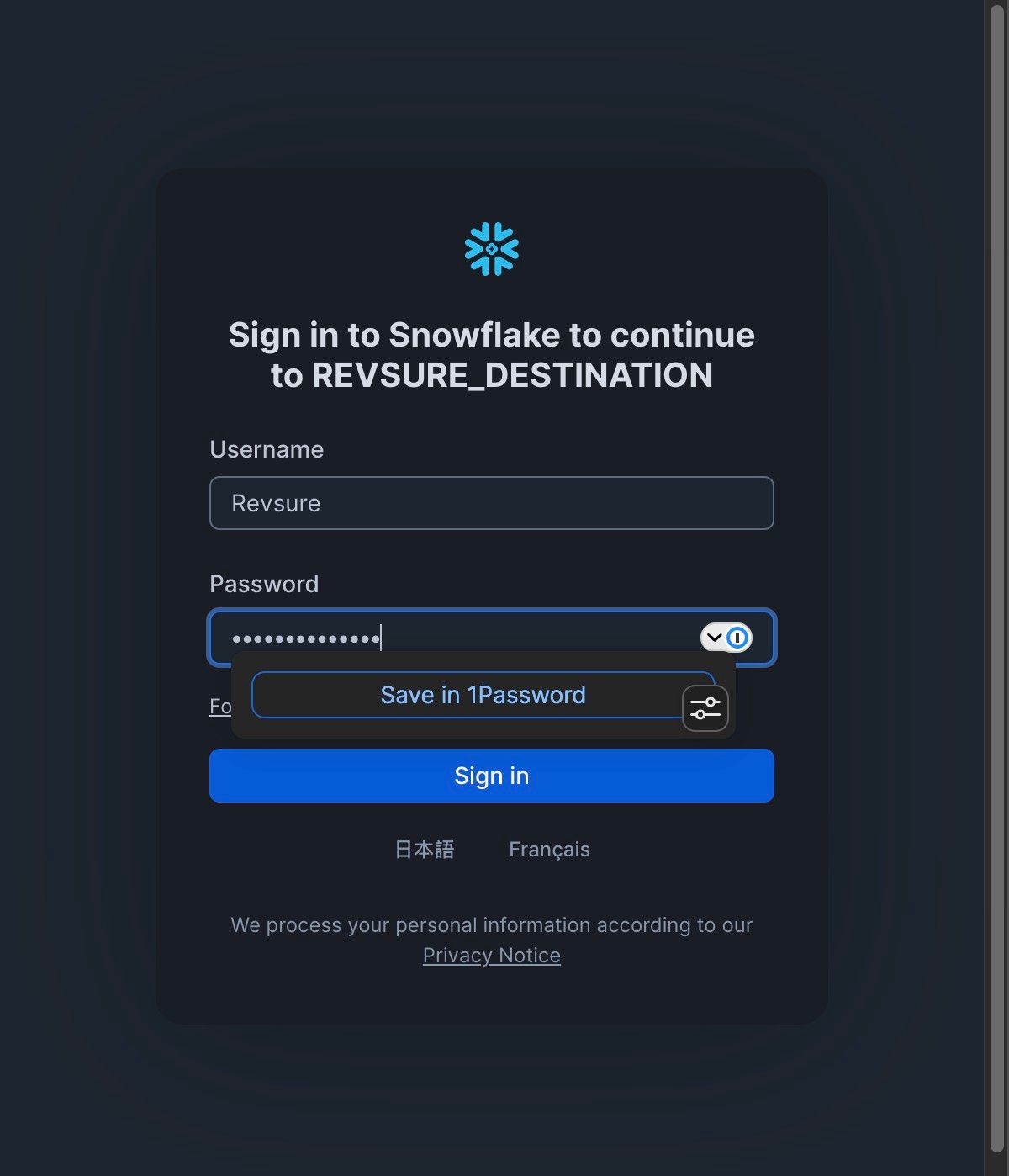
6. A popup window for Authentication with Snowflake would open
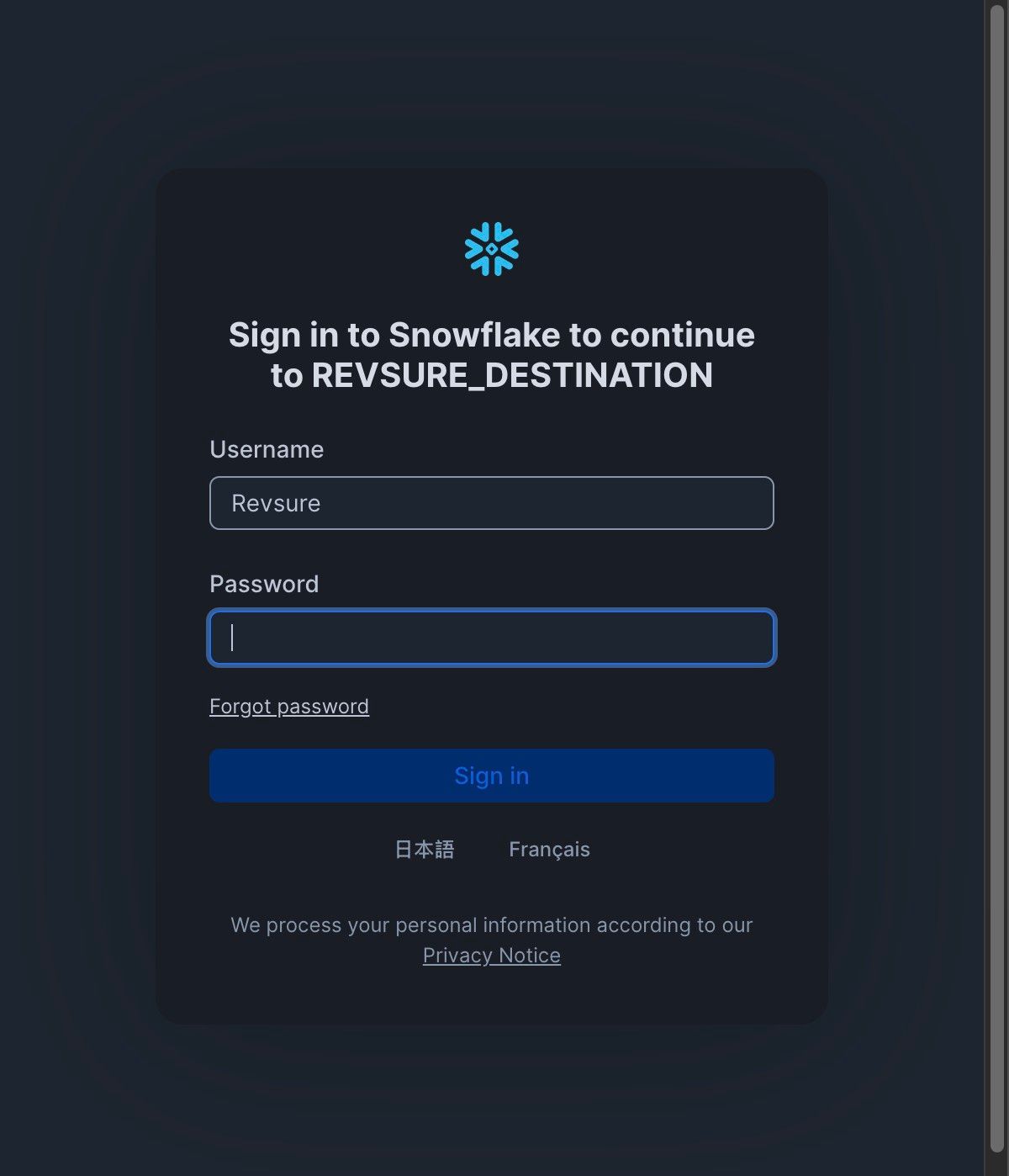
Revsure Snowflake Destination Setup Implementation Guide - UI Flow (figure 6)

7. Click "Sign in"

Revsure Snowflake Destination Setup Implementation Guide - UI Flow (figure 7)

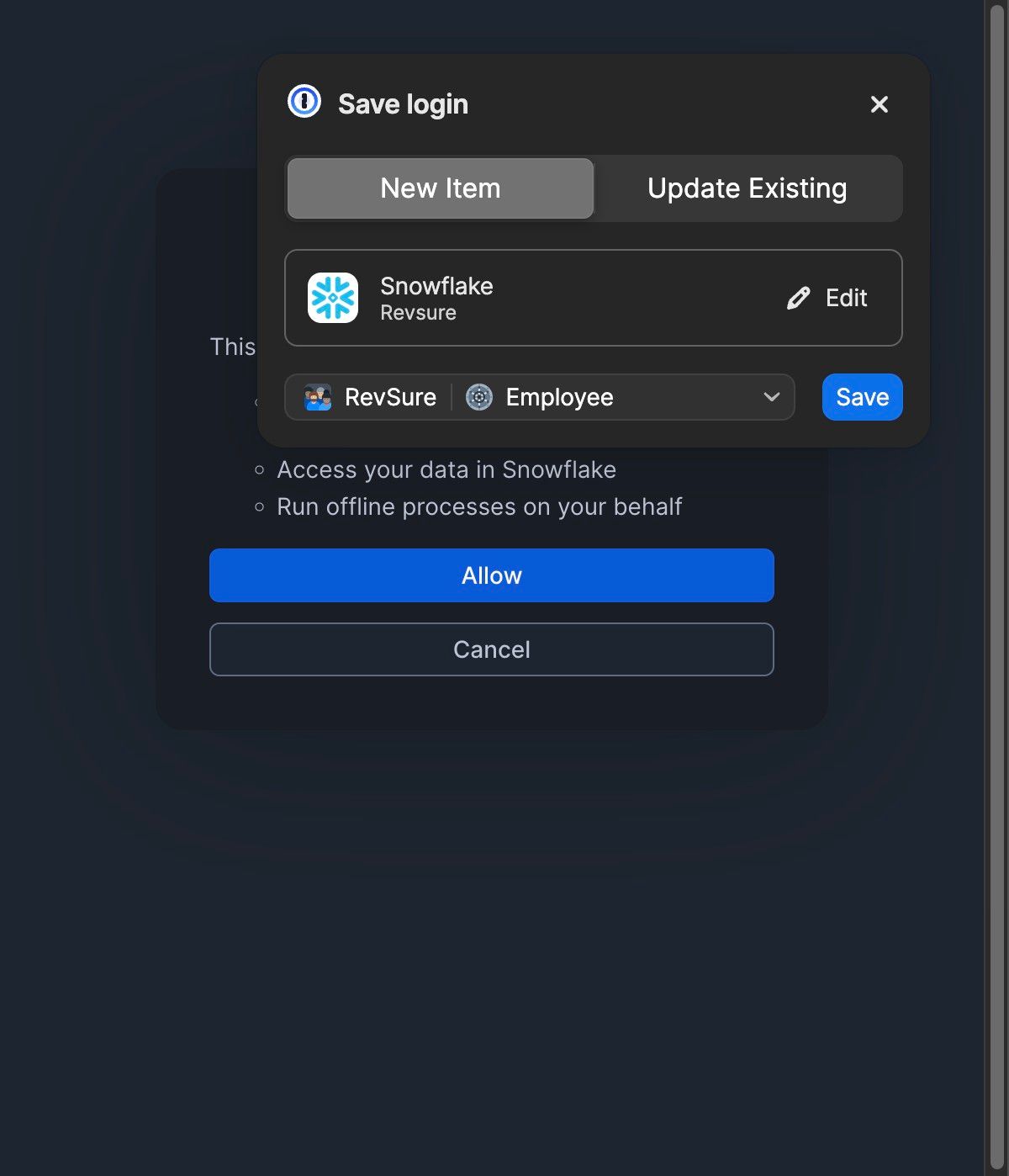
8. Click "Allow"

Revsure Snowflake Destination Setup Implementation Guide - UI Flow (figure 8)

9. Next, move to Workflow Window and Add Workflows with Syncing
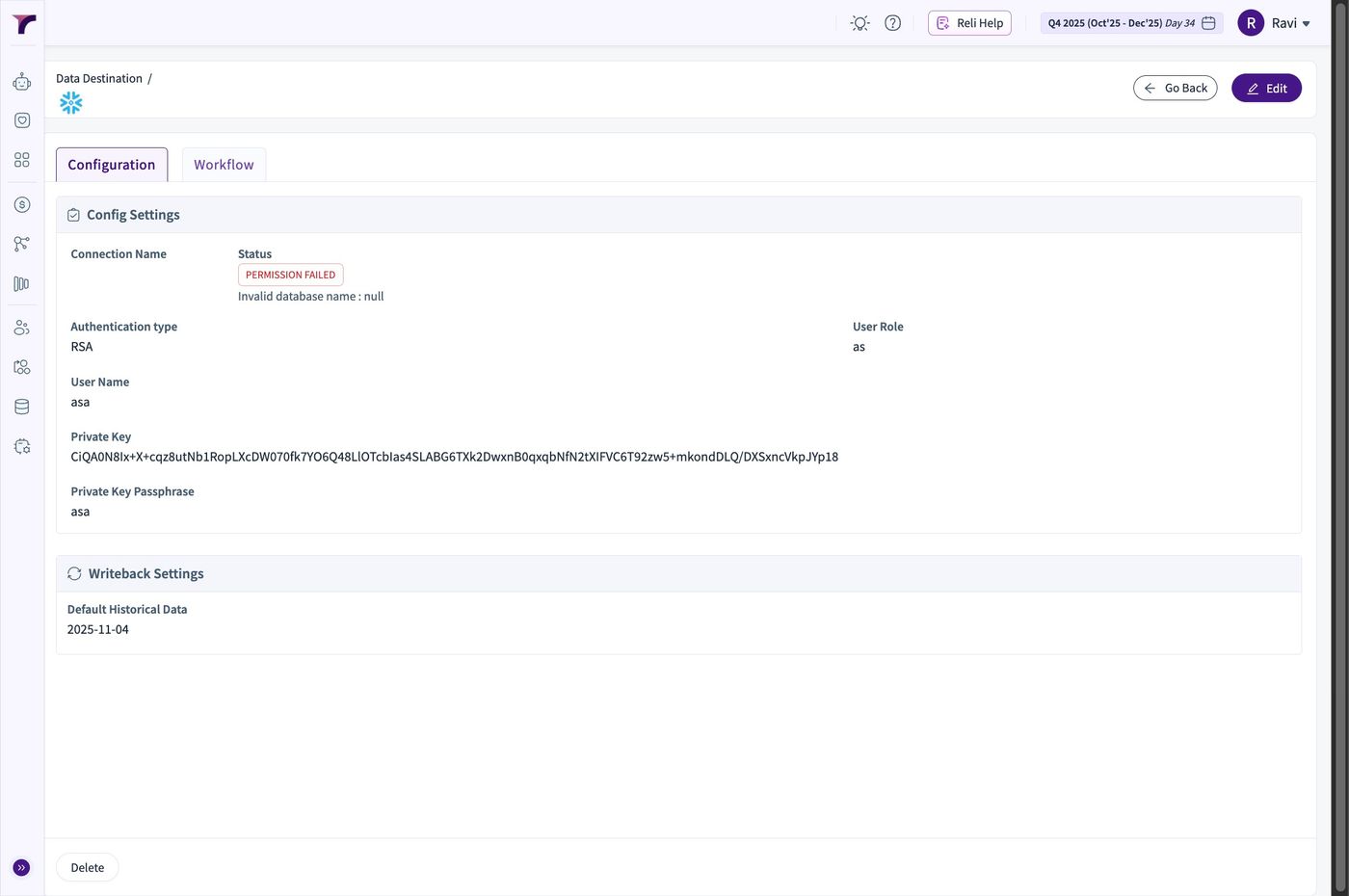
Revsure Snowflake Destination Setup Implementation Guide - UI Flow (figure 9)
Ready when your stack is

Still stuck? Bring it to the session

A RevSure engineer walks your exact setup on a 30-minute working session.