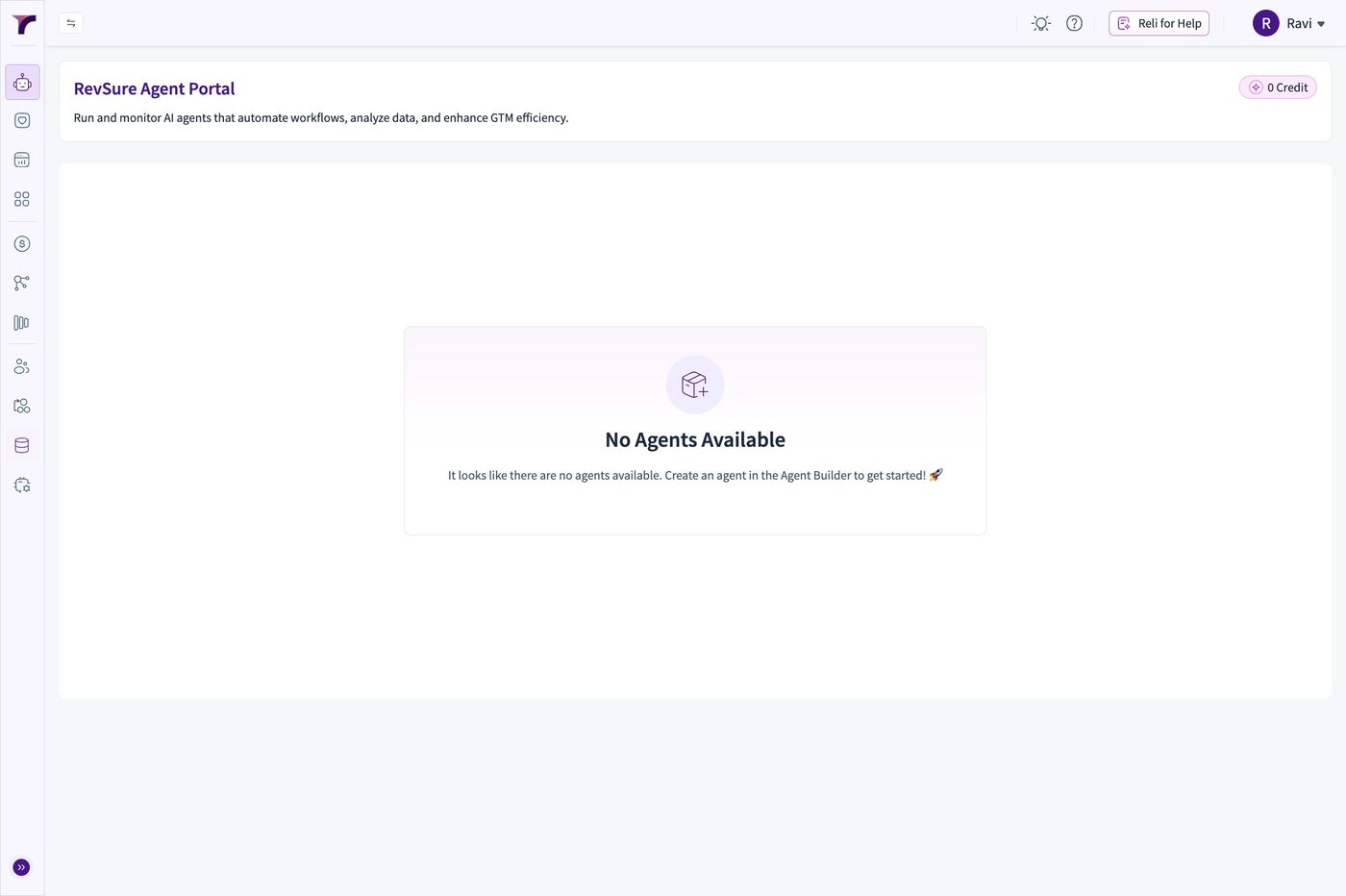
1. Navigate to Revsure App
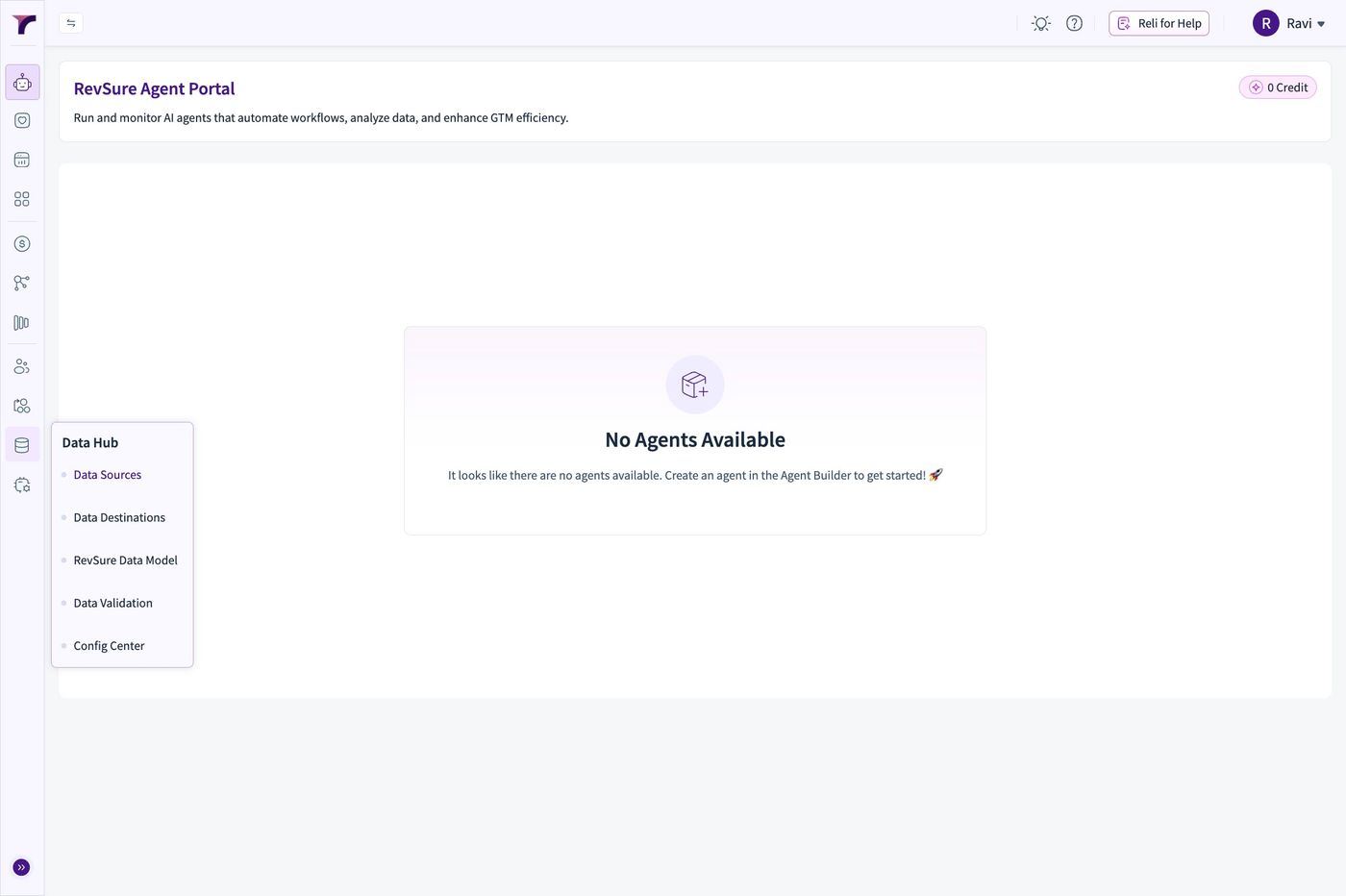
2. Click "Data Hub"
3. Click "Data Sources"
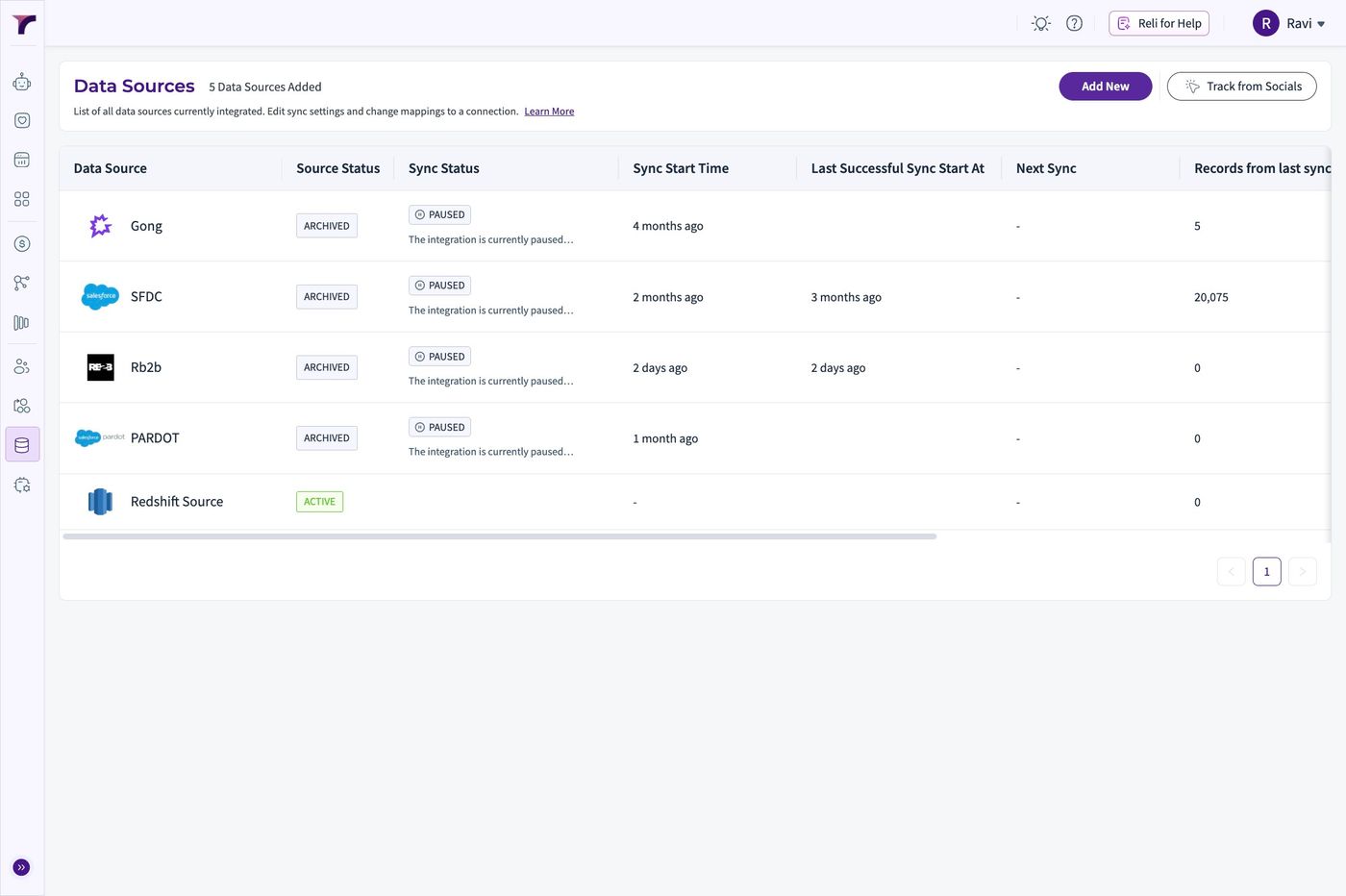
4. Click "Add New"
5. Select Amazon Redshift from the list of sources
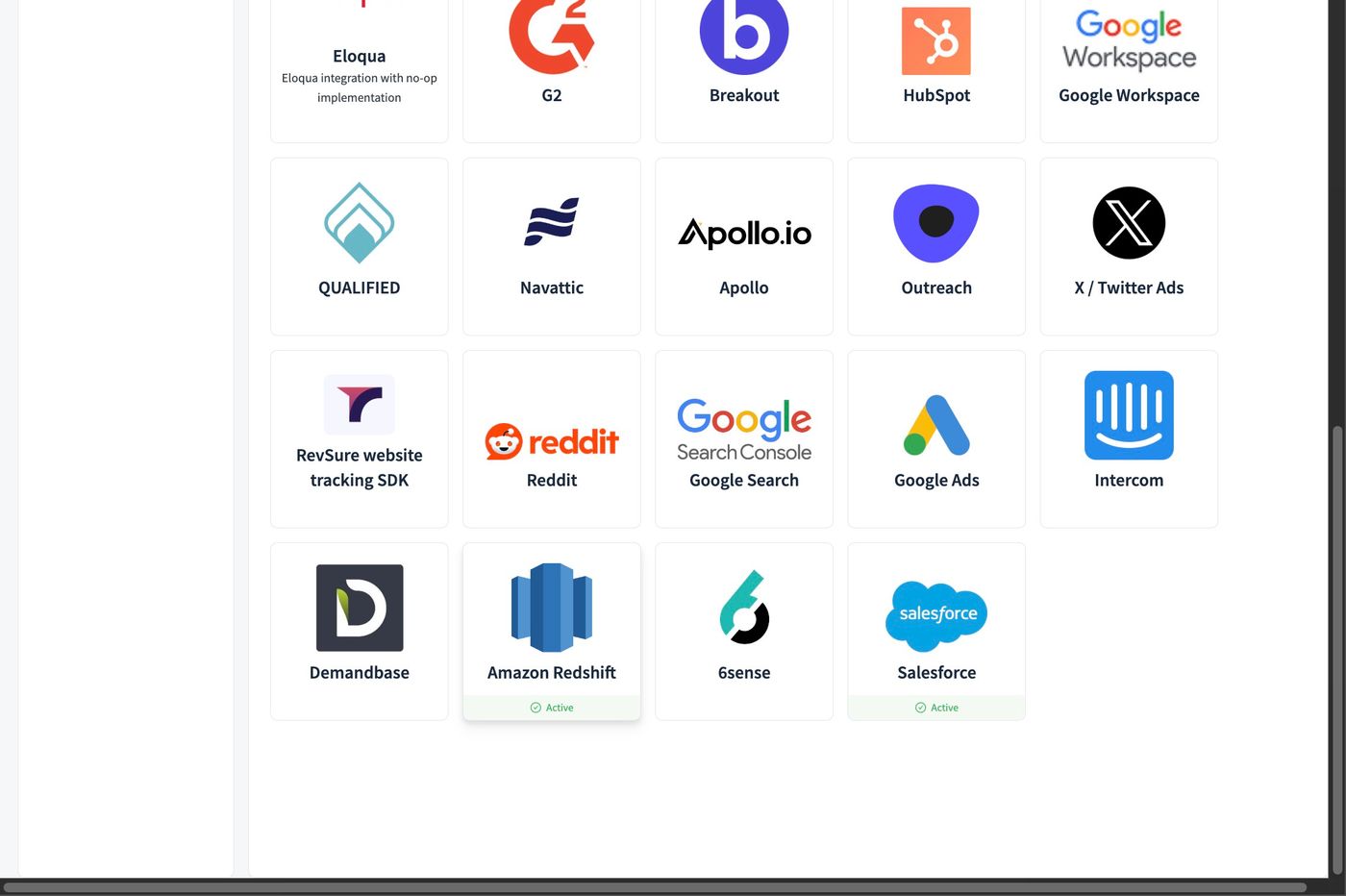
6. Set the "Connection Name *" field.
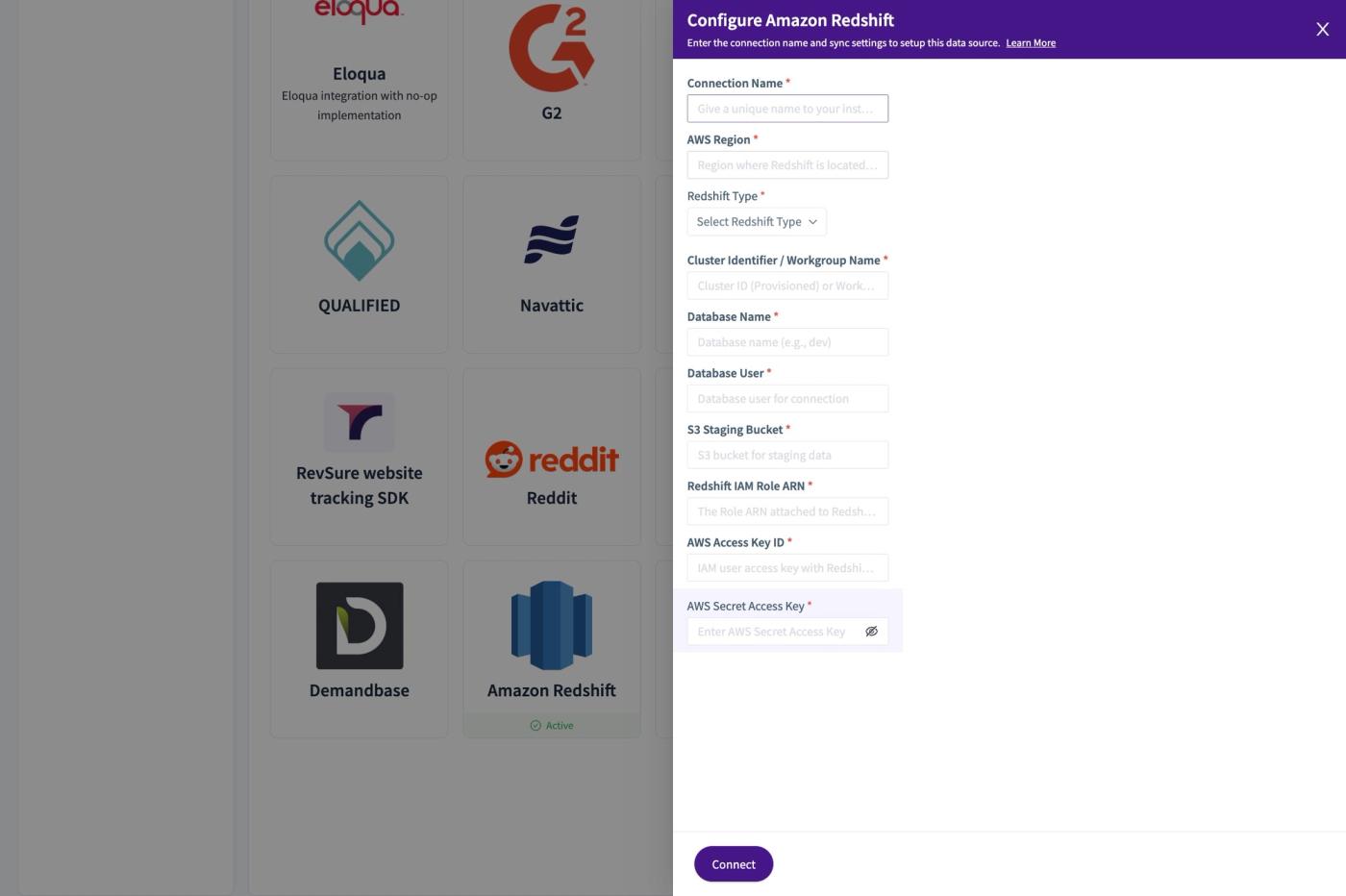
7. Set the AWS Region
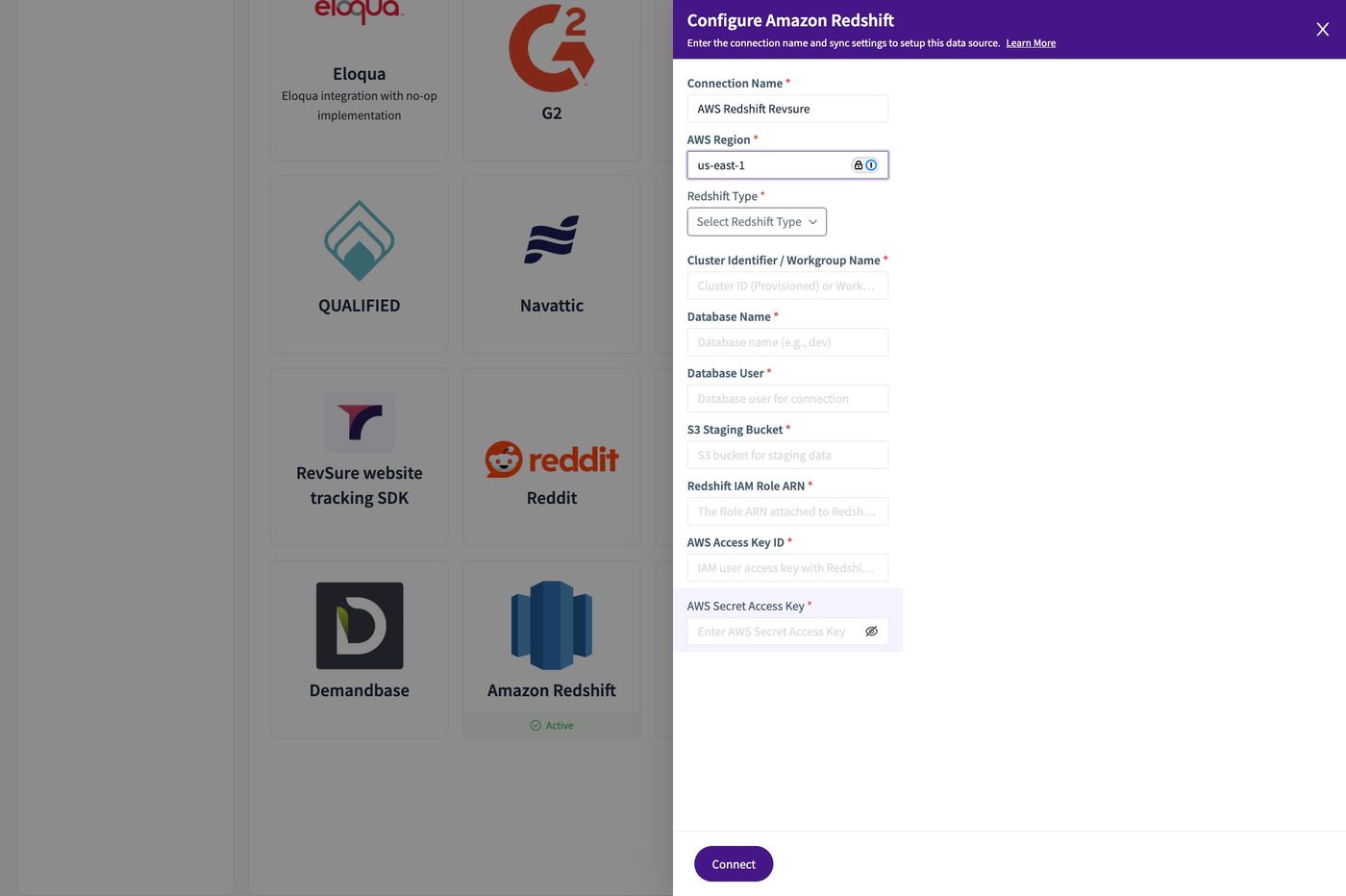
8. Select The Redshift Type
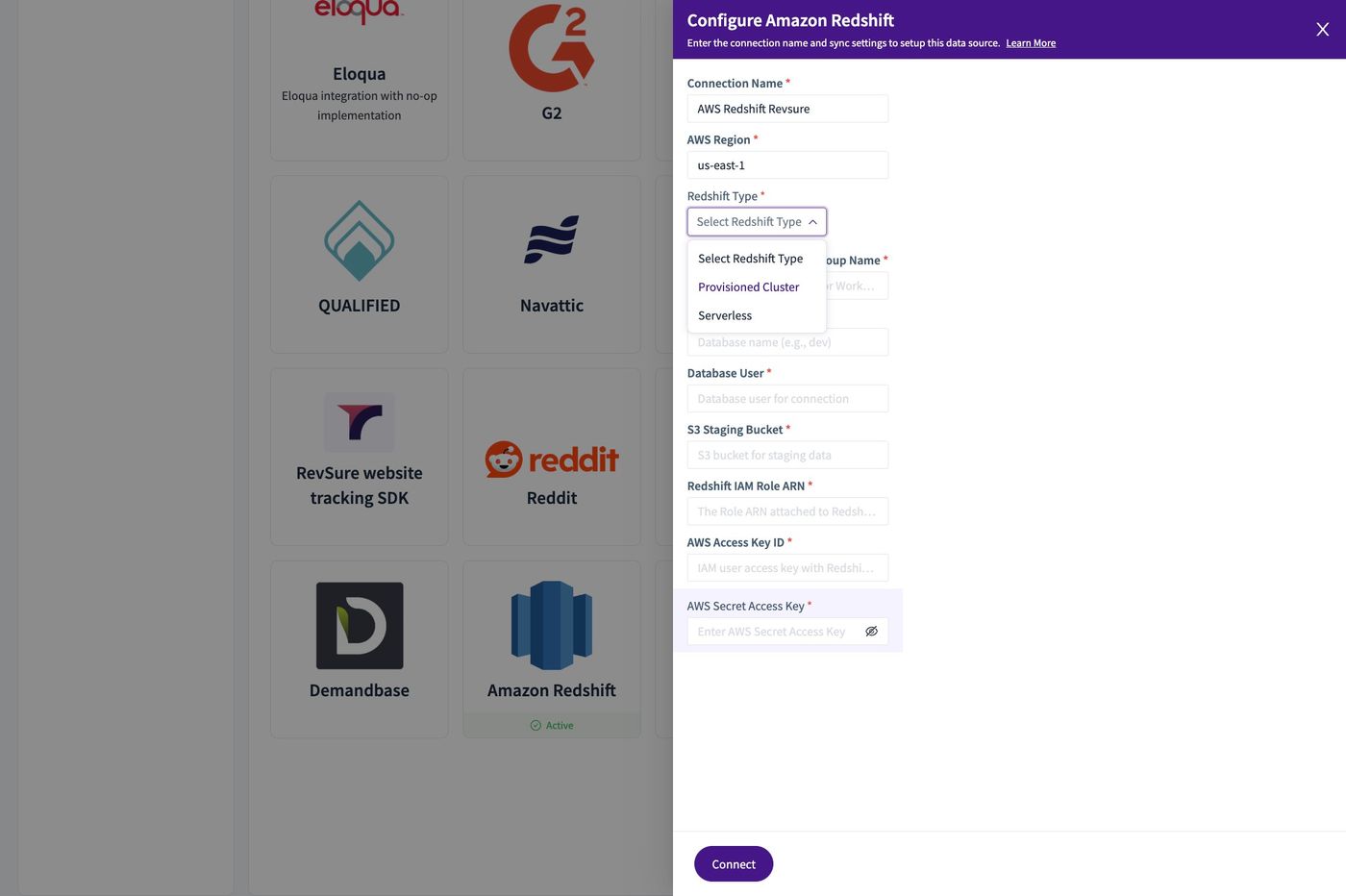
9. Set the "Cluster Identifier"
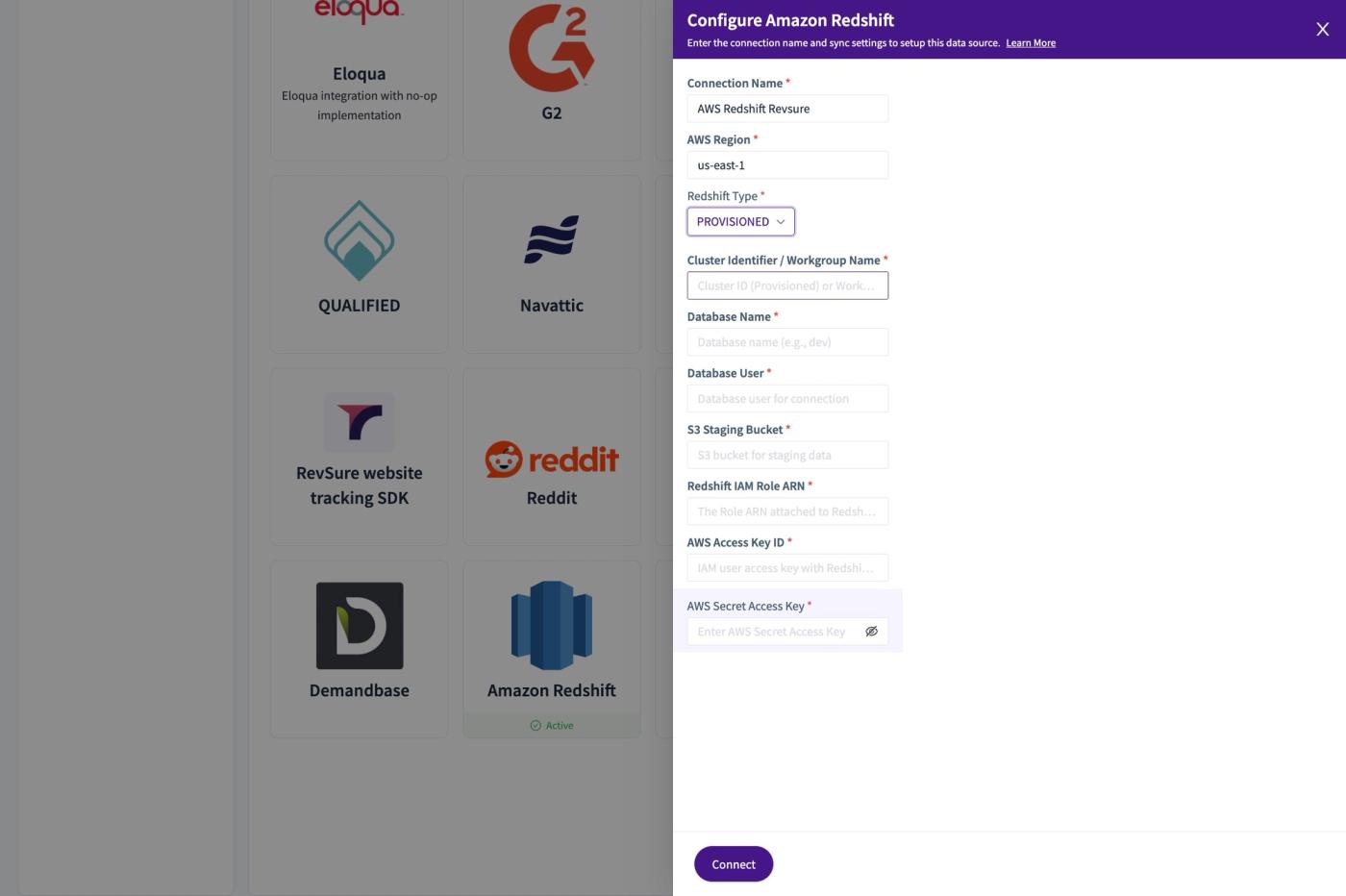
10. Set the "Database Name *" field.
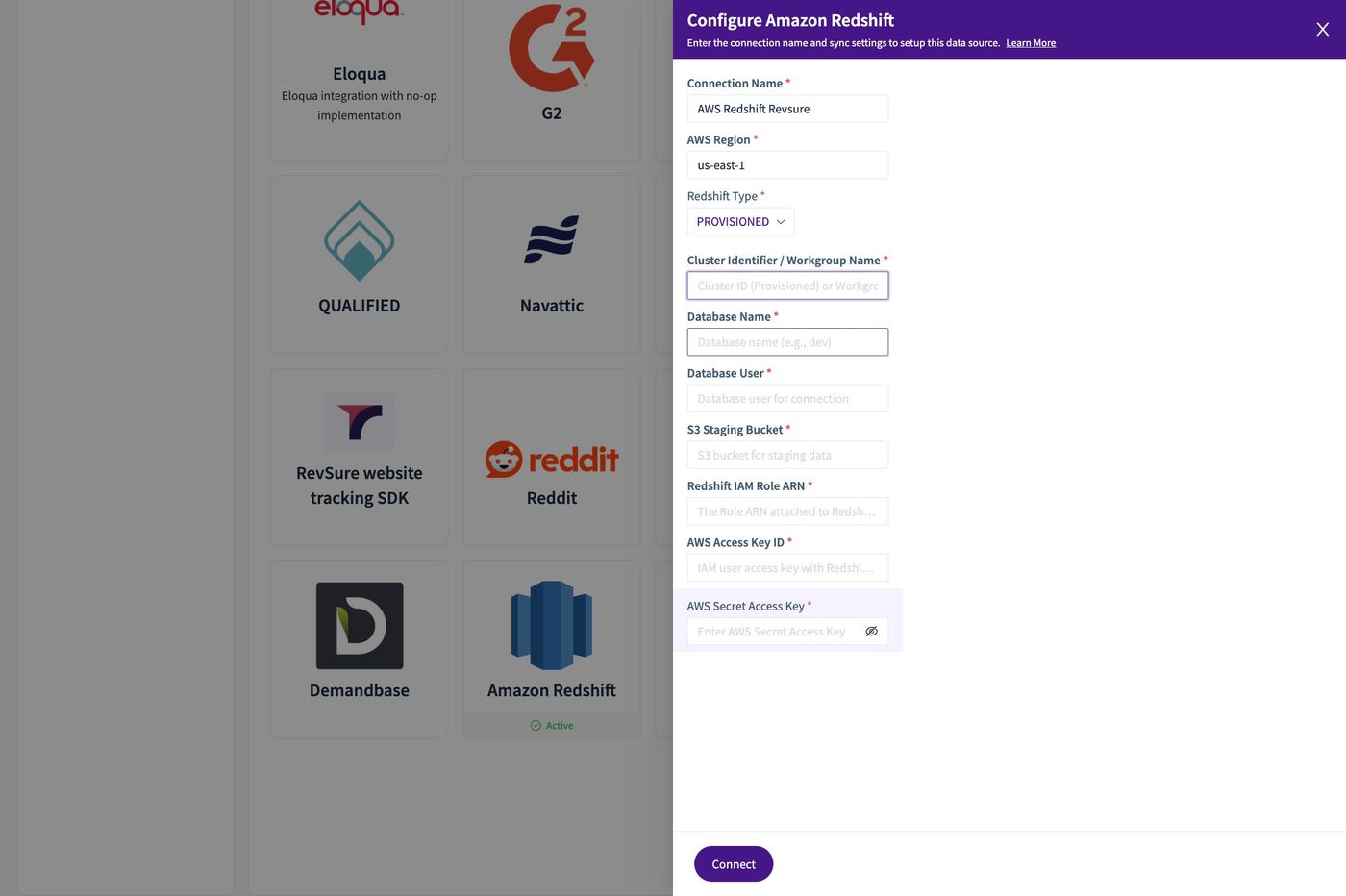
11. Set the "Database User *" field.
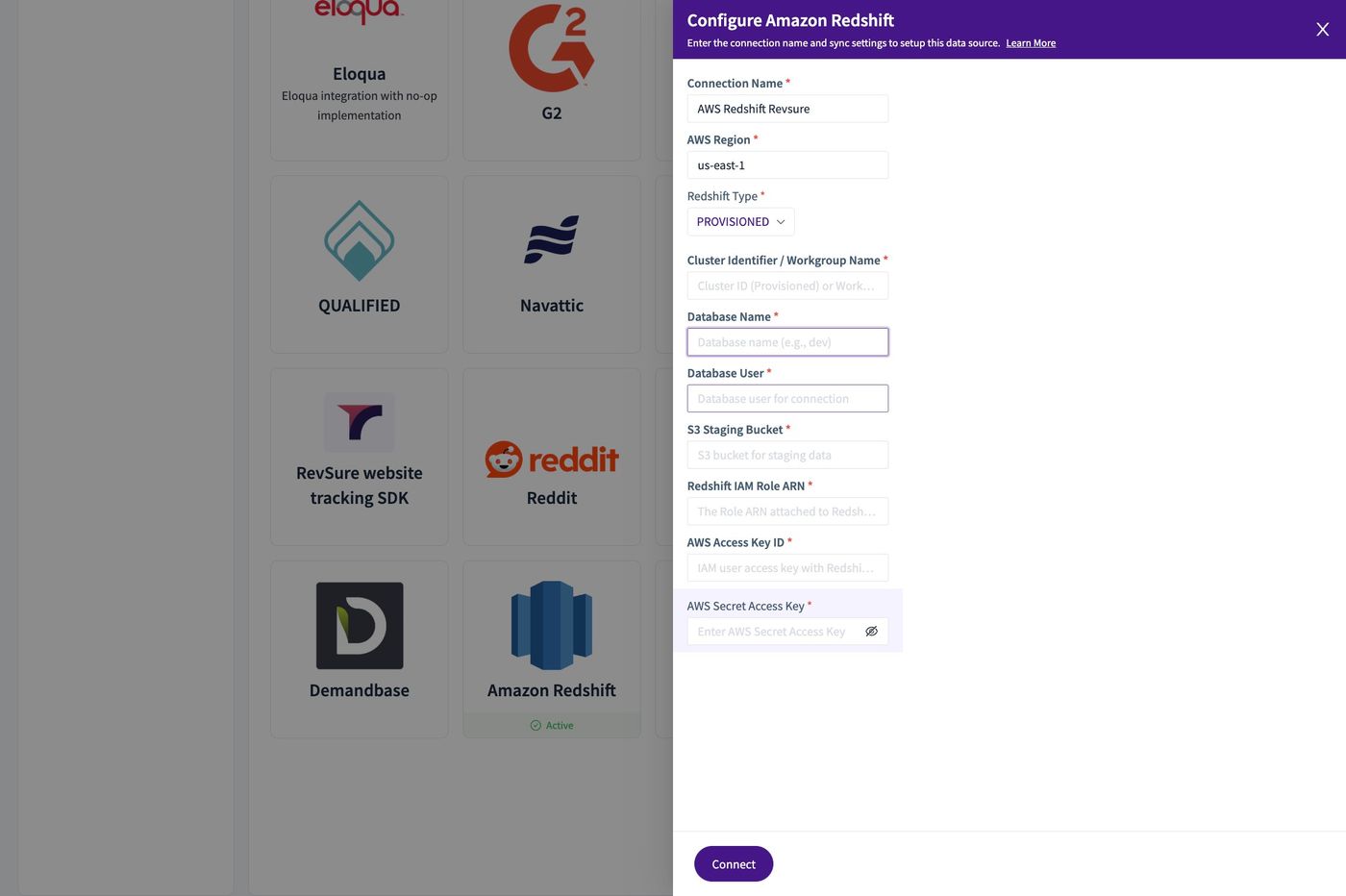
12. Set the "S3 Staging Bucket *" field.
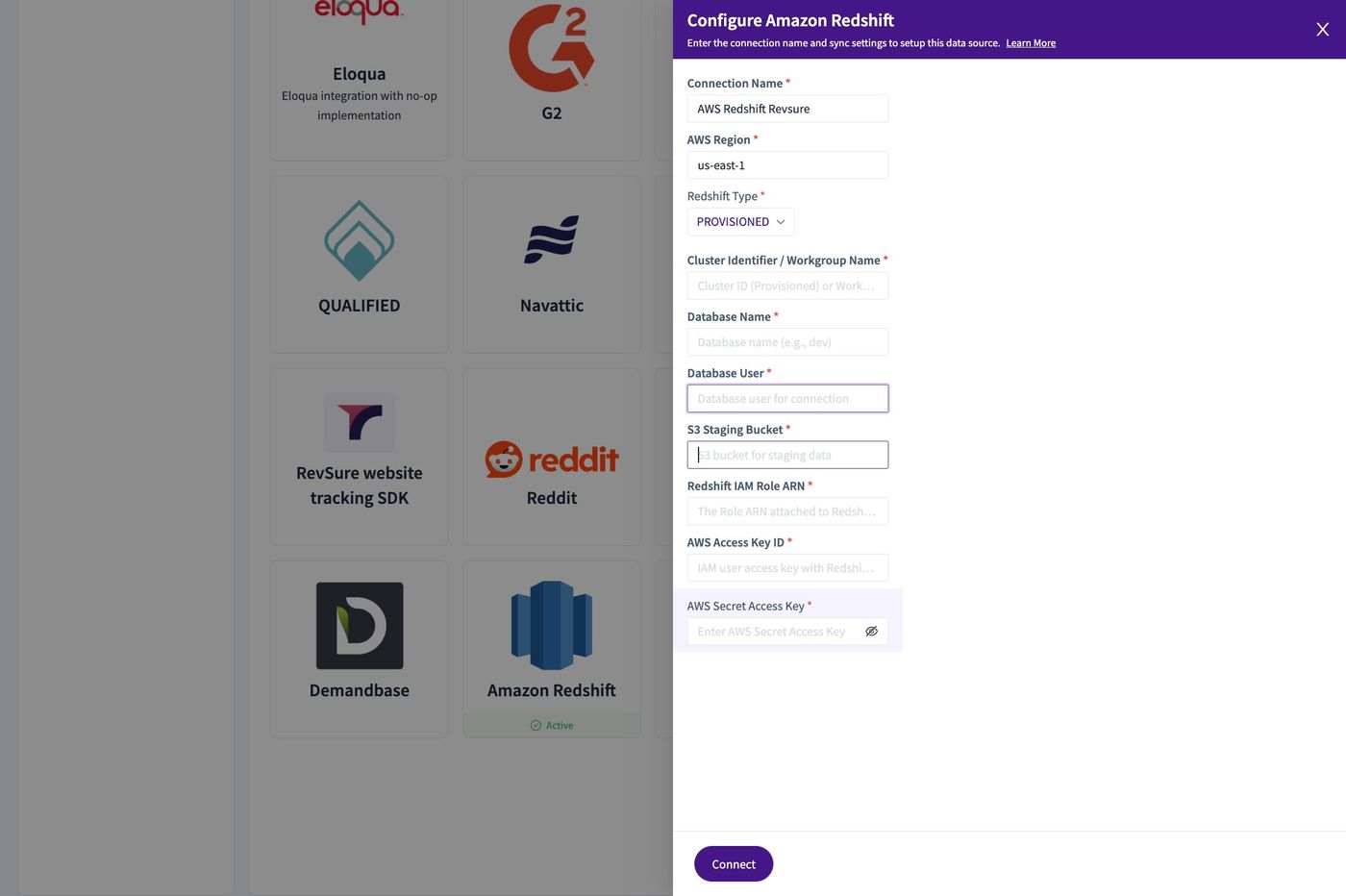
13. Fill in the "Redshift IAM Role ARN *" field.
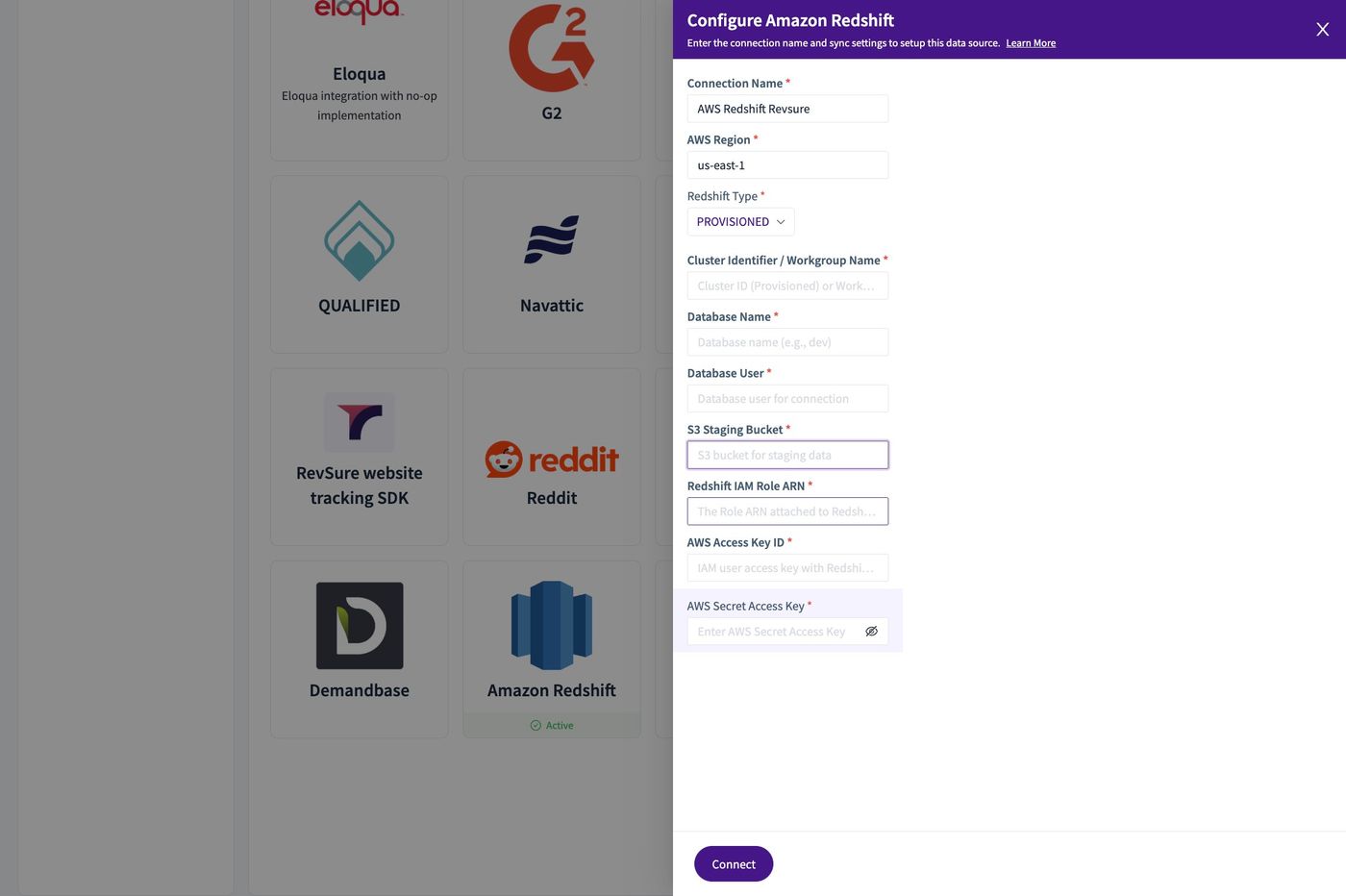
14. Set the "AWS Access Key ID *" field.
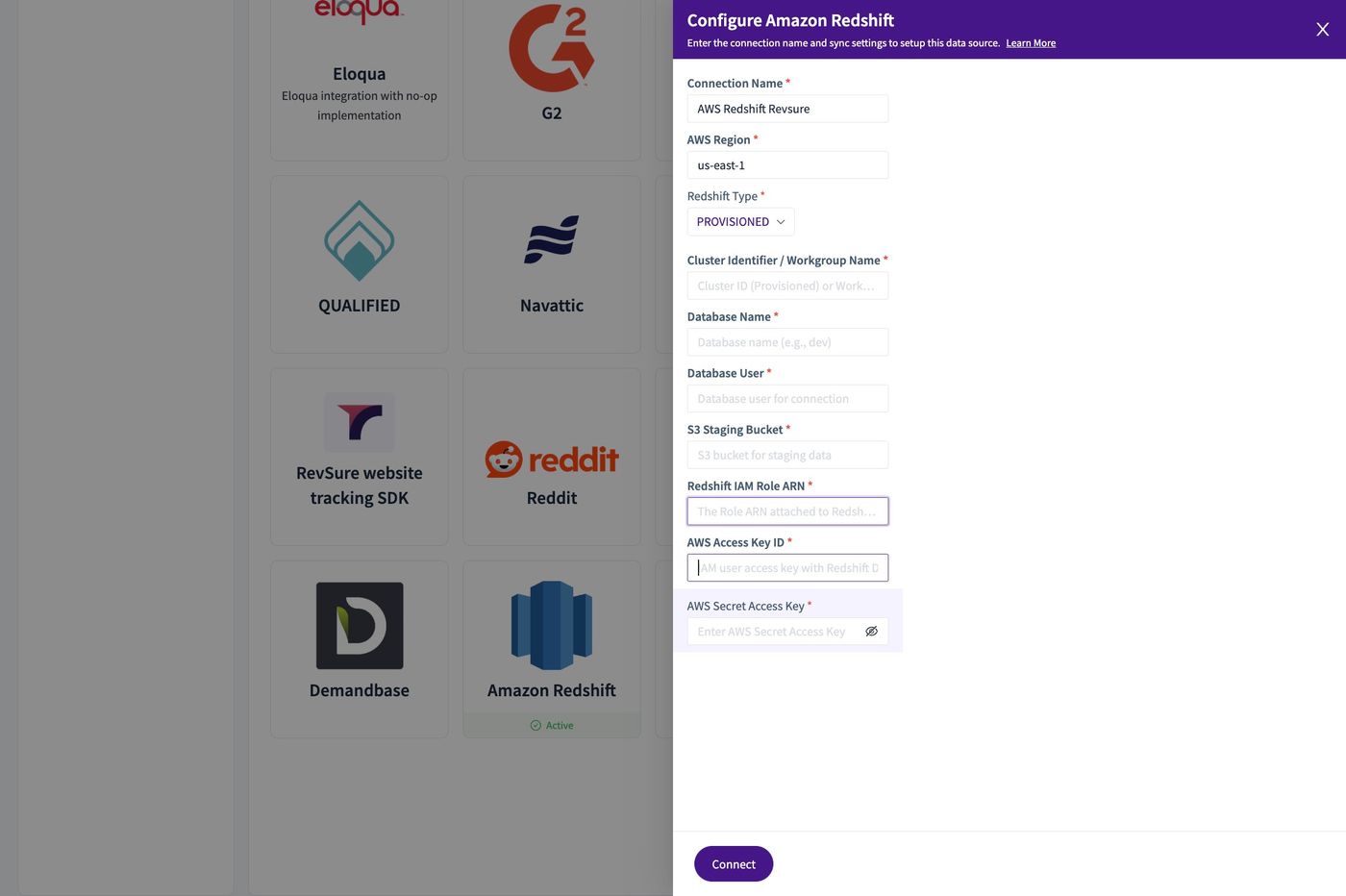
15. Set the "AWS Secret Access Key *" field.
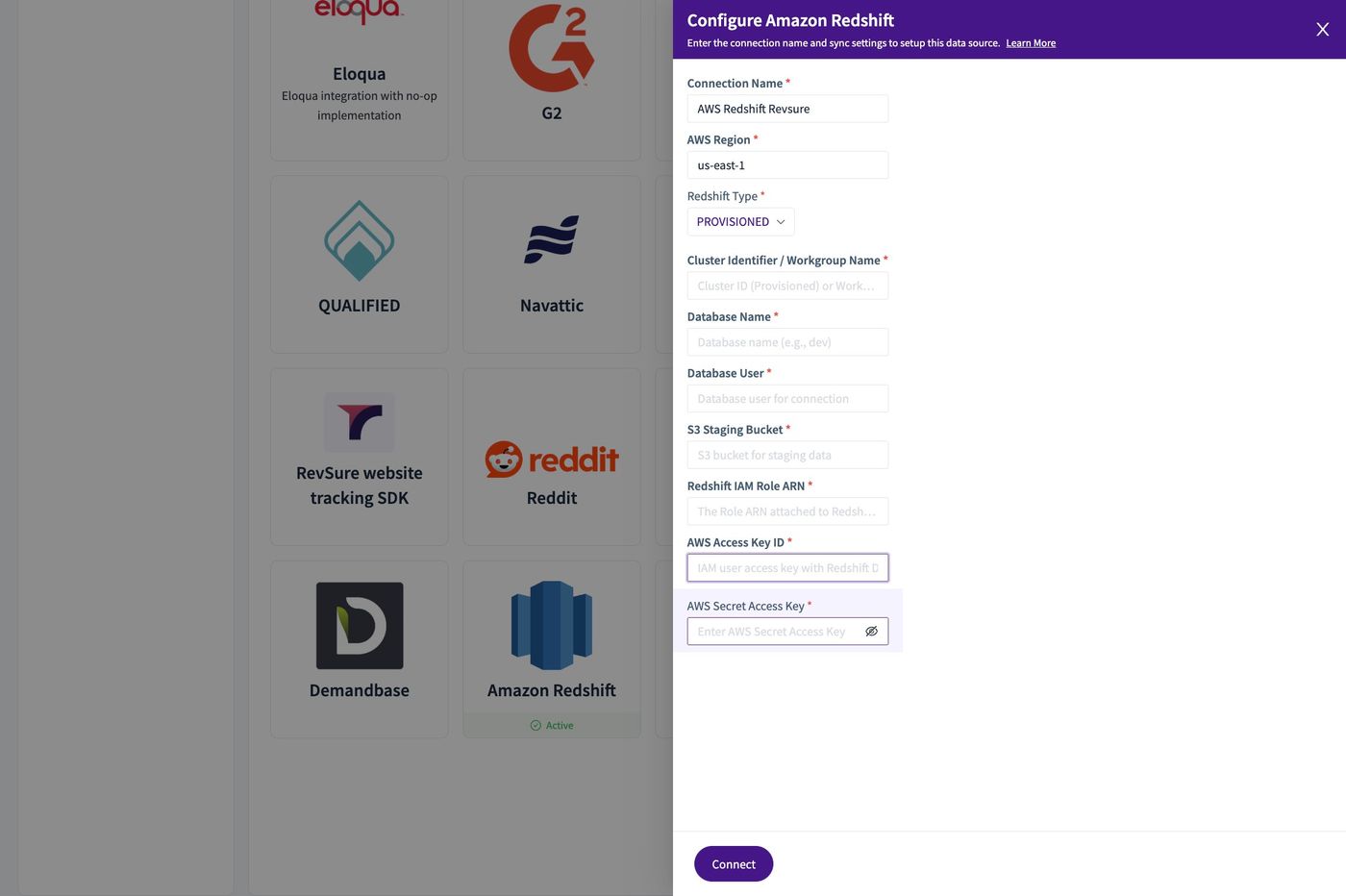
16. Click "Connect"
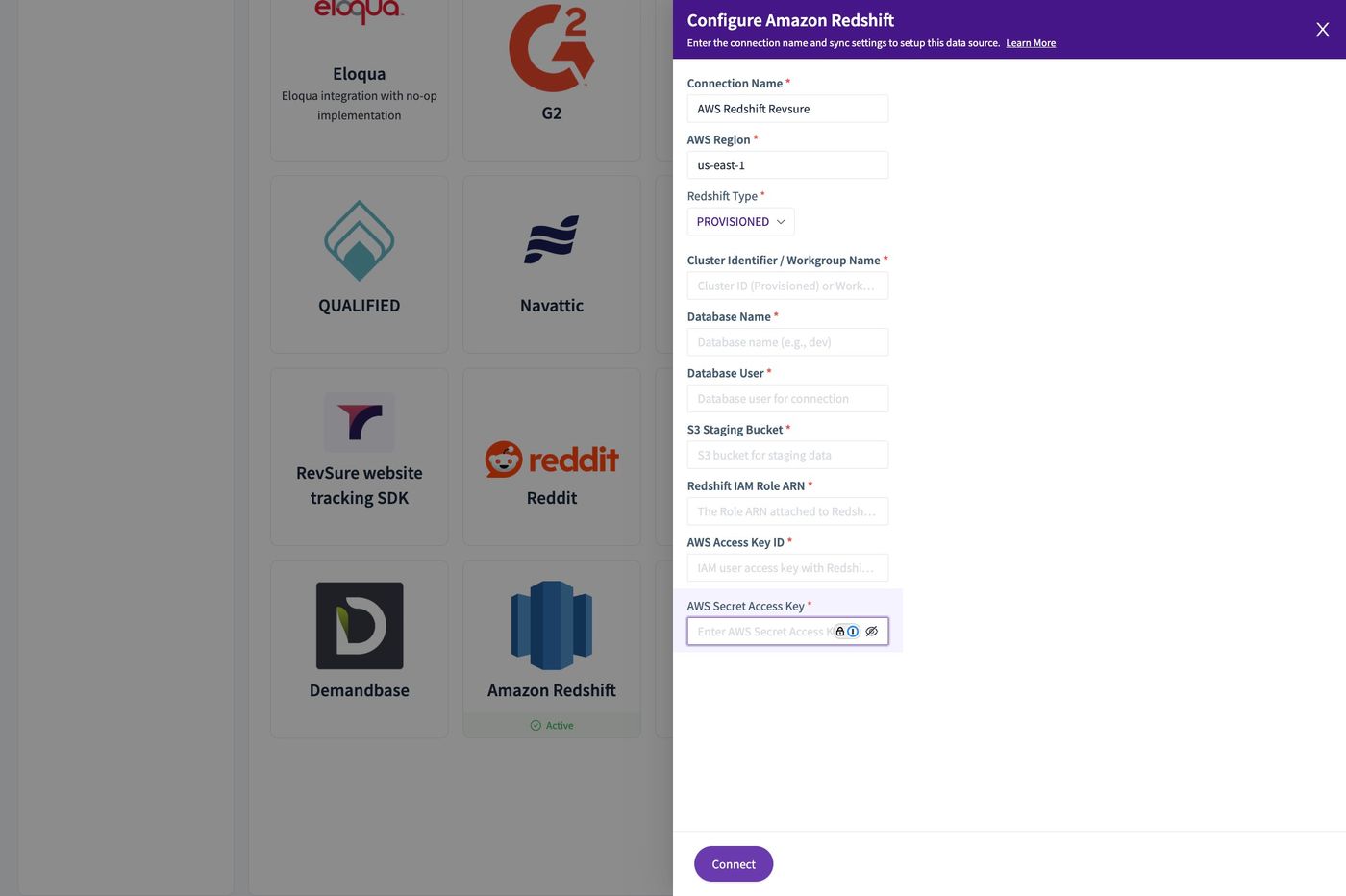
17. The Connection is created, we can check the Configuration (Credentials)
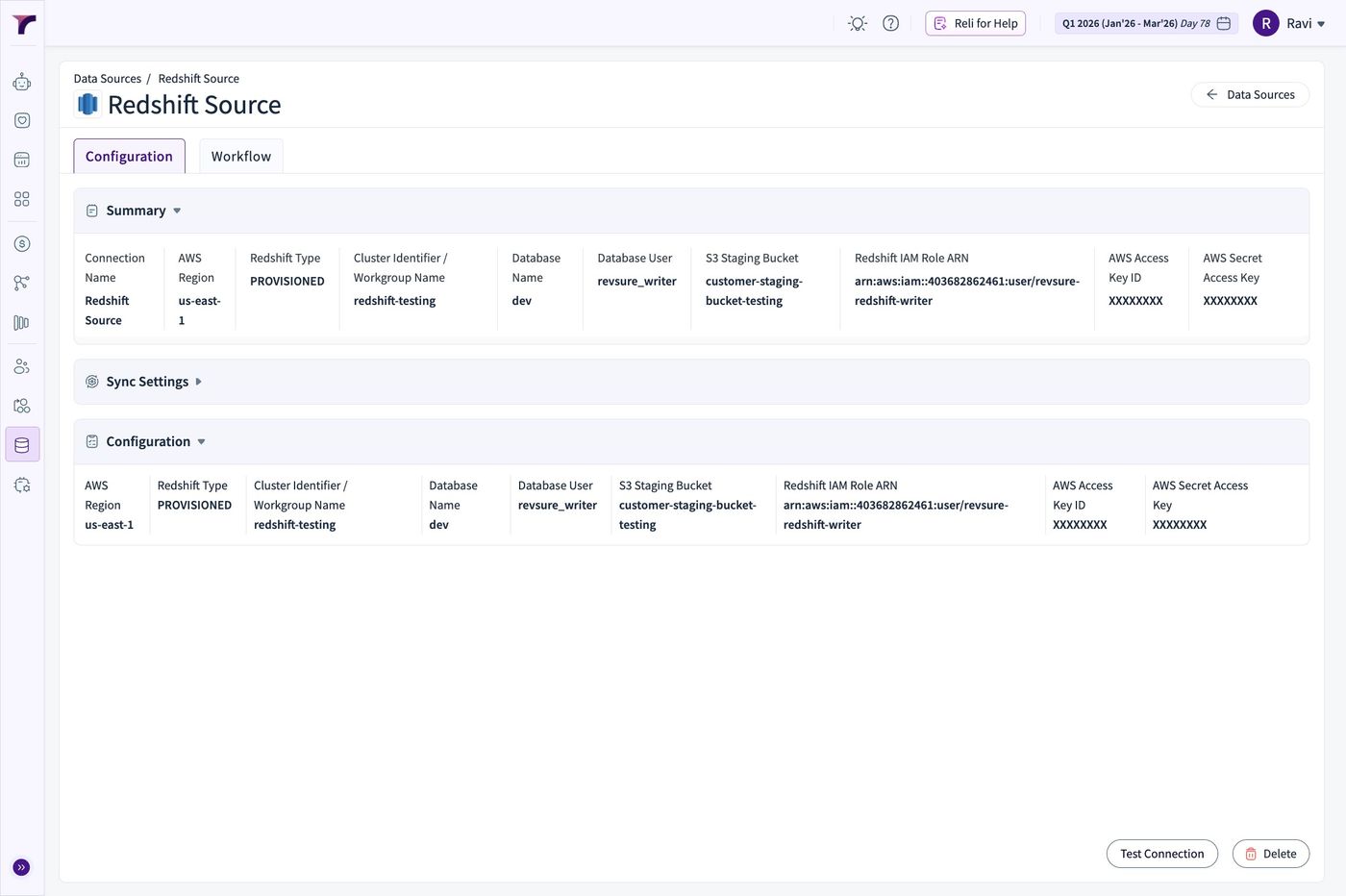
18. Next Step - To Set up Workflow
Go to the "Workflow" Tab
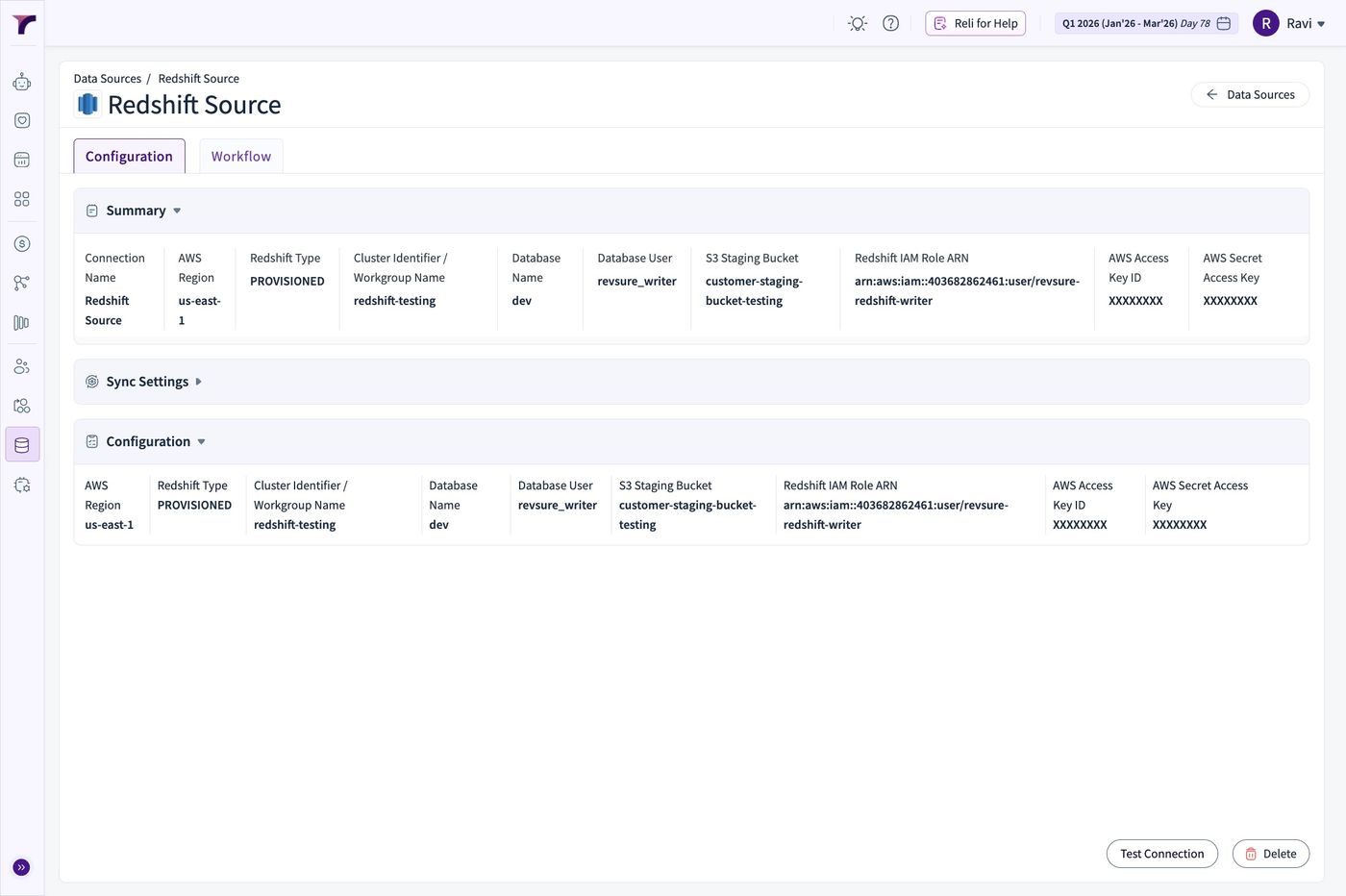
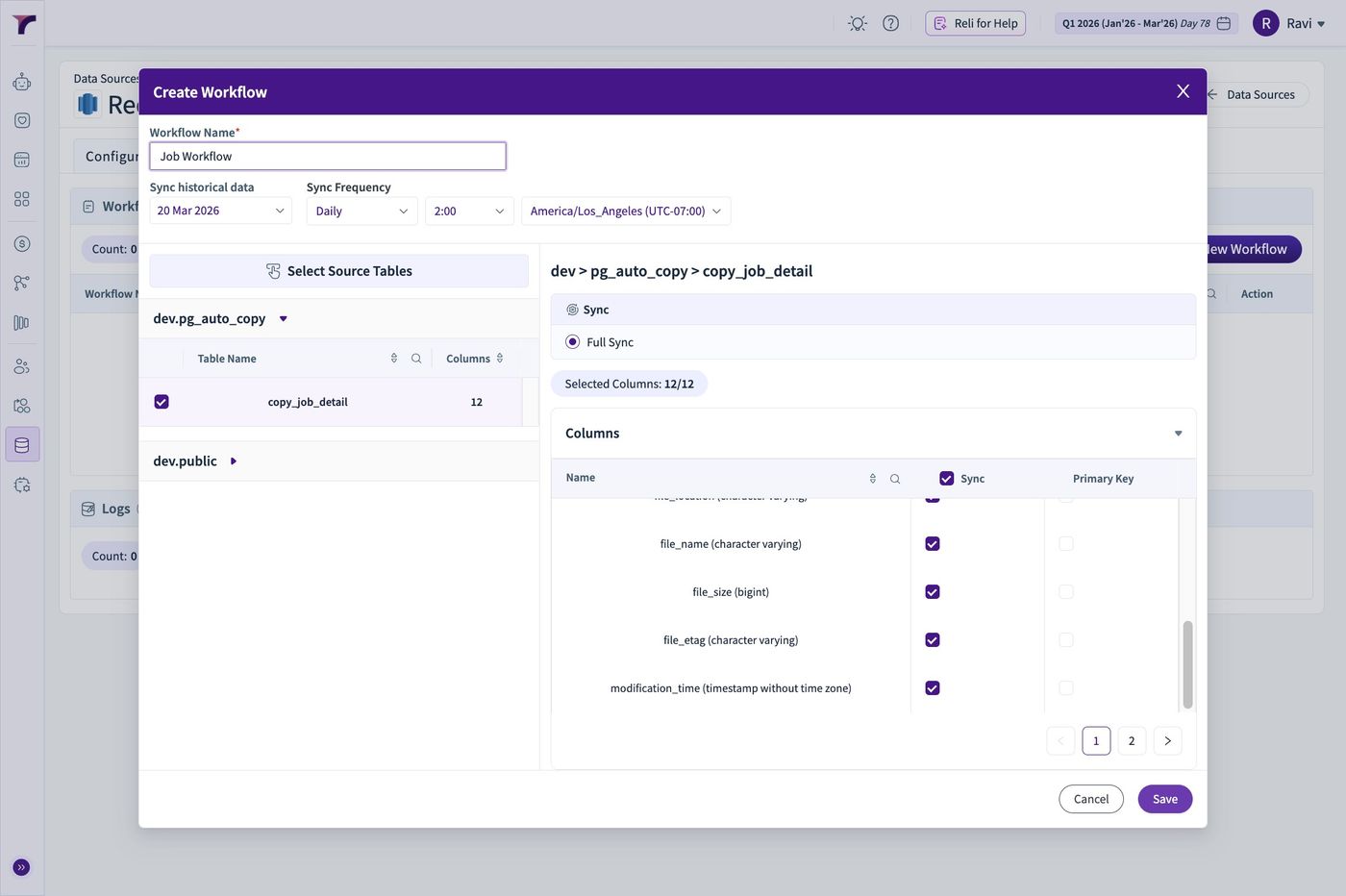
19. Click "New Workflow"
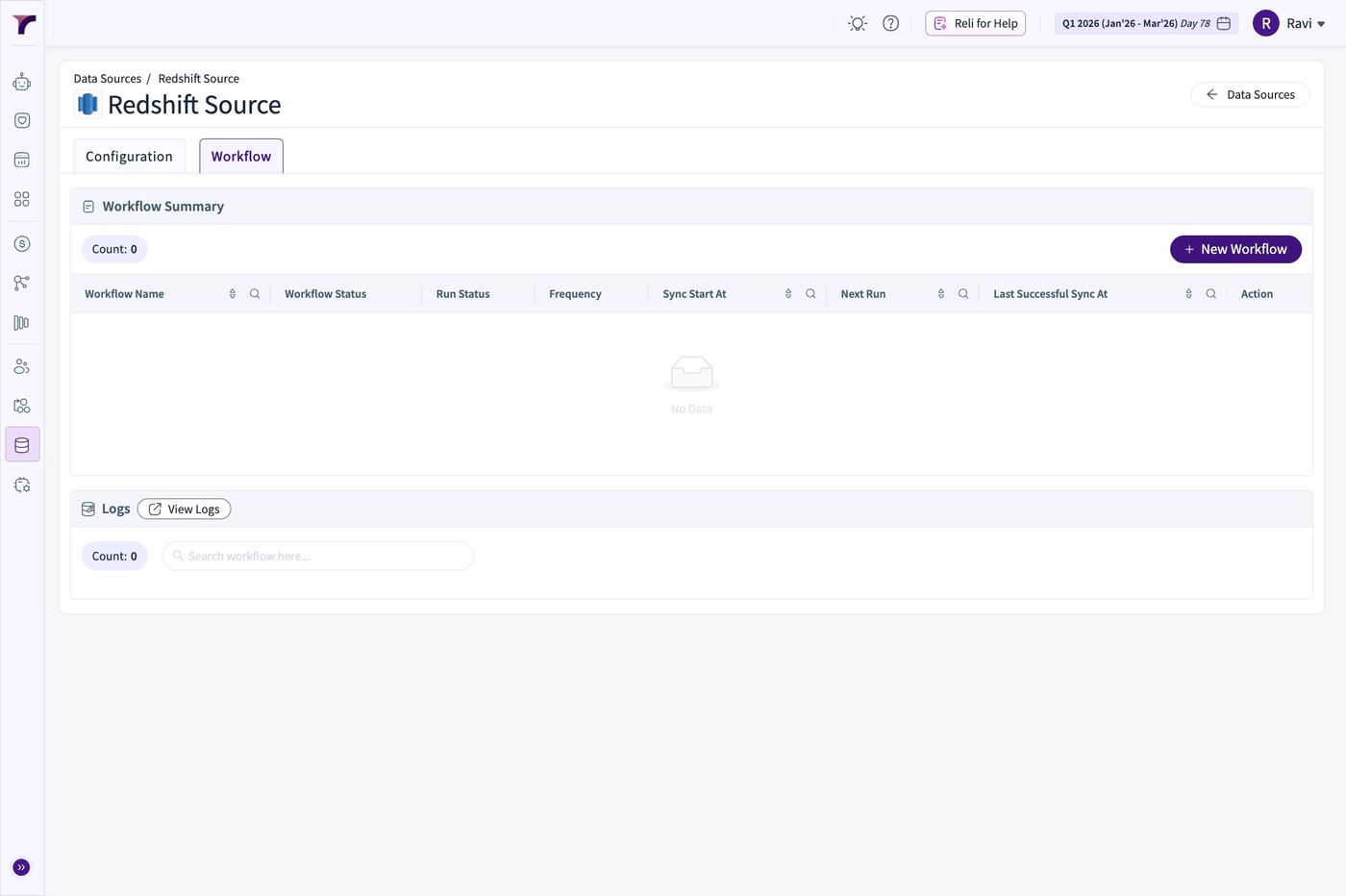
20. Select the Data base for Extraction
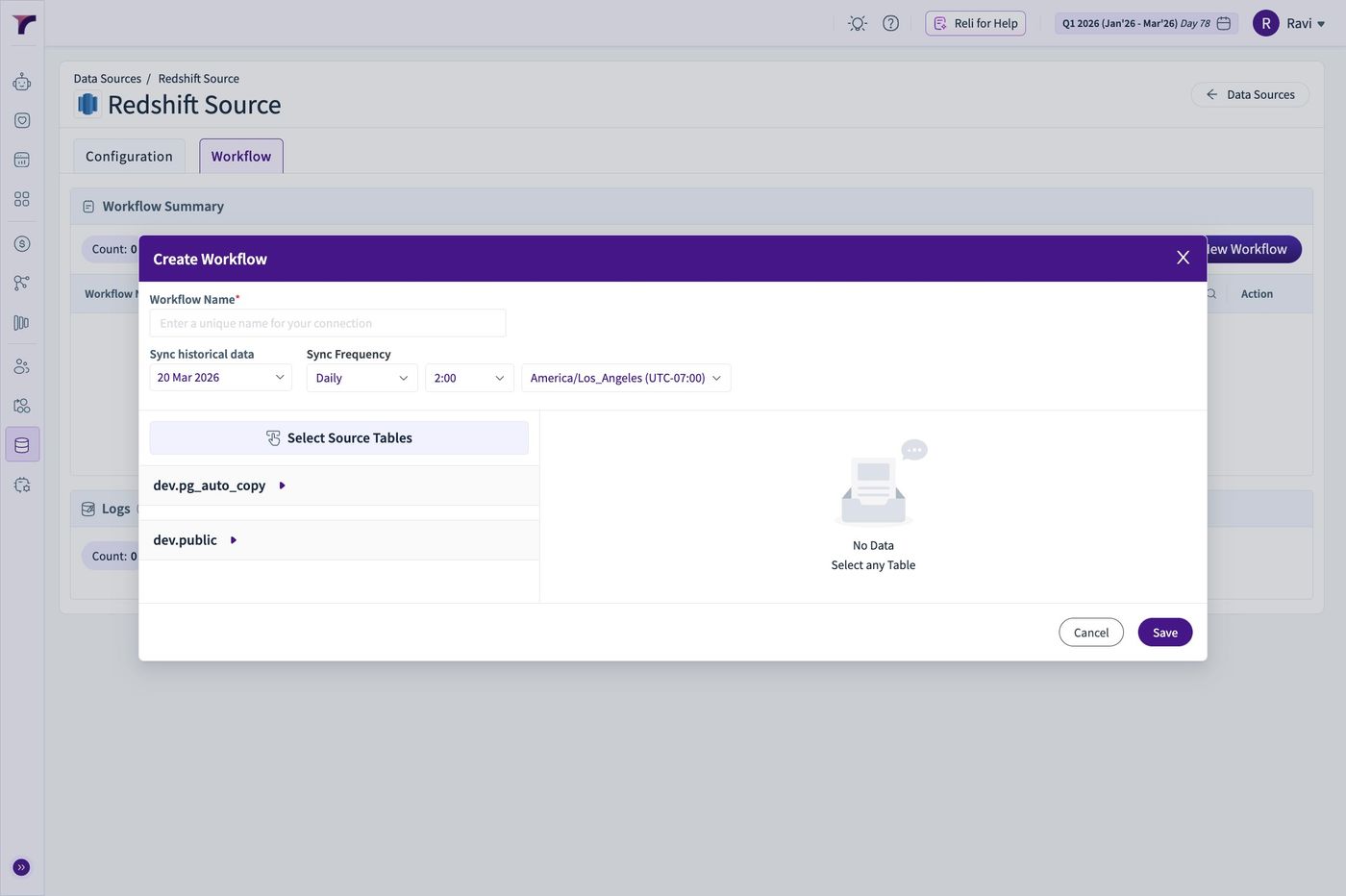
21. Select the table
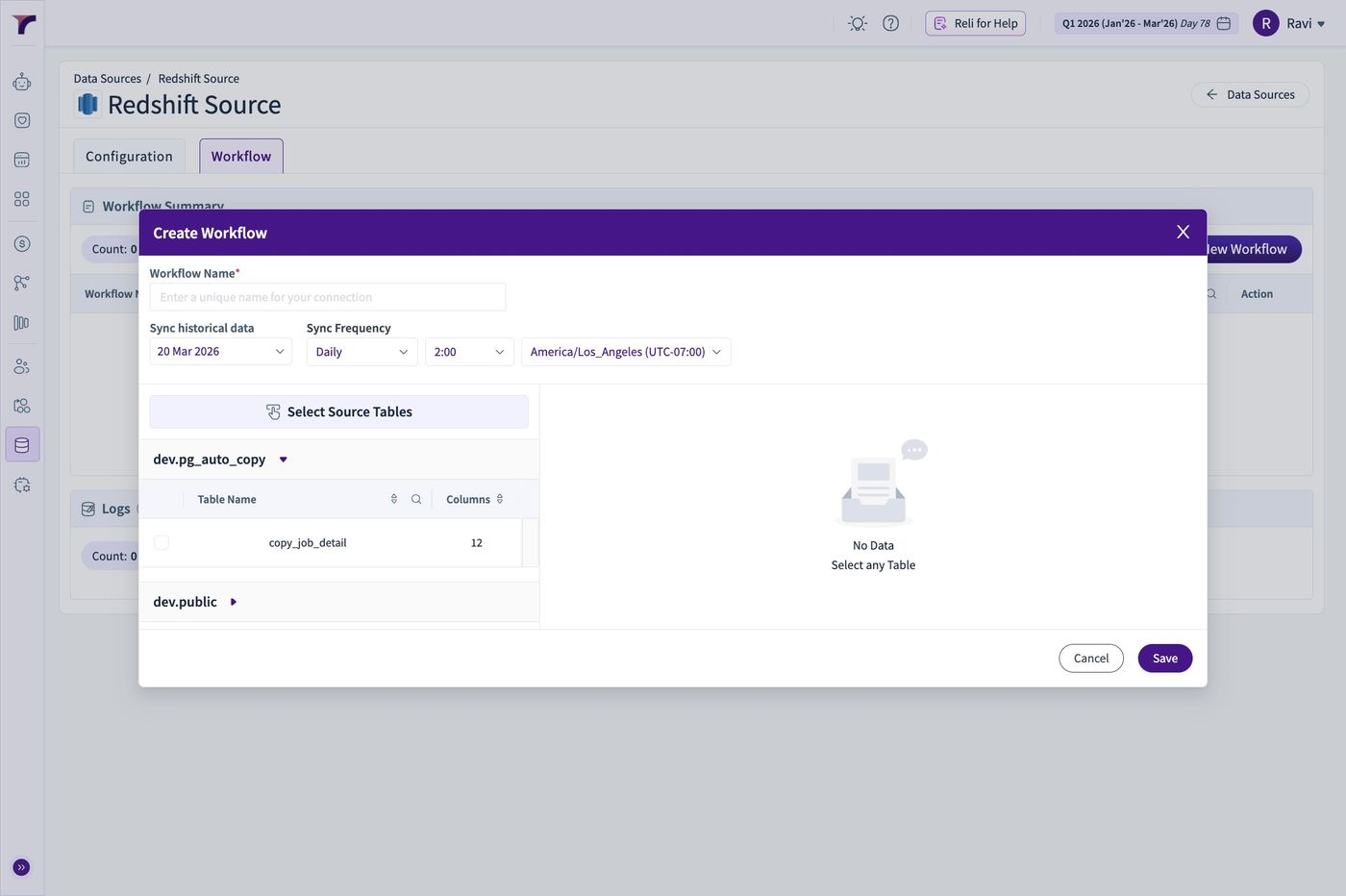
22. Click this checkbox.
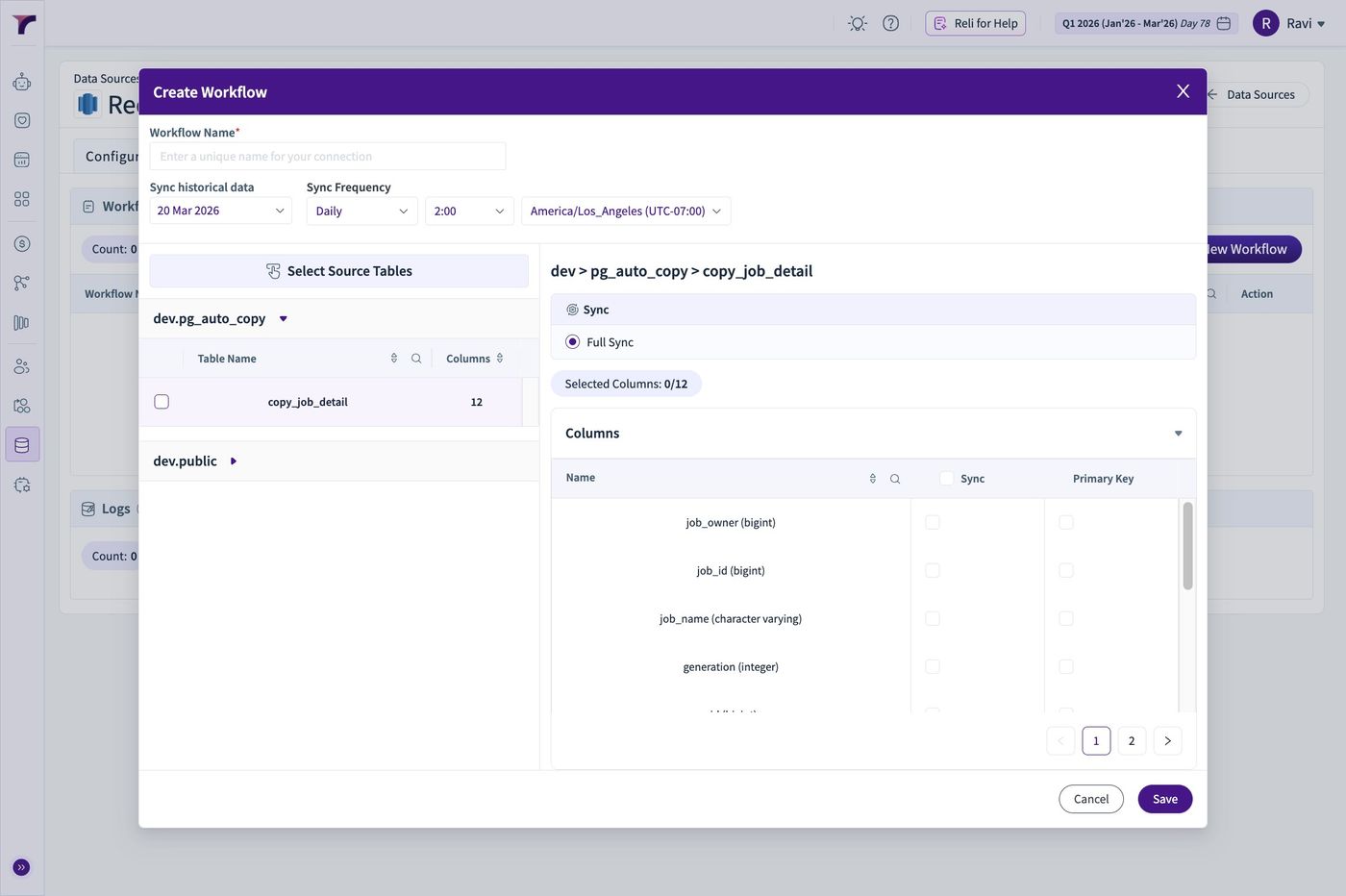
23. Select the columns
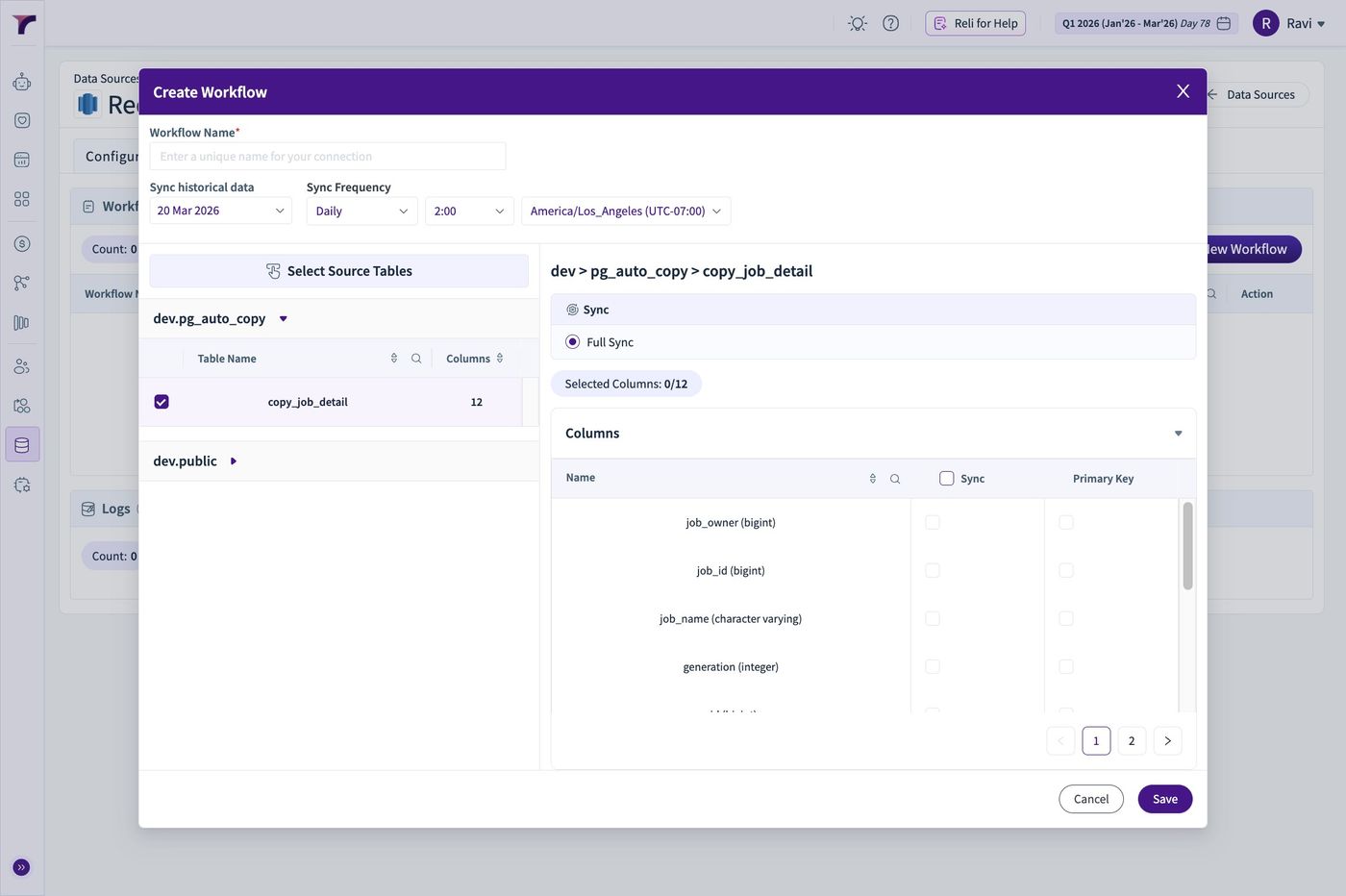
24. Give the Workflow a name, Historical date and Schedule
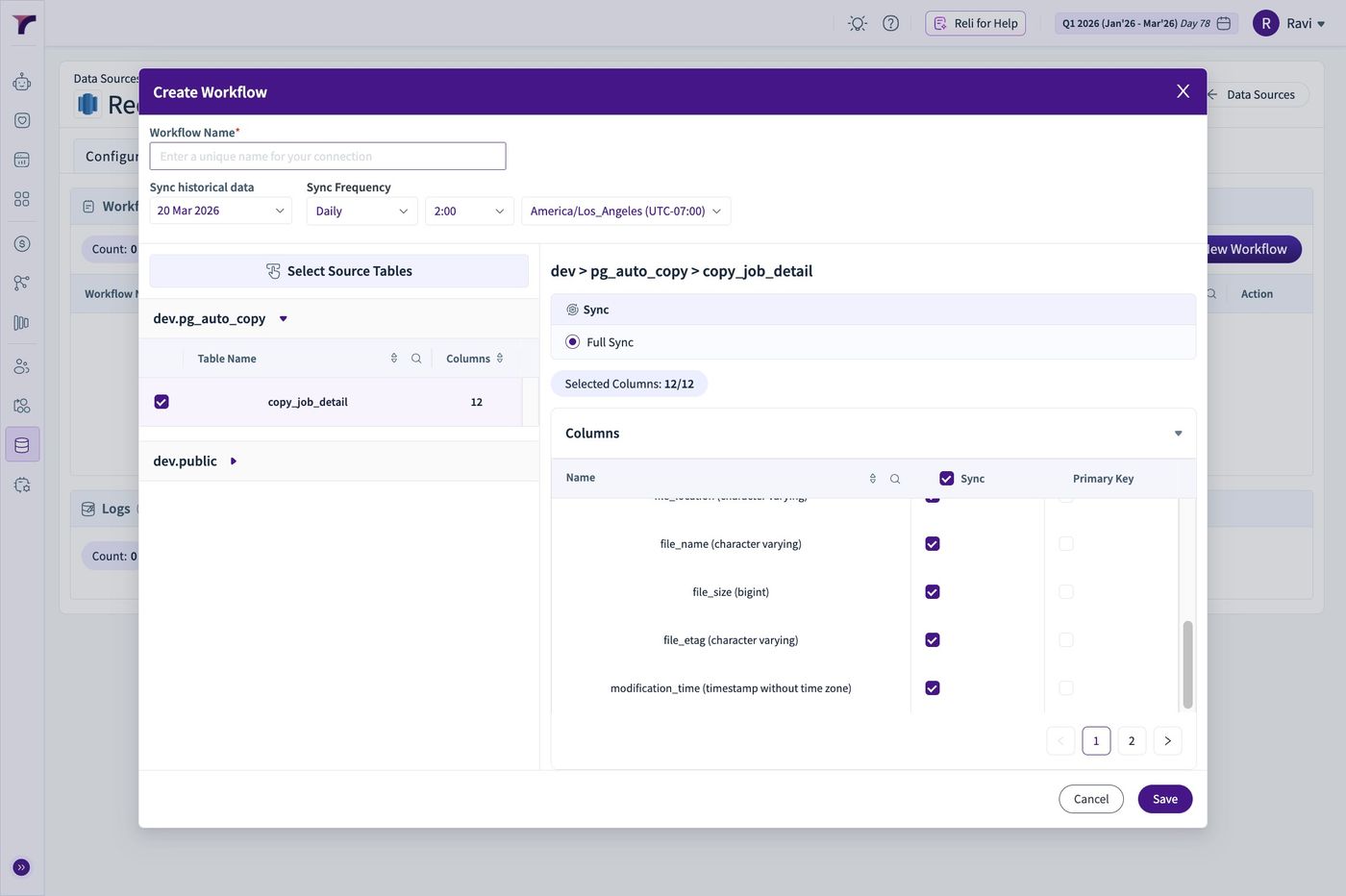
25. Click "Save"