1. Navigate to Revsure App
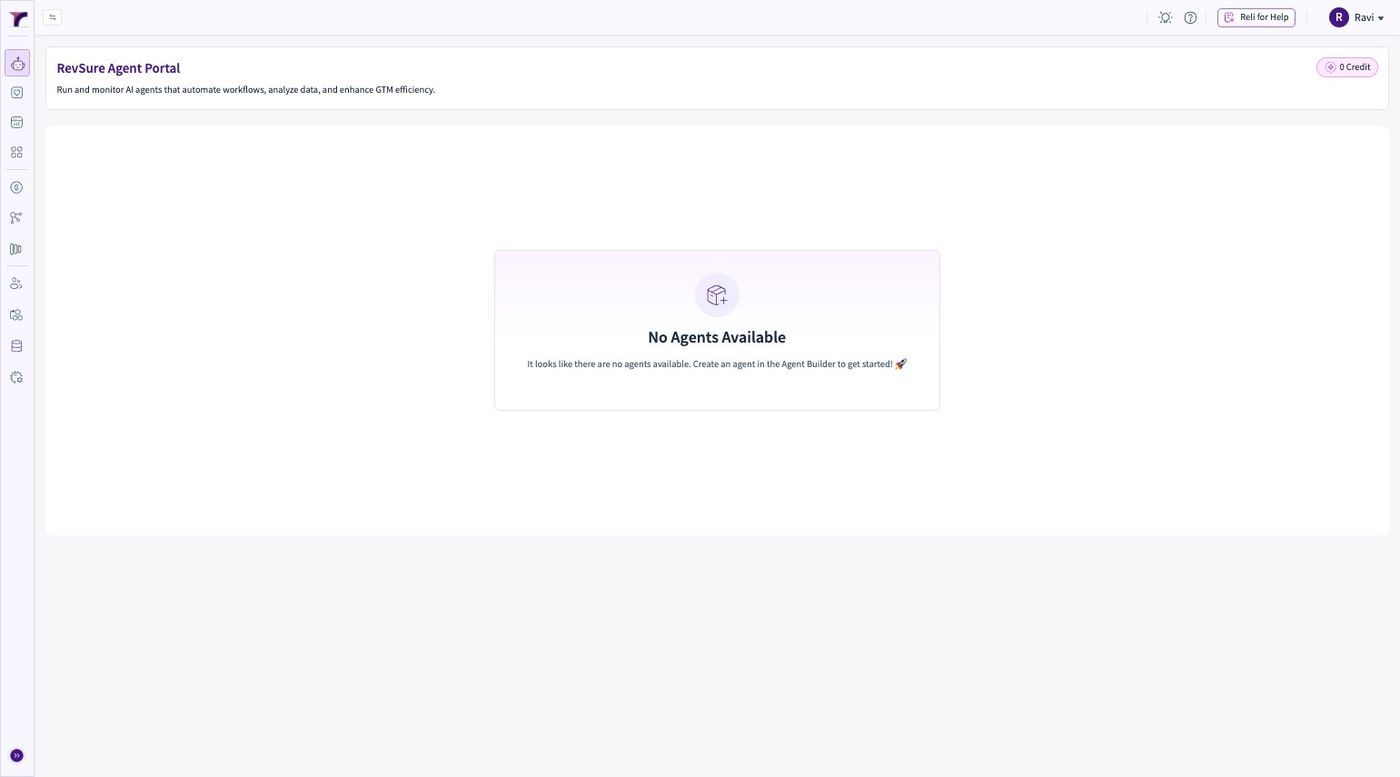
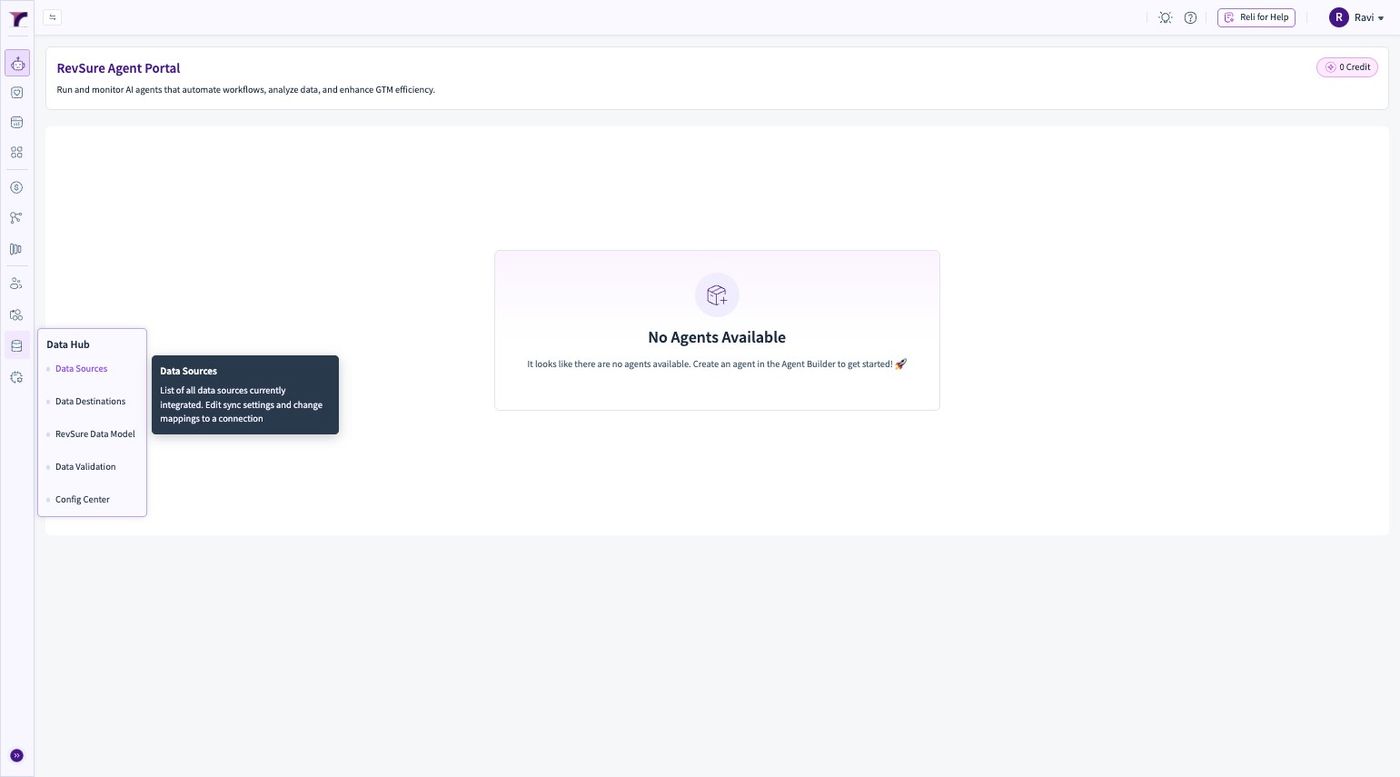
2. Click "Data Hub"
3. Click Data Sources
4. Click "Add New"
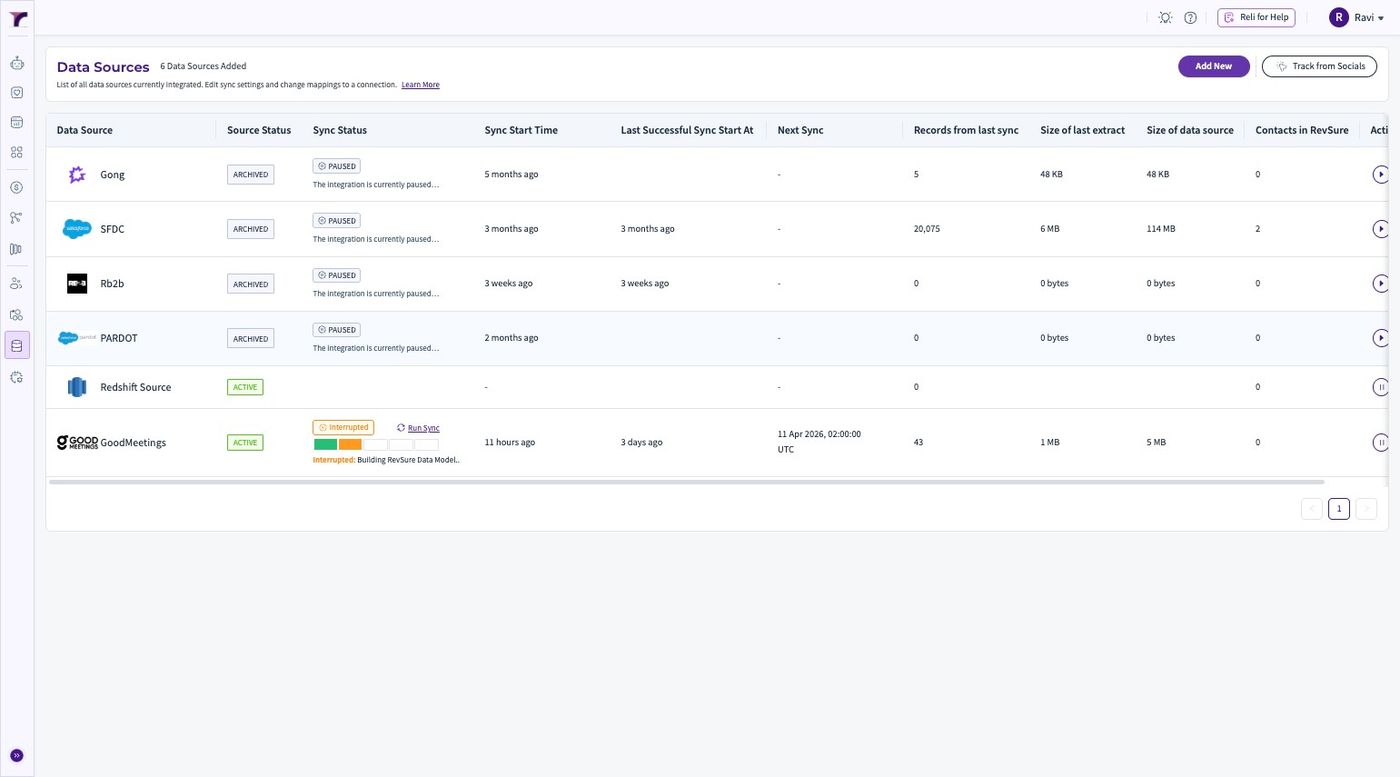
5. Select GoodMeetings from the list of Sources
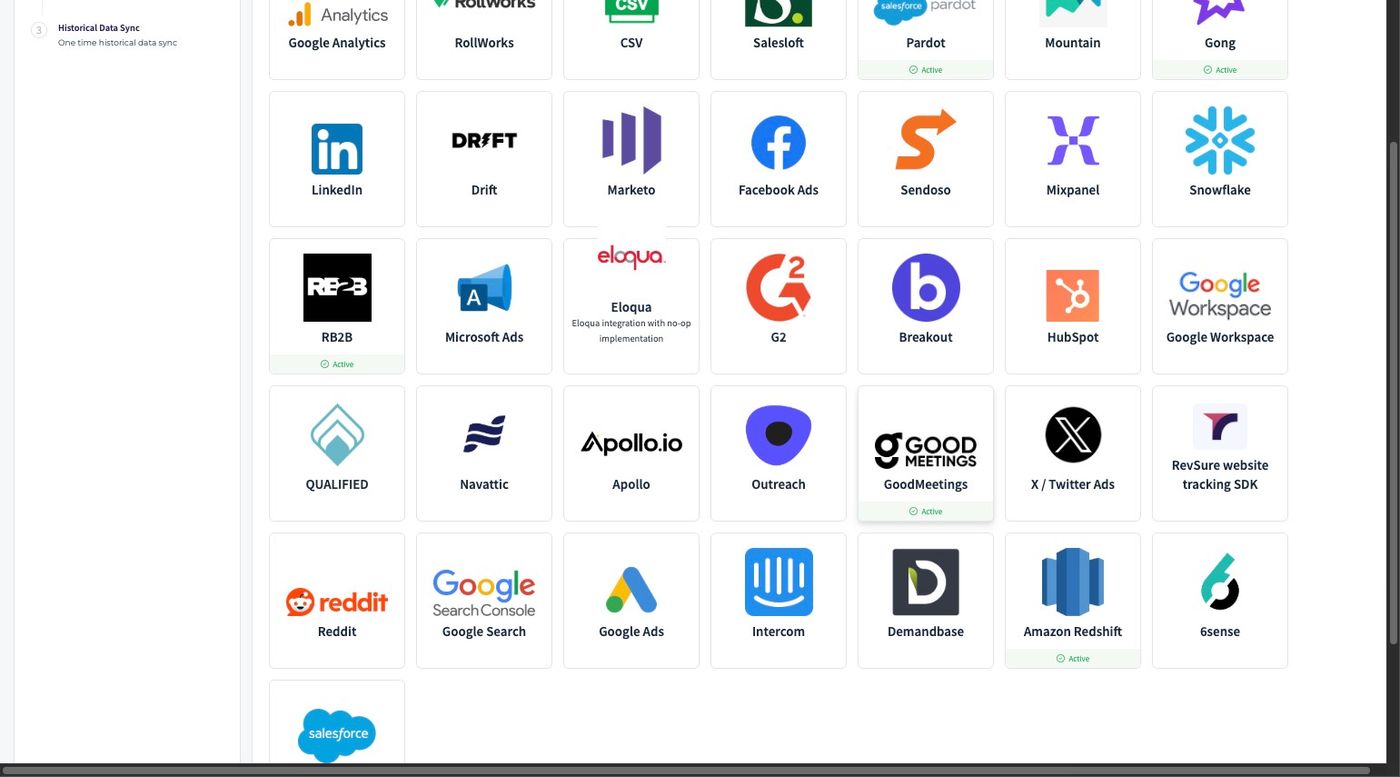
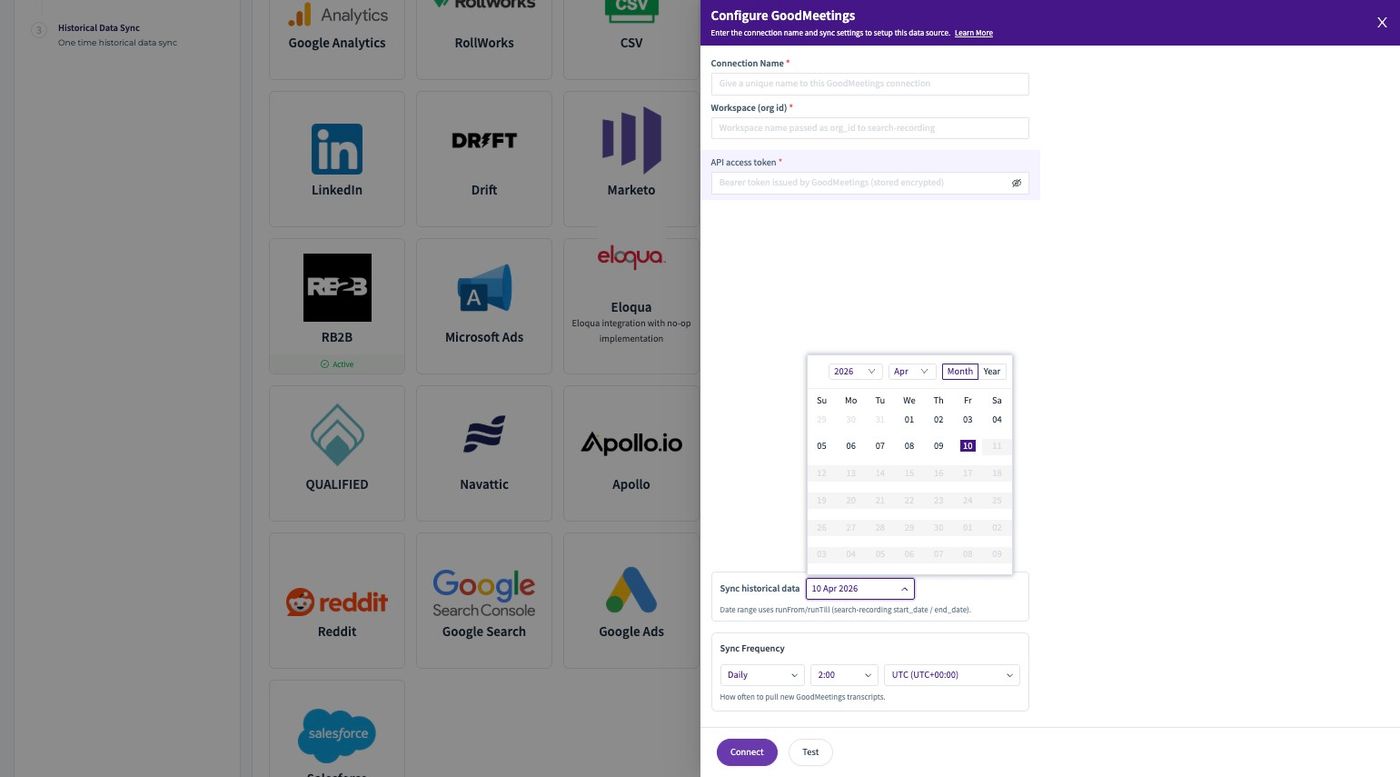
6. Fill the "Connection Name *" field
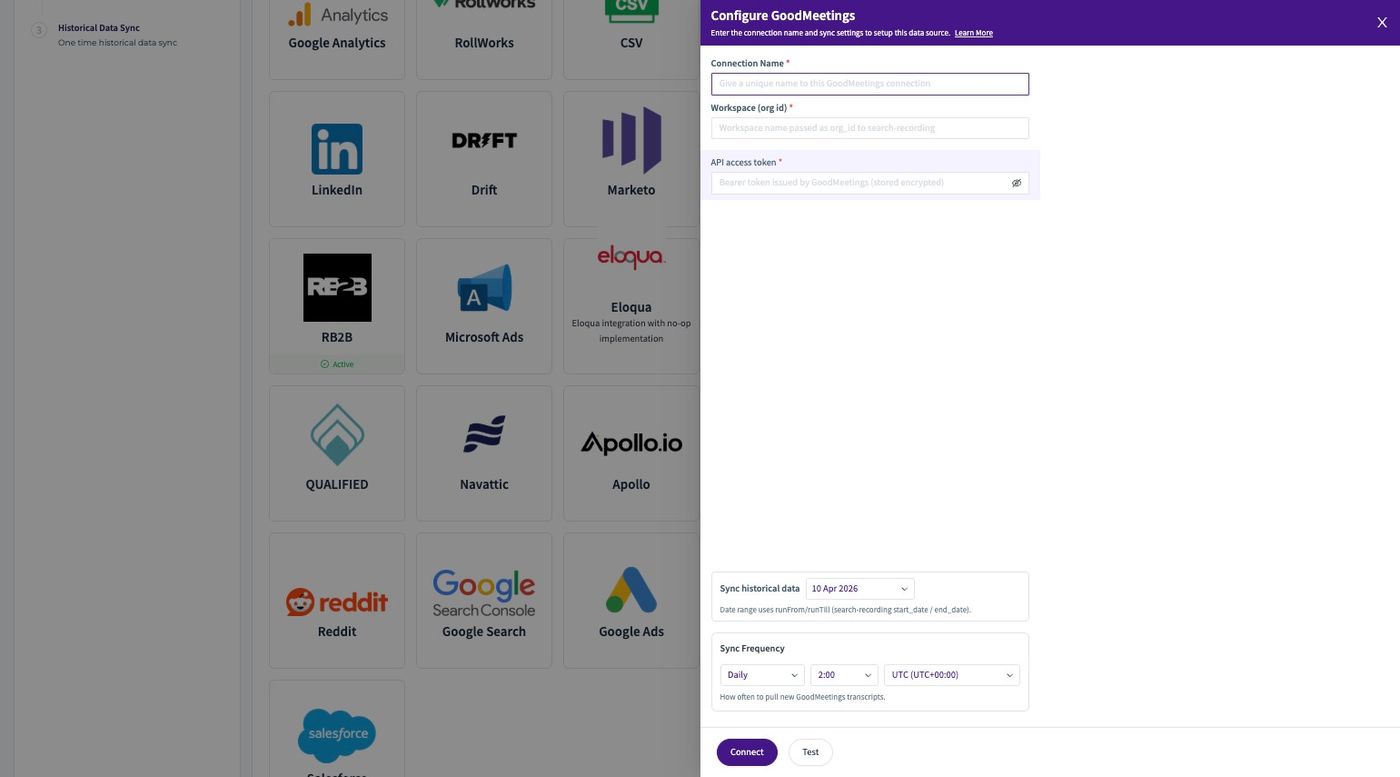
7. Fill the "Workspace (org id) *" field
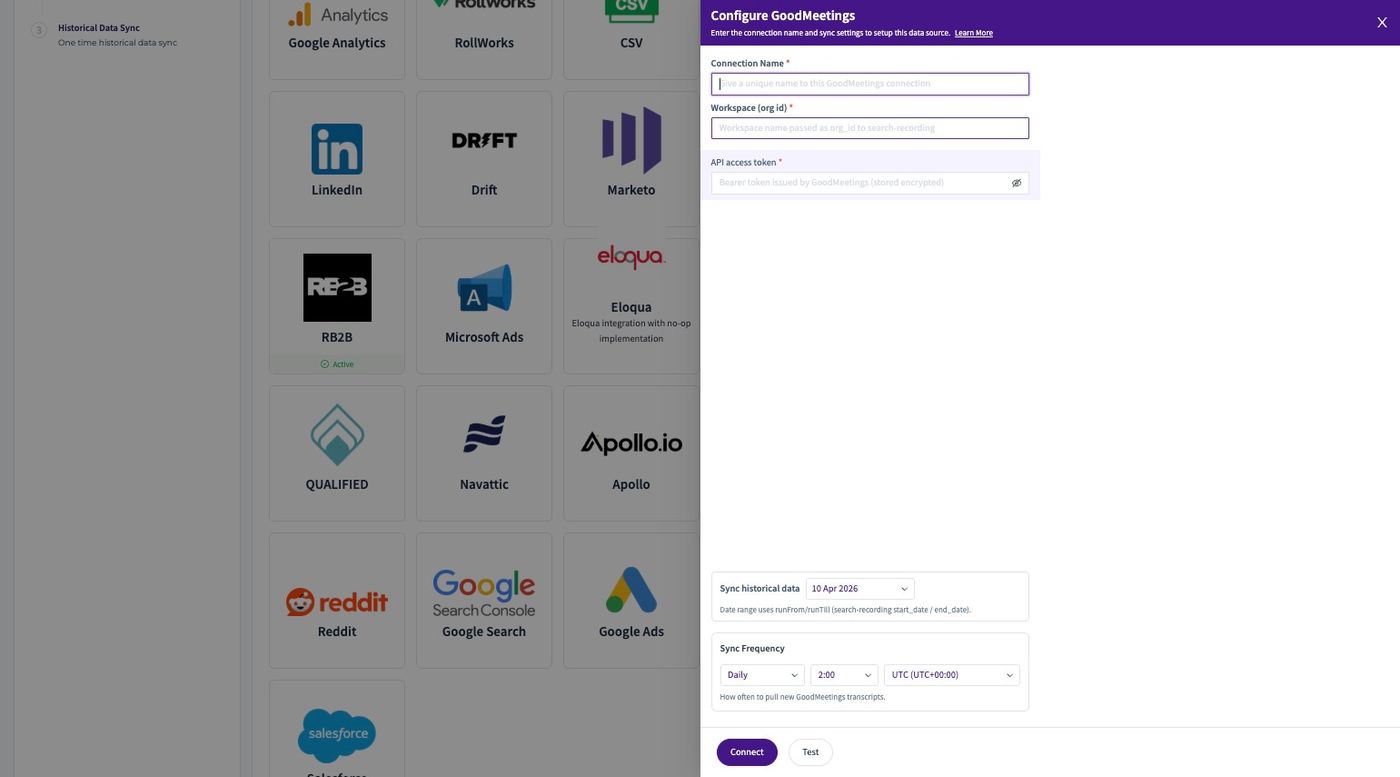
8. Fill the "API access token *" field
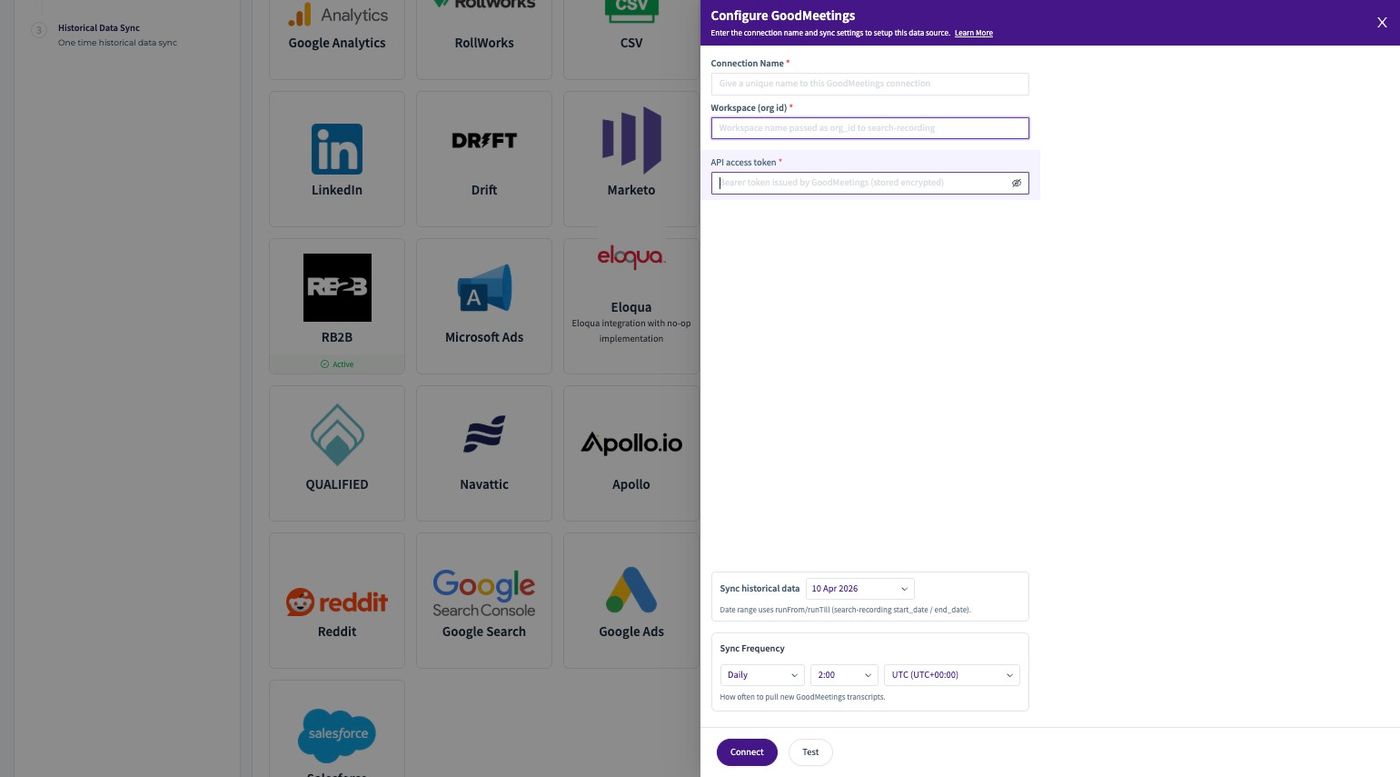
9. Select the Historical Date for the connection
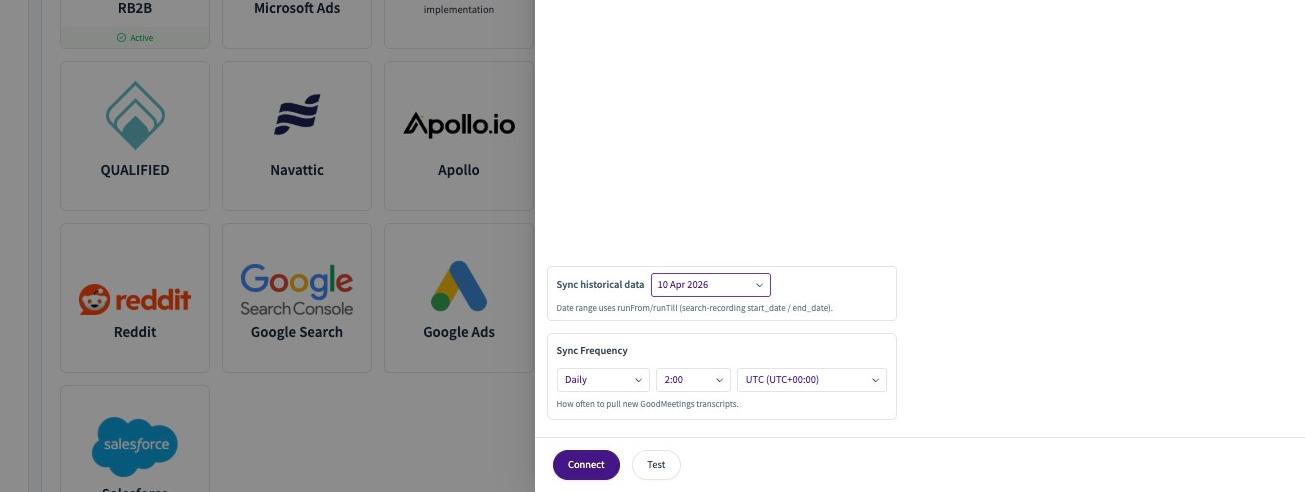
10. Click "Connect"
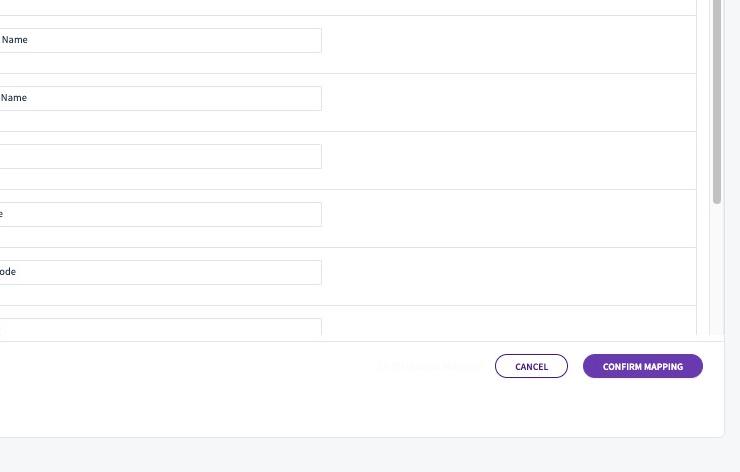
11. Click "Confirm Mapping"