FAQs/Integrations & tracking/RevSure Facebook Ads Integration Implementation Guide
Integrations & tracking · RevSure FAQs

RevSure Facebook Ads Integration Implementation Guide

1. Navigate to the data-hub module in the RevSure account. Click on the Add data source button

2. Select Facebook Ads data source, and it will open a sidebar to configure the connection details
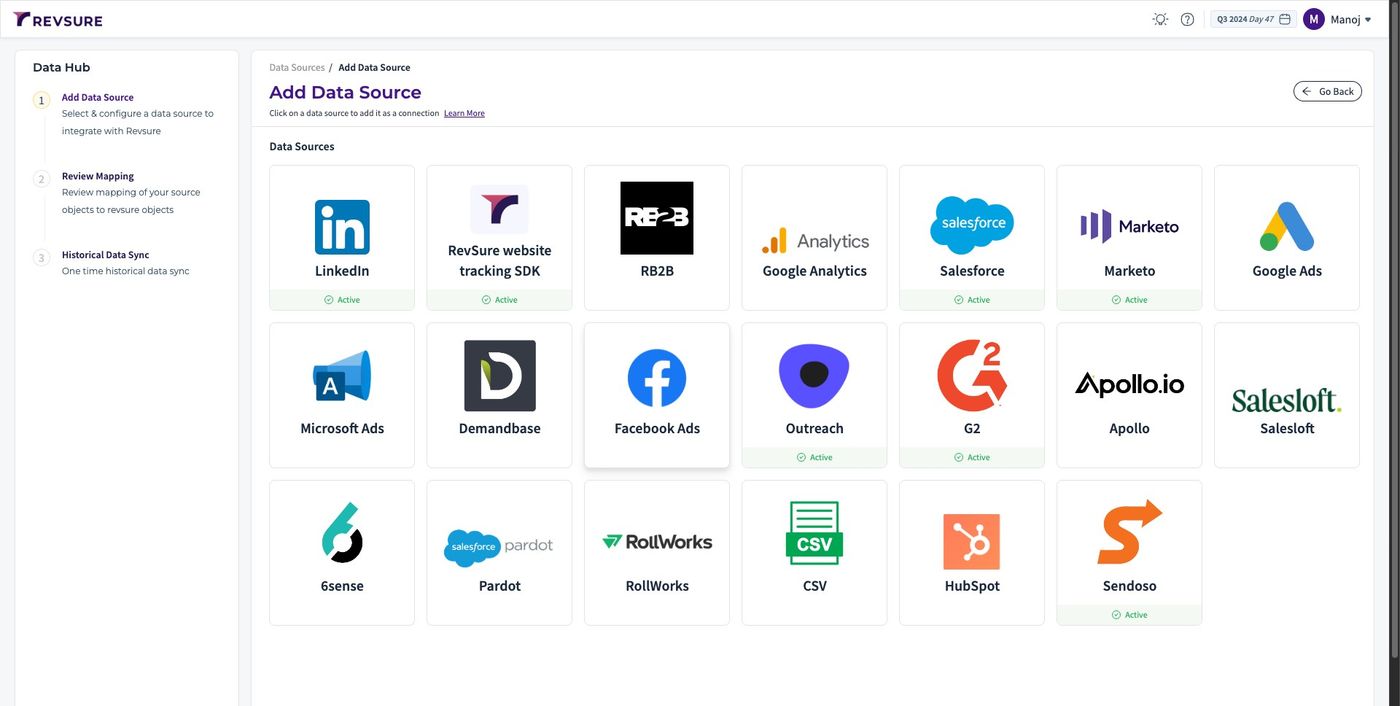
RevSure Facebook Ads Integration Implementation Guide (figure 1)

3. Enter a unique connection name to identify the connection
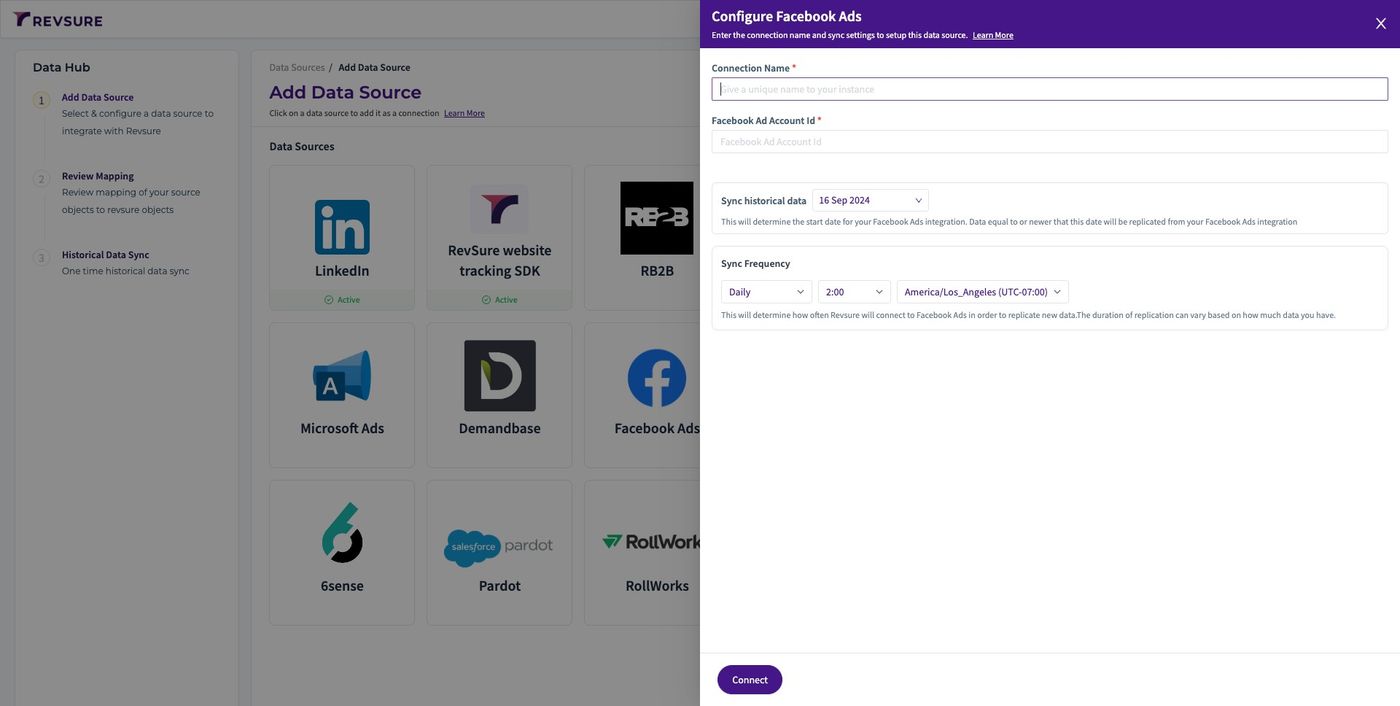
RevSure Facebook Ads Integration Implementation Guide (figure 2)

4. Click the "Facebook Ad Account Id *" field
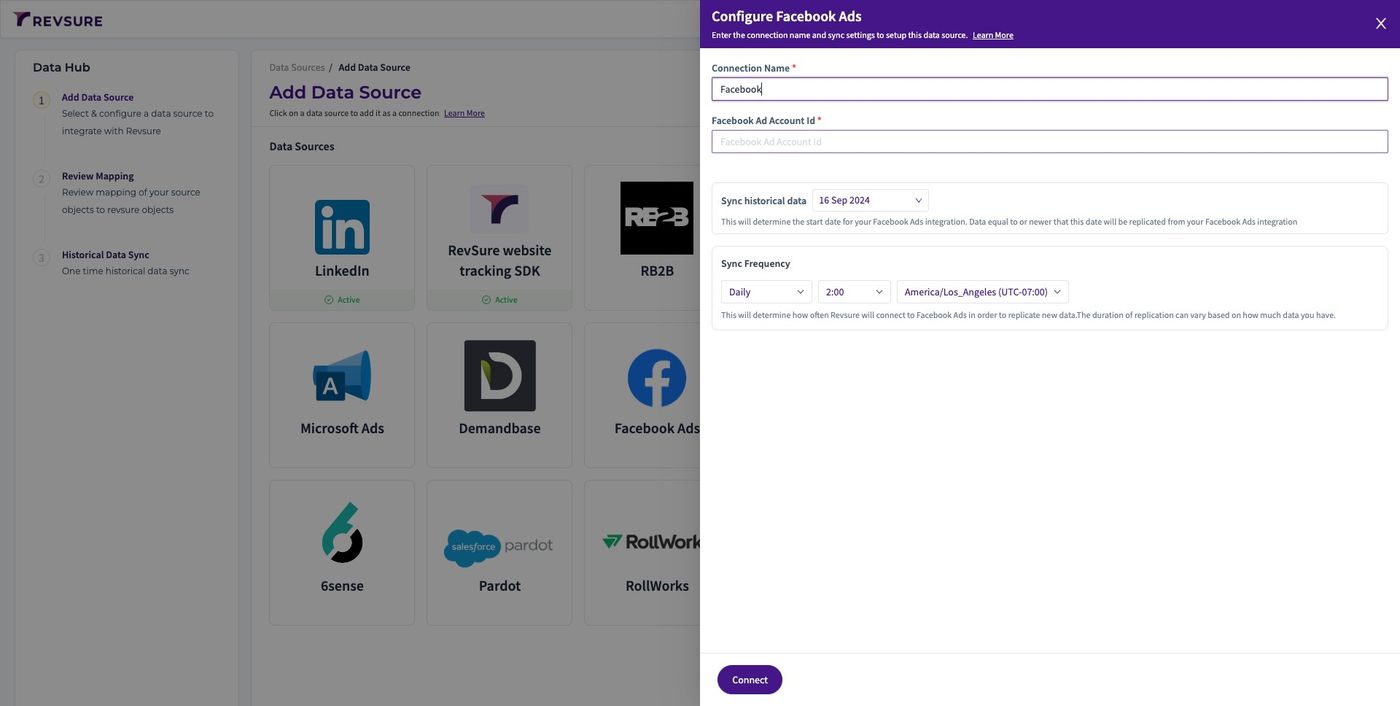
RevSure Facebook Ads Integration Implementation Guide (figure 3)

5. Login to Facebook ads and Go to "Ads Manager - Manage ads - Campaigns". Copy the Account ID (act) in the url
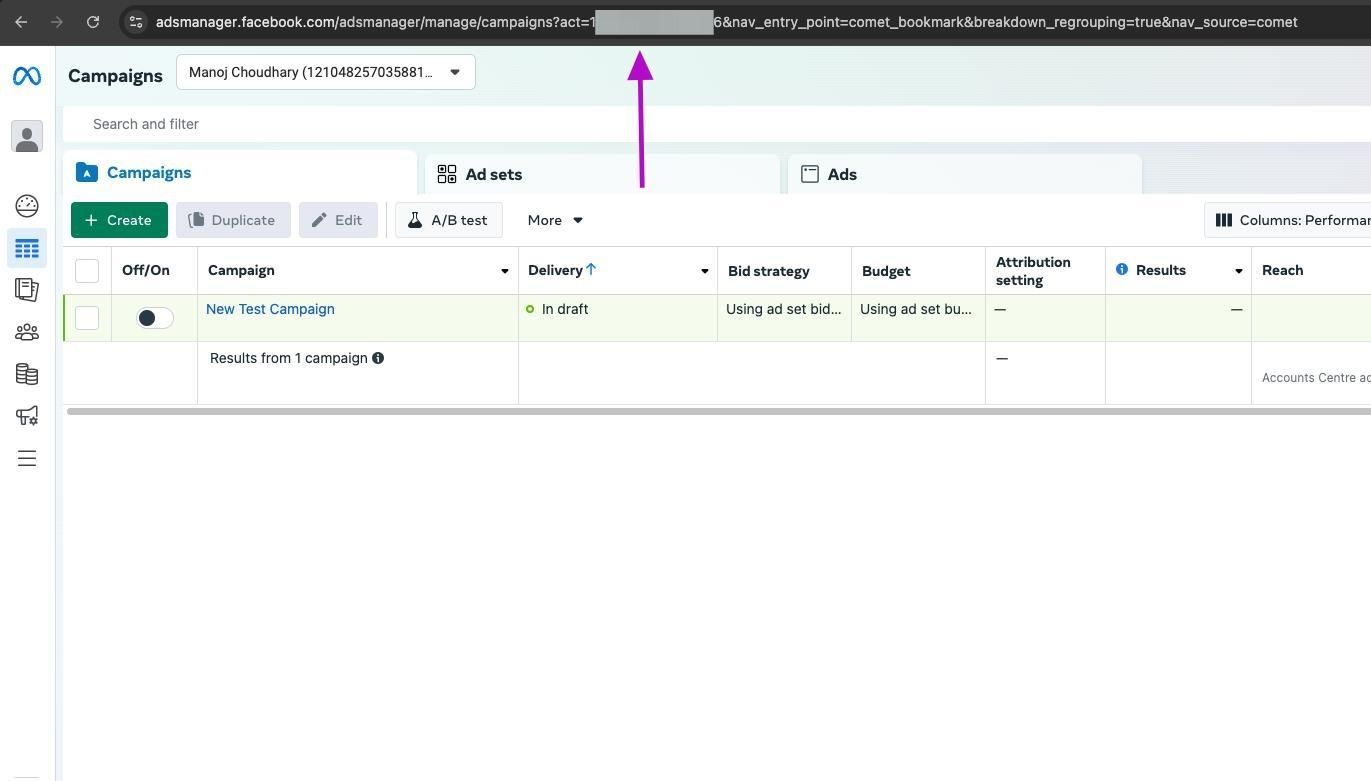
RevSure Facebook Ads Integration Implementation Guide (figure 4)

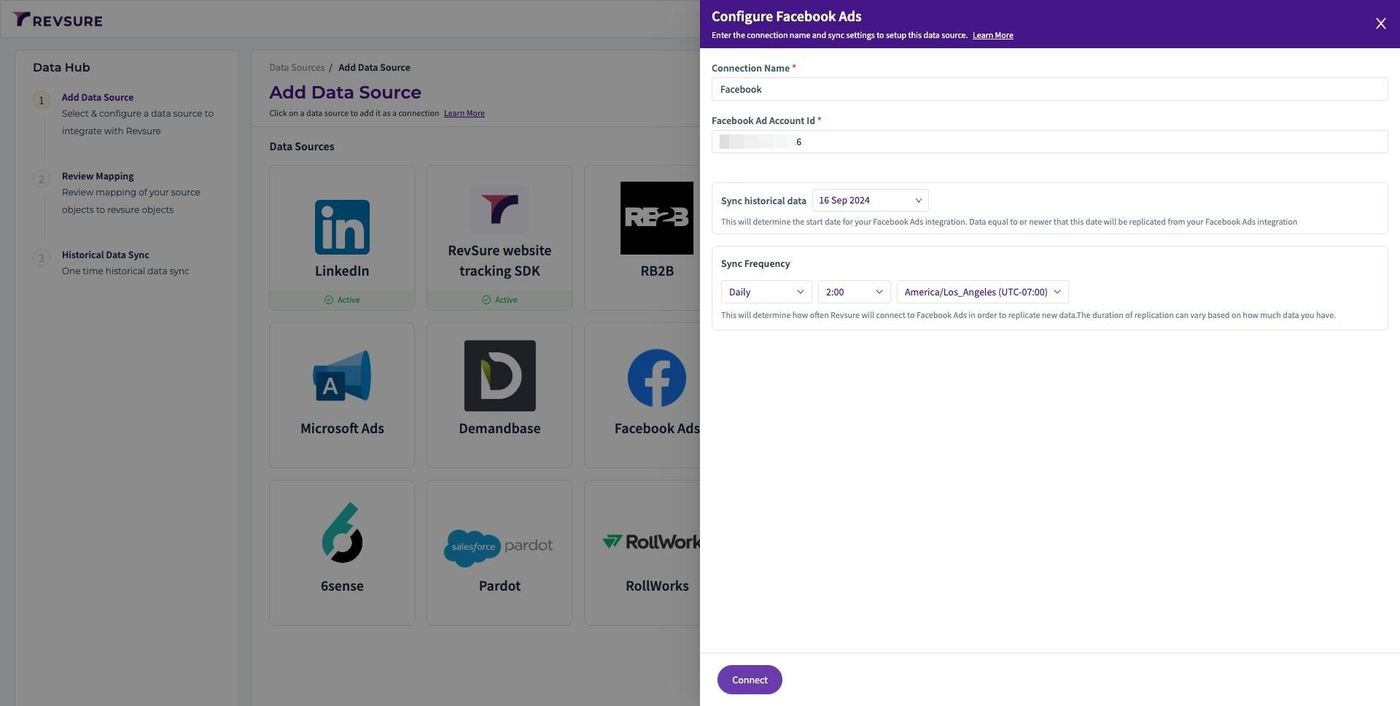
6. Paste it in Facebook Ad Account ID and Select historical date to sync from
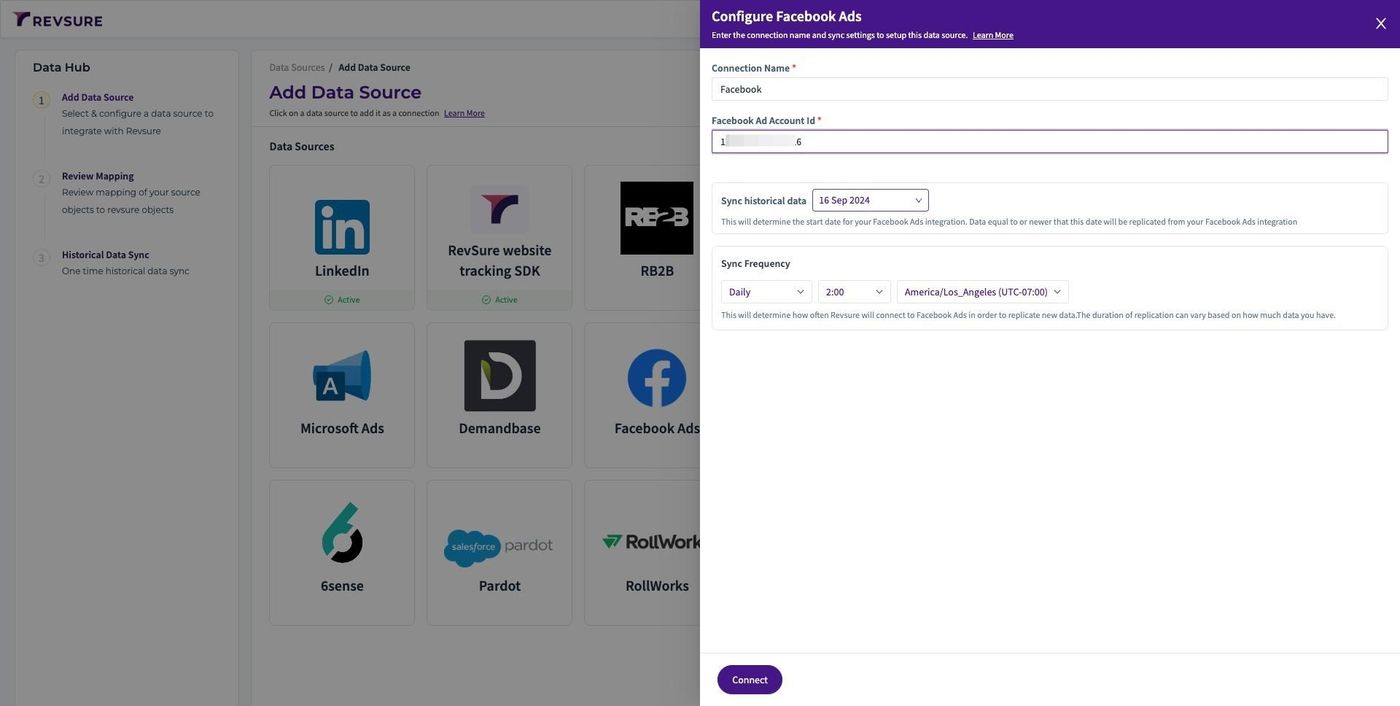
RevSure Facebook Ads Integration Implementation Guide (figure 5)

7. Select sync frequency, time and timezone to trigger the sync
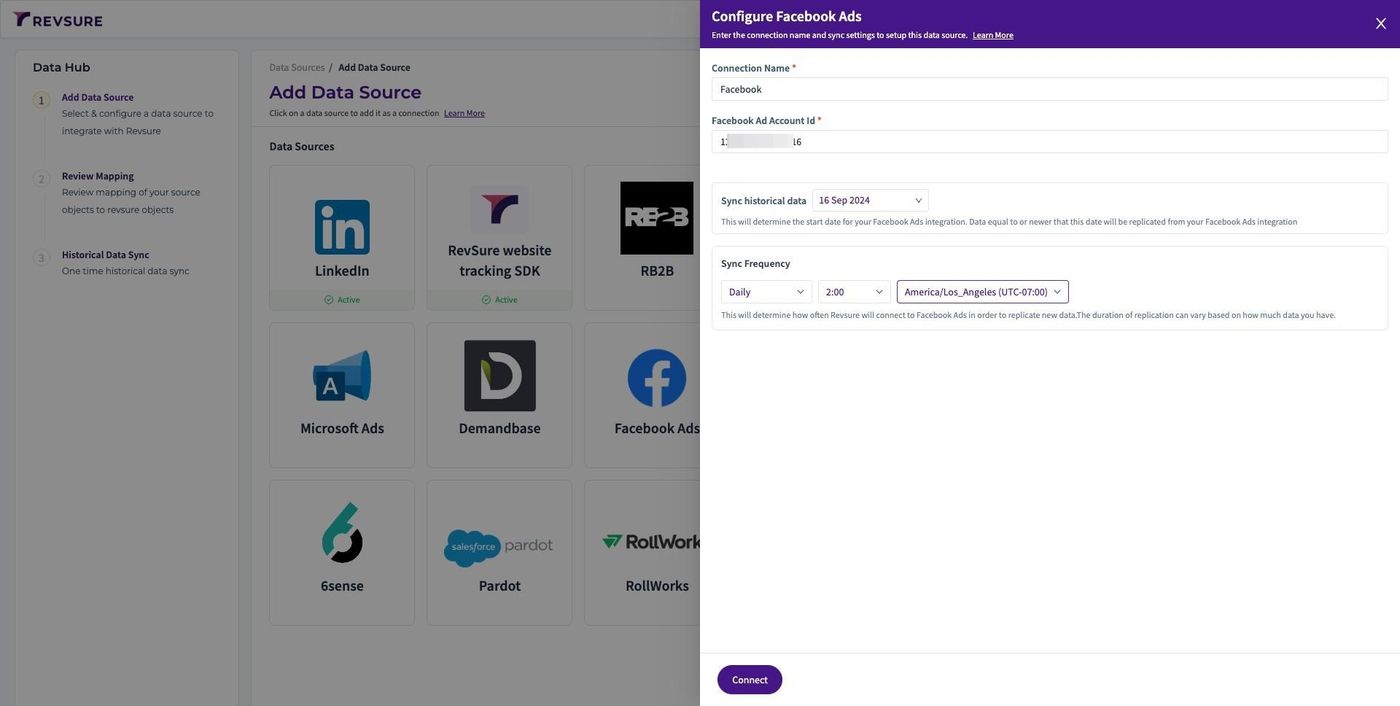
RevSure Facebook Ads Integration Implementation Guide (figure 6)

8. Click "Connect"

RevSure Facebook Ads Integration Implementation Guide (figure 7)

9. Login using your credentials in Facebook Ads SSO pop up
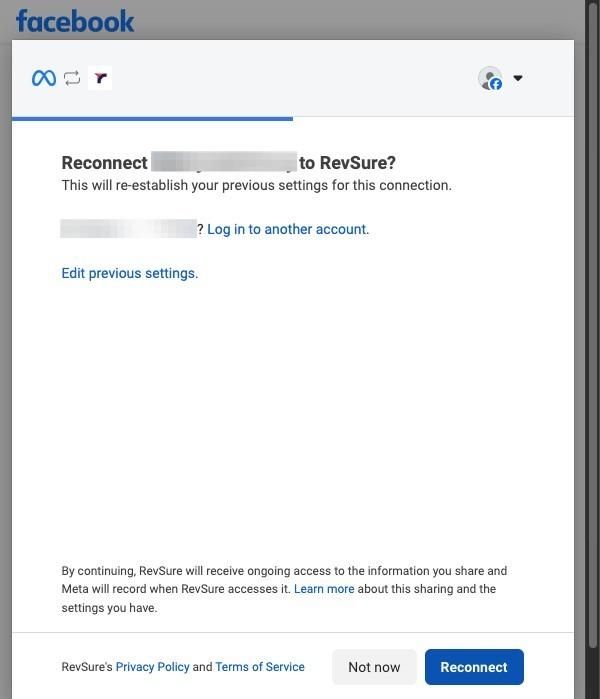
RevSure Facebook Ads Integration Implementation Guide (figure 8)

10. Click "CONFIRM MAPPING" to confirm mapping
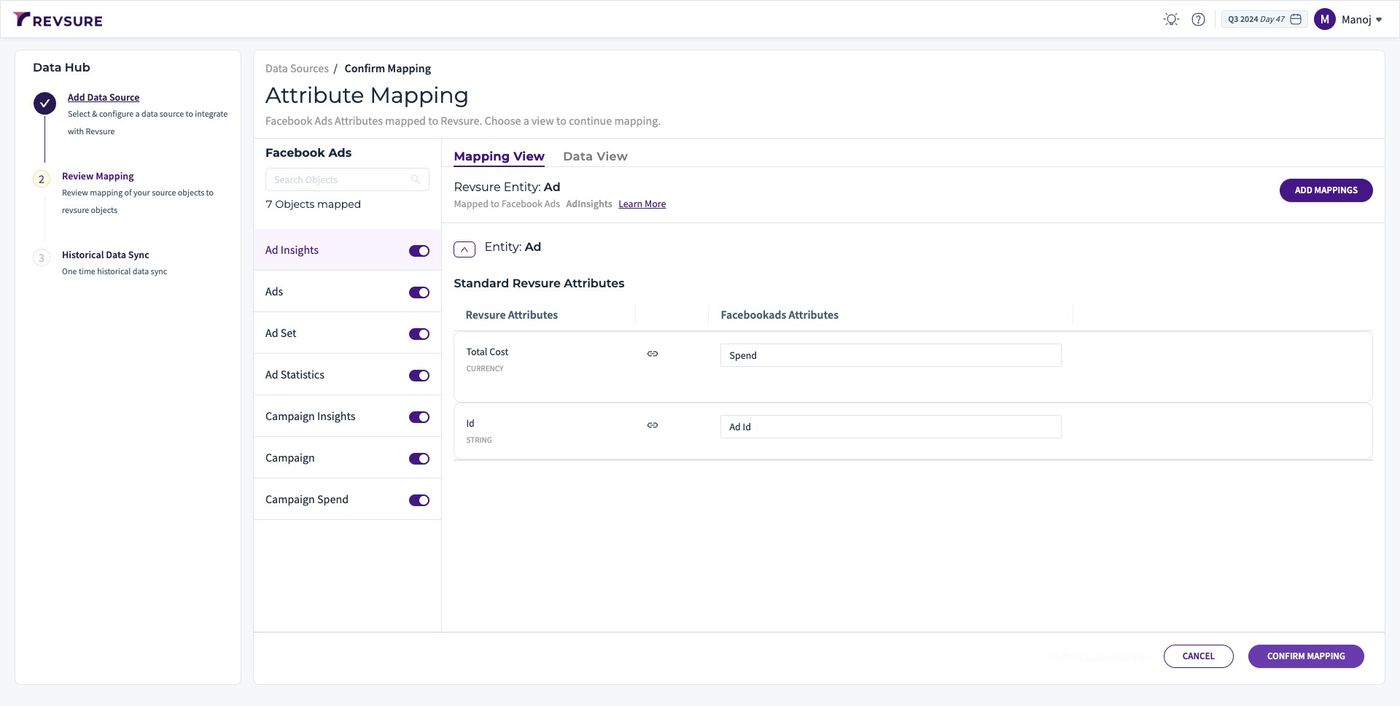
RevSure Facebook Ads Integration Implementation Guide (figure 9)

11. Data source will be added, and you will be able to view sync status
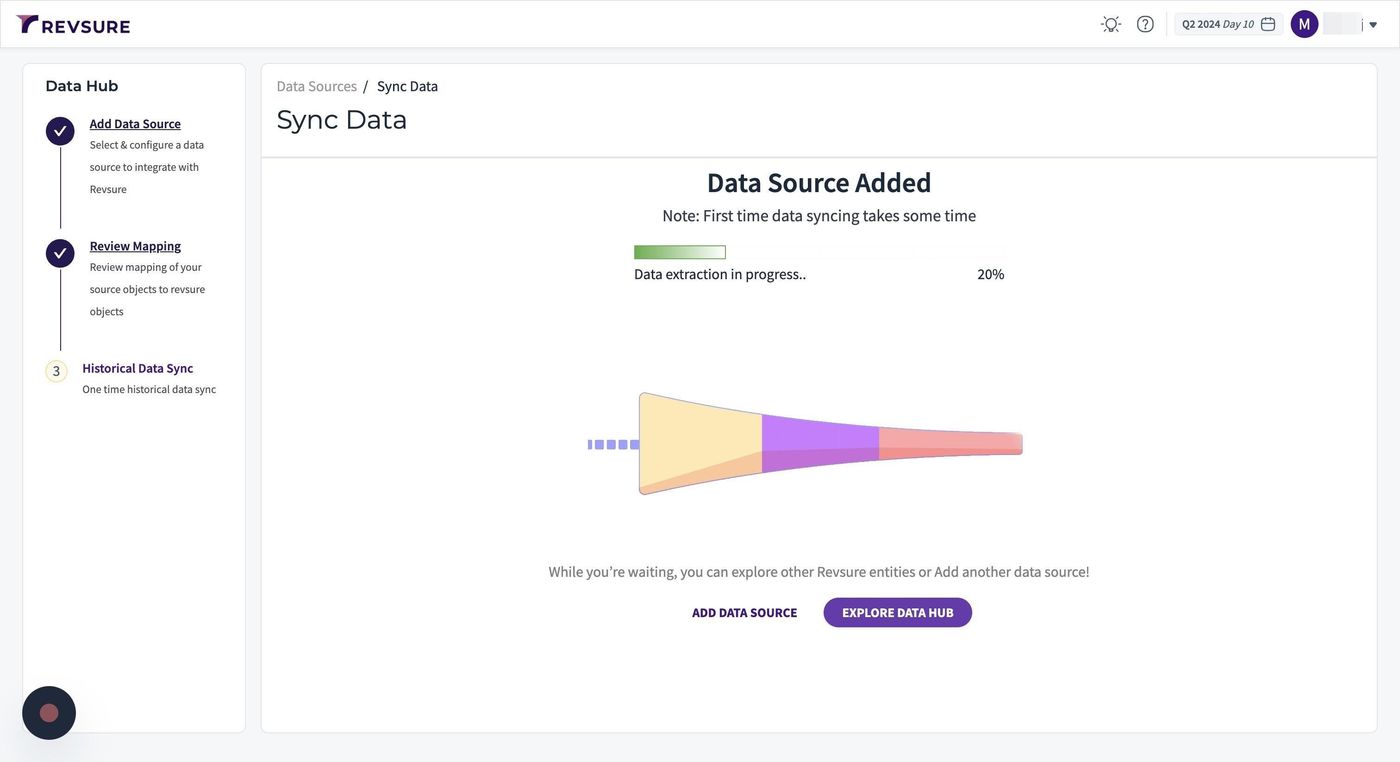
RevSure Facebook Ads Integration Implementation Guide (figure 10)
Ready when your stack is

Still stuck? Bring it to the session

A RevSure engineer walks your exact setup on a 30-minute working session.