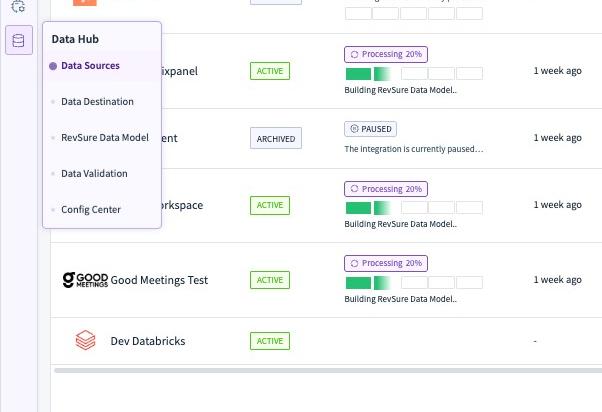
1. Go to Data Hub
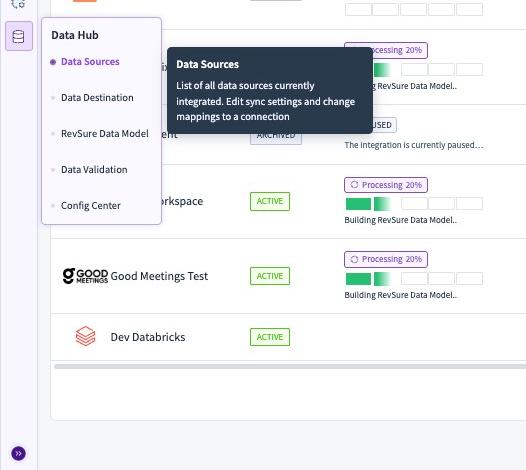
2. Click Data Sources
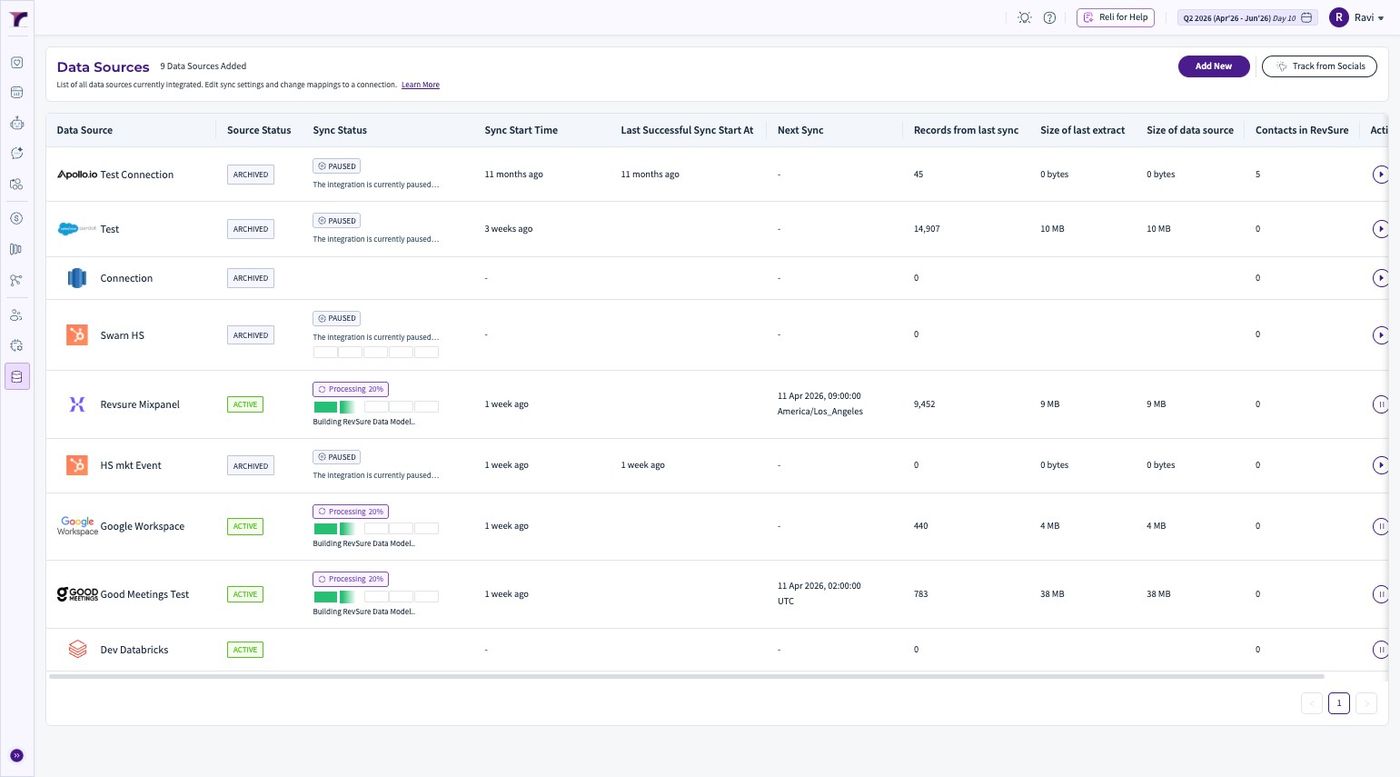
3. Click "Add New"
4. Select DataBricks from the list of the Sources
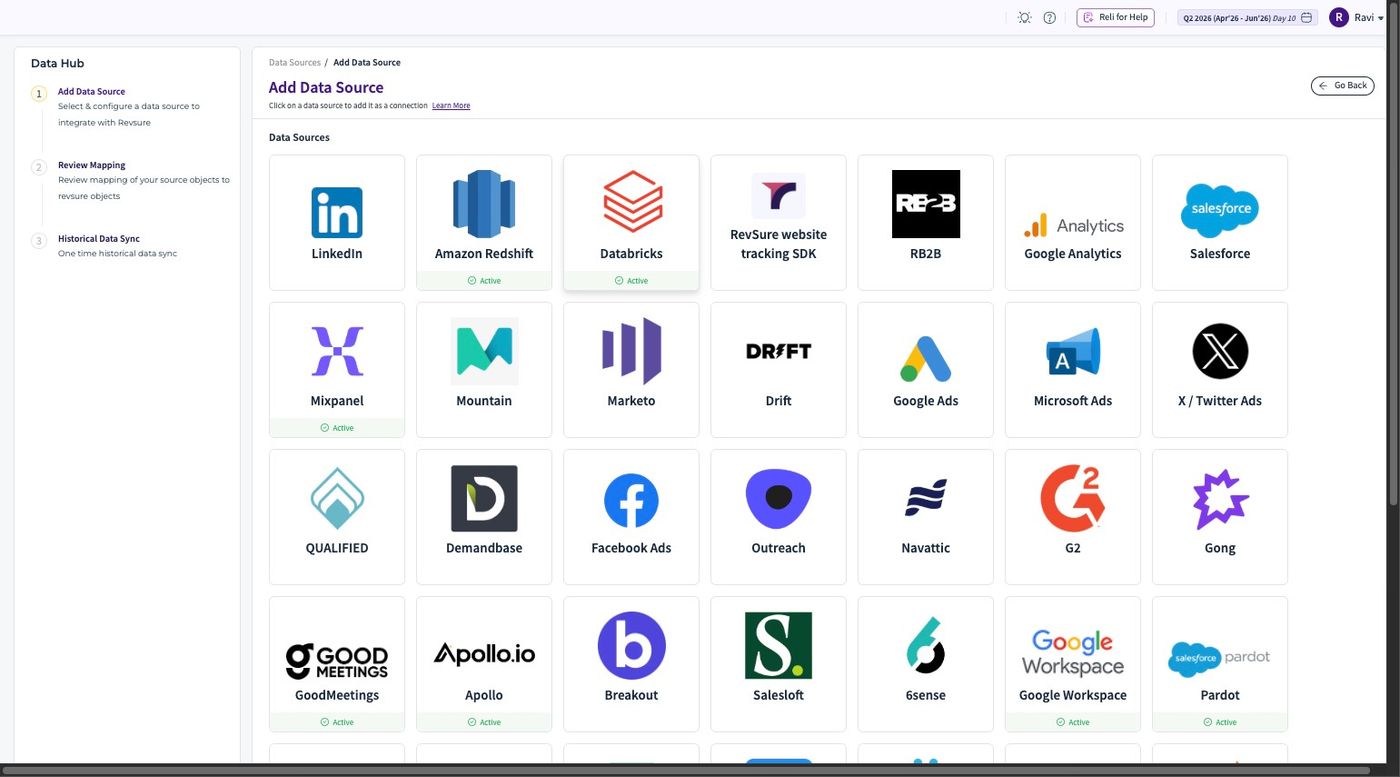
5. Give the "Connection Name *" field a Value
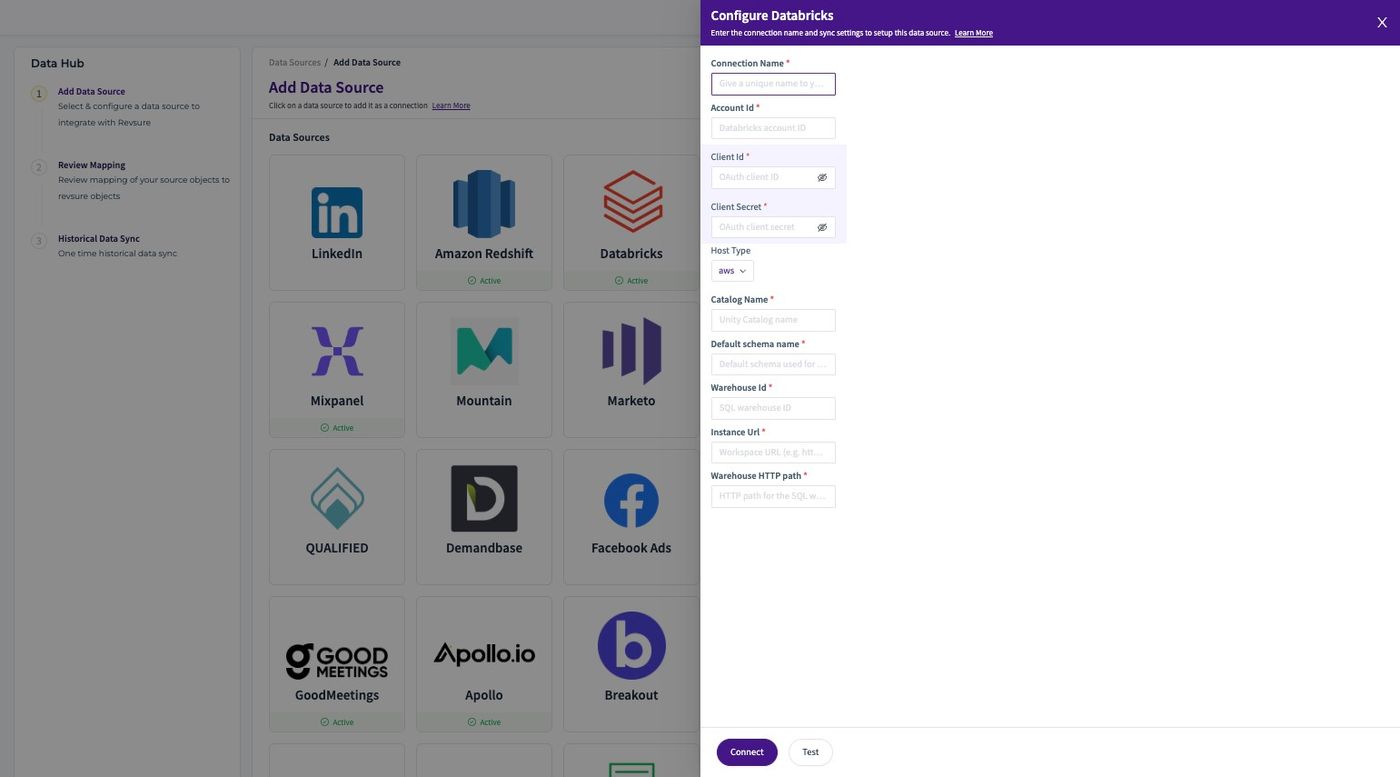
6. Fill the "Account Id *" field.
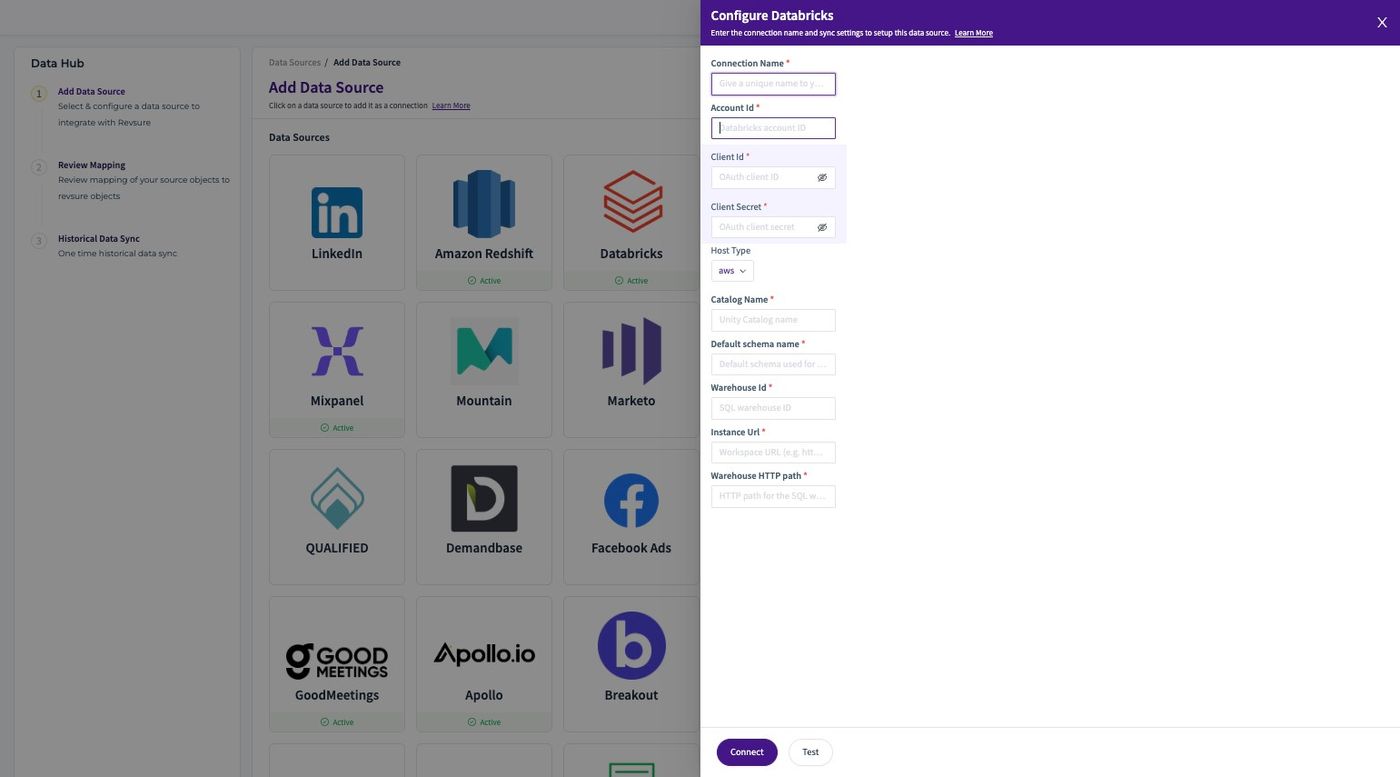
7. Add "Client Id *"
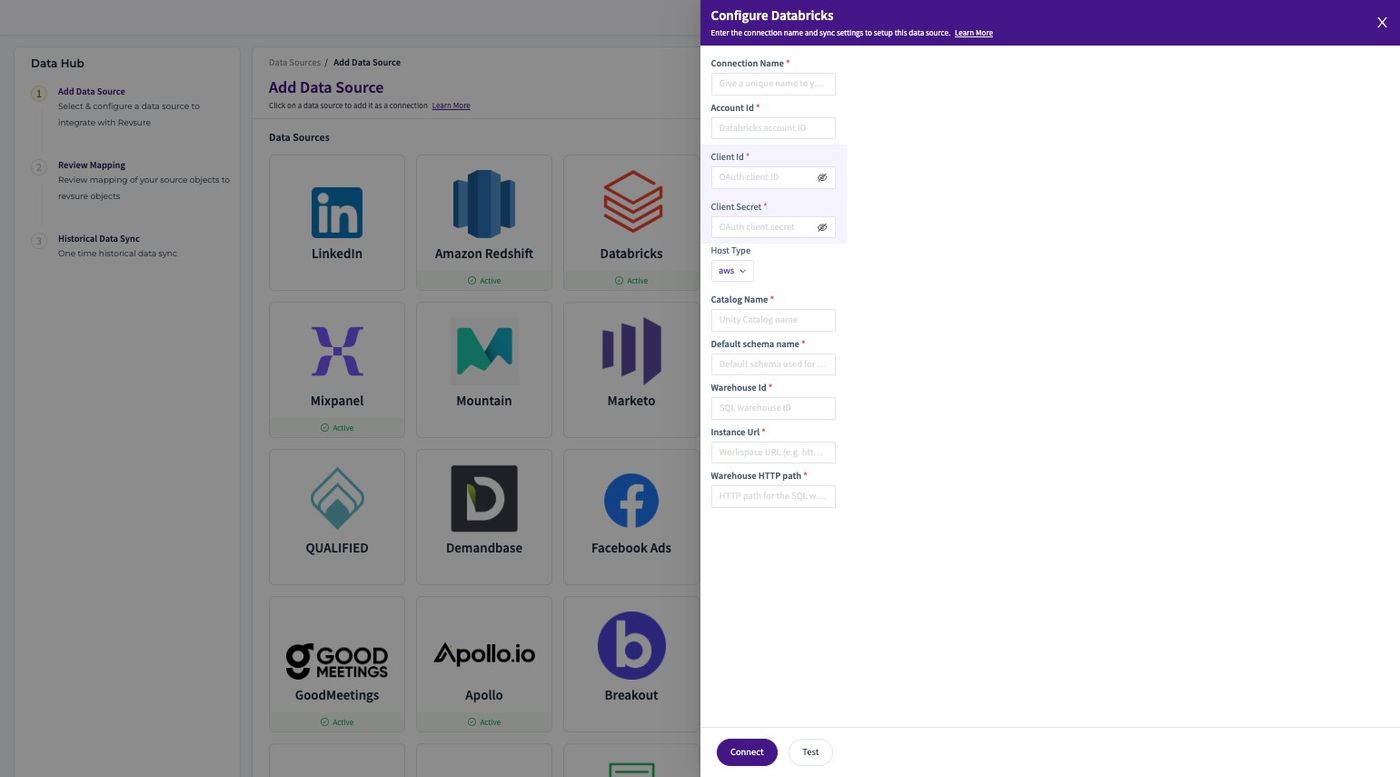
8. Add "Client Secret *"
9. Select the right Host Type
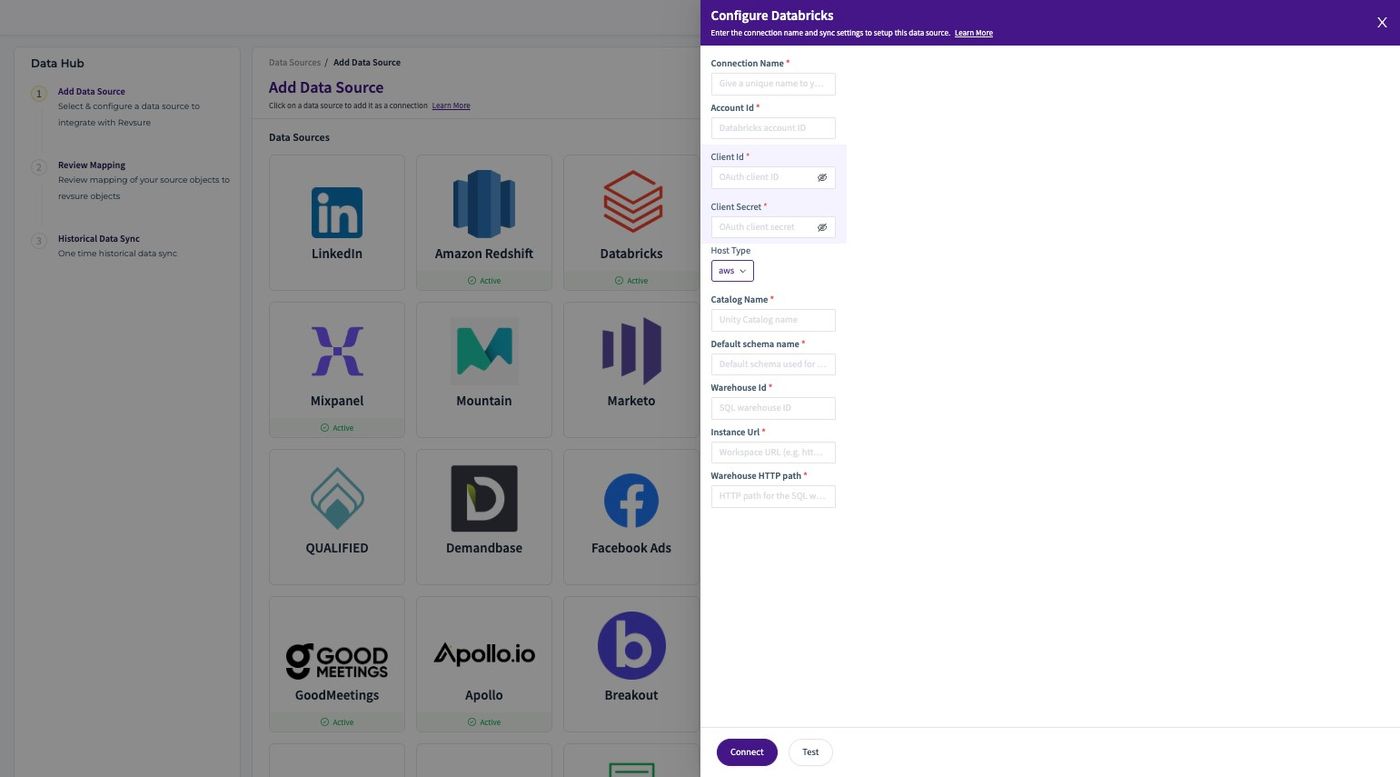
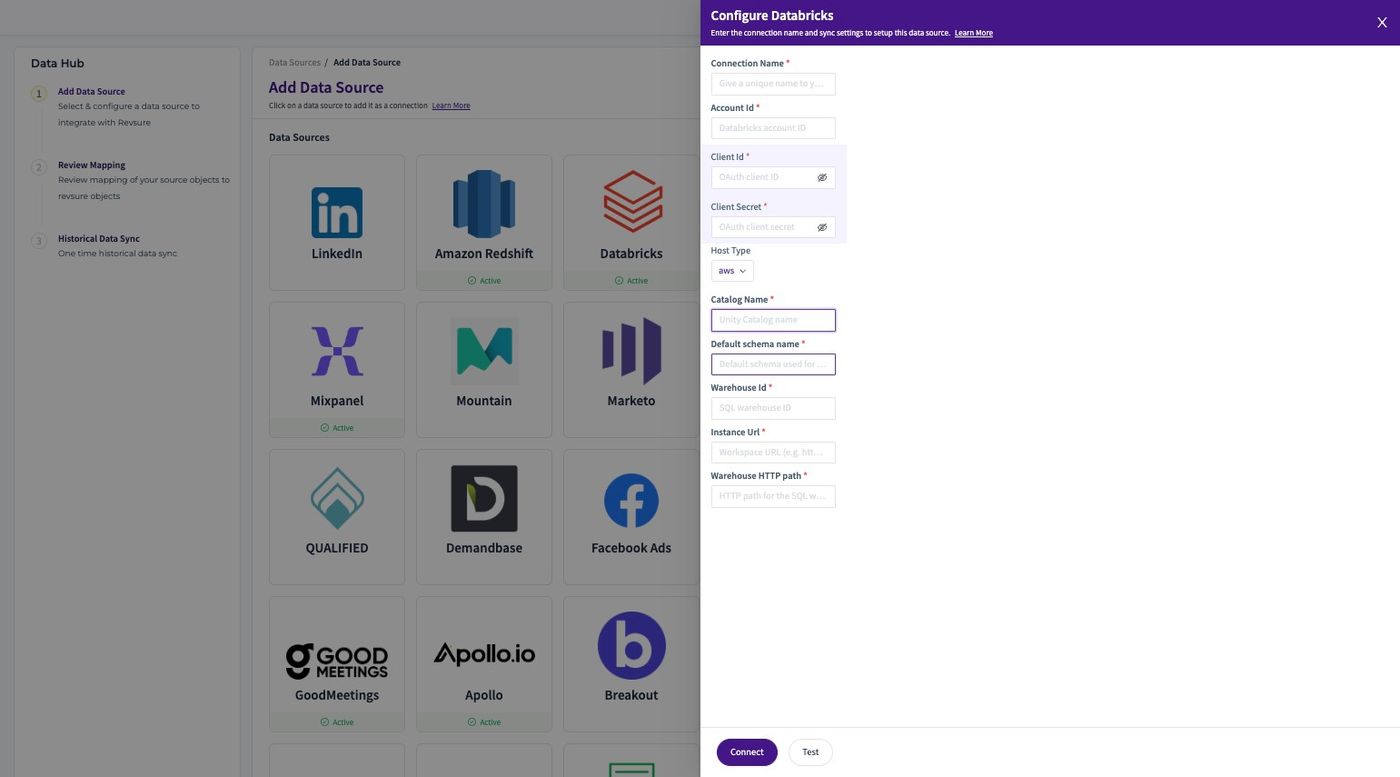
10. Set the "Catalog Name *" field.
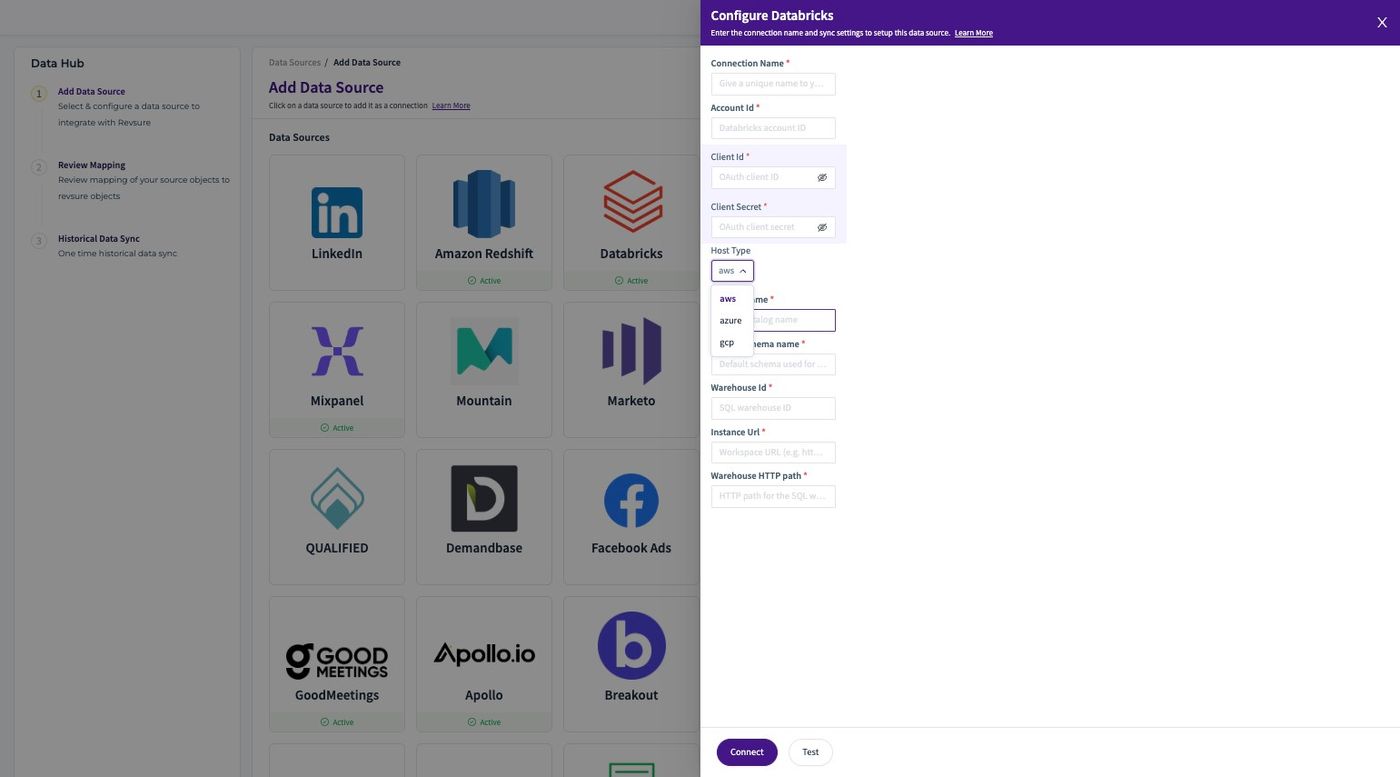
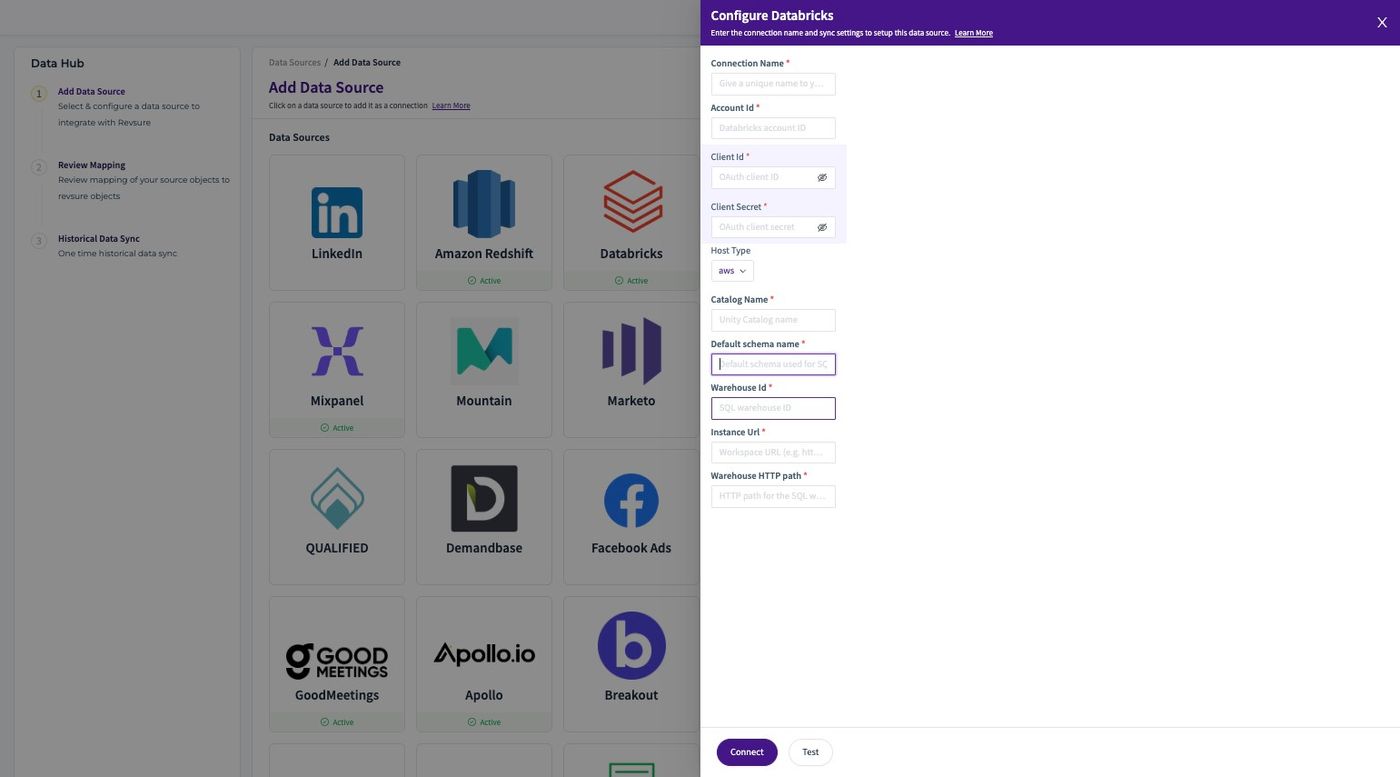
11. Set the "Default schema name *" field.
12. Set the "Warehouse Id *" field.
13. Set the "Instance Url *" field.
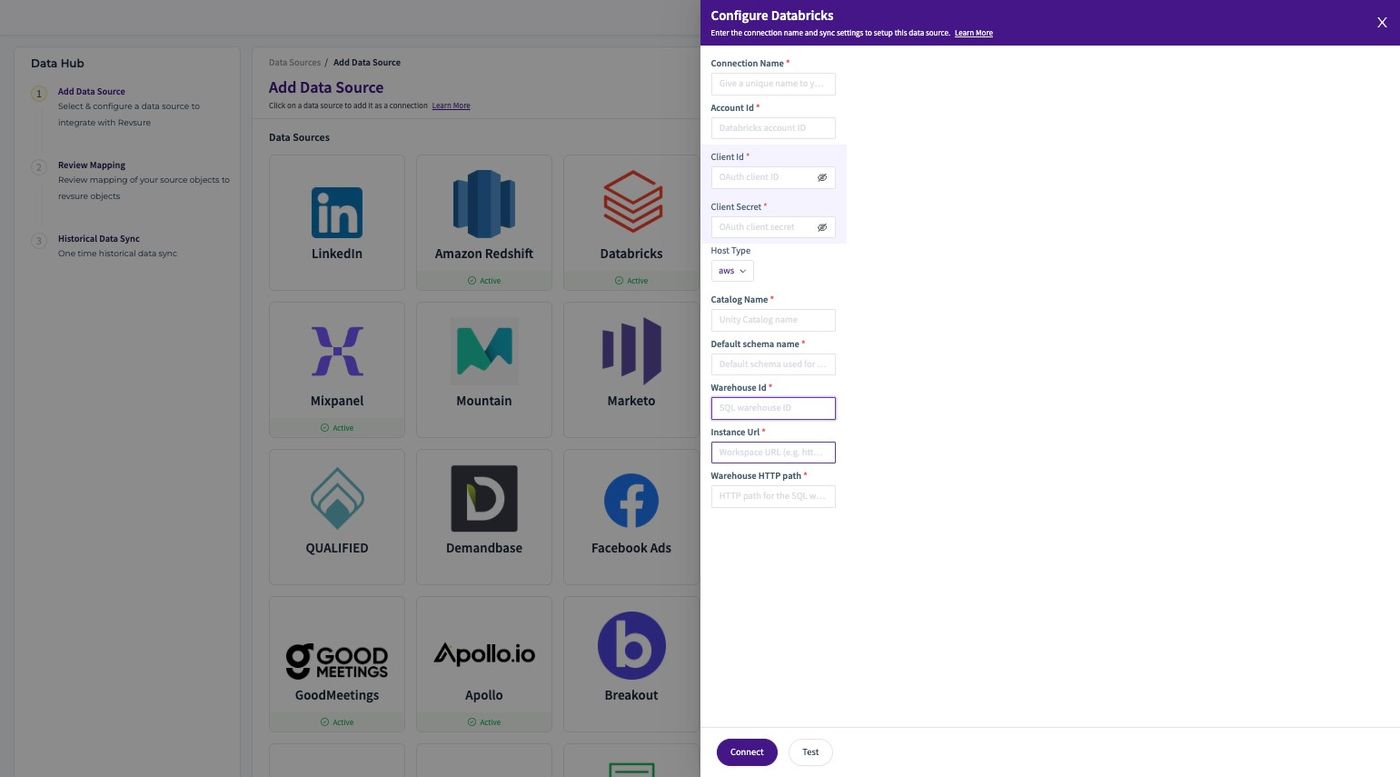
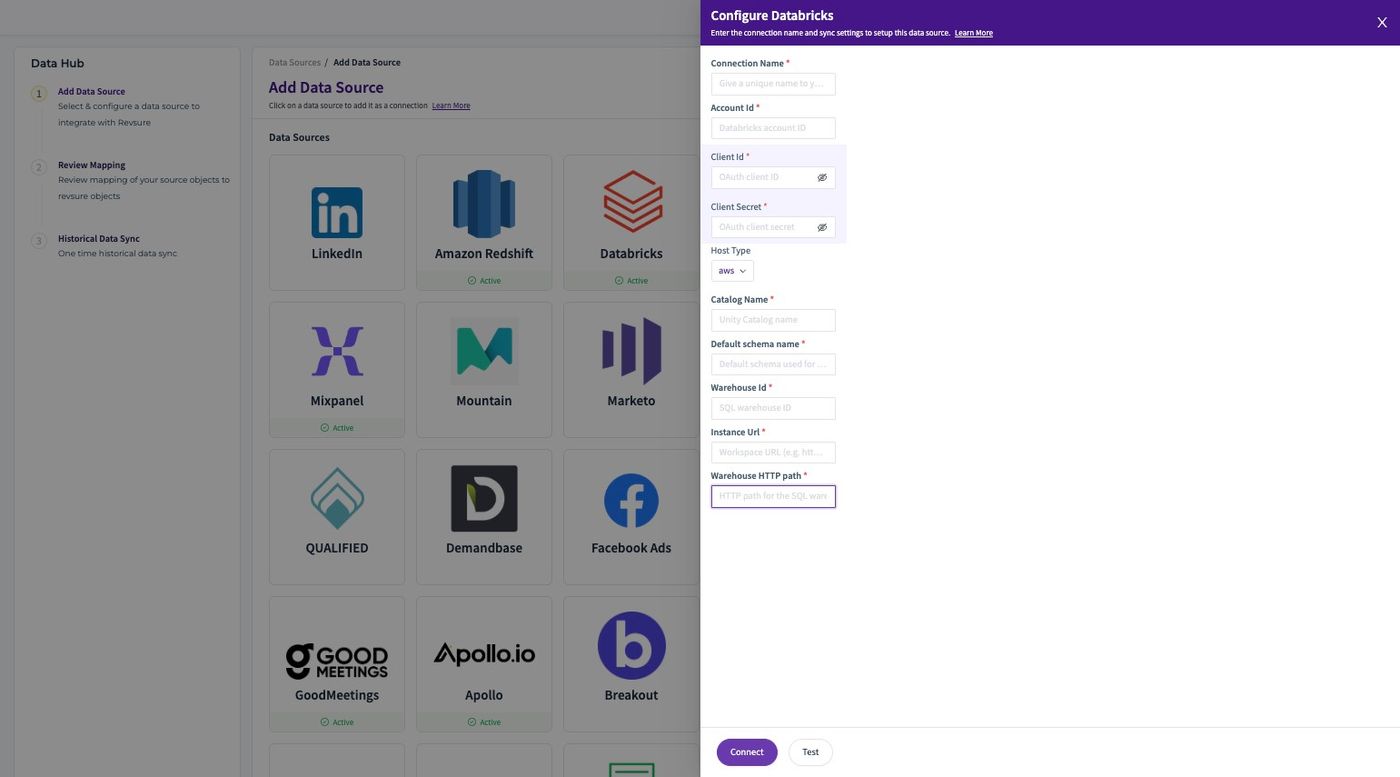
14. Give the "Warehouse HTTP path *" field.
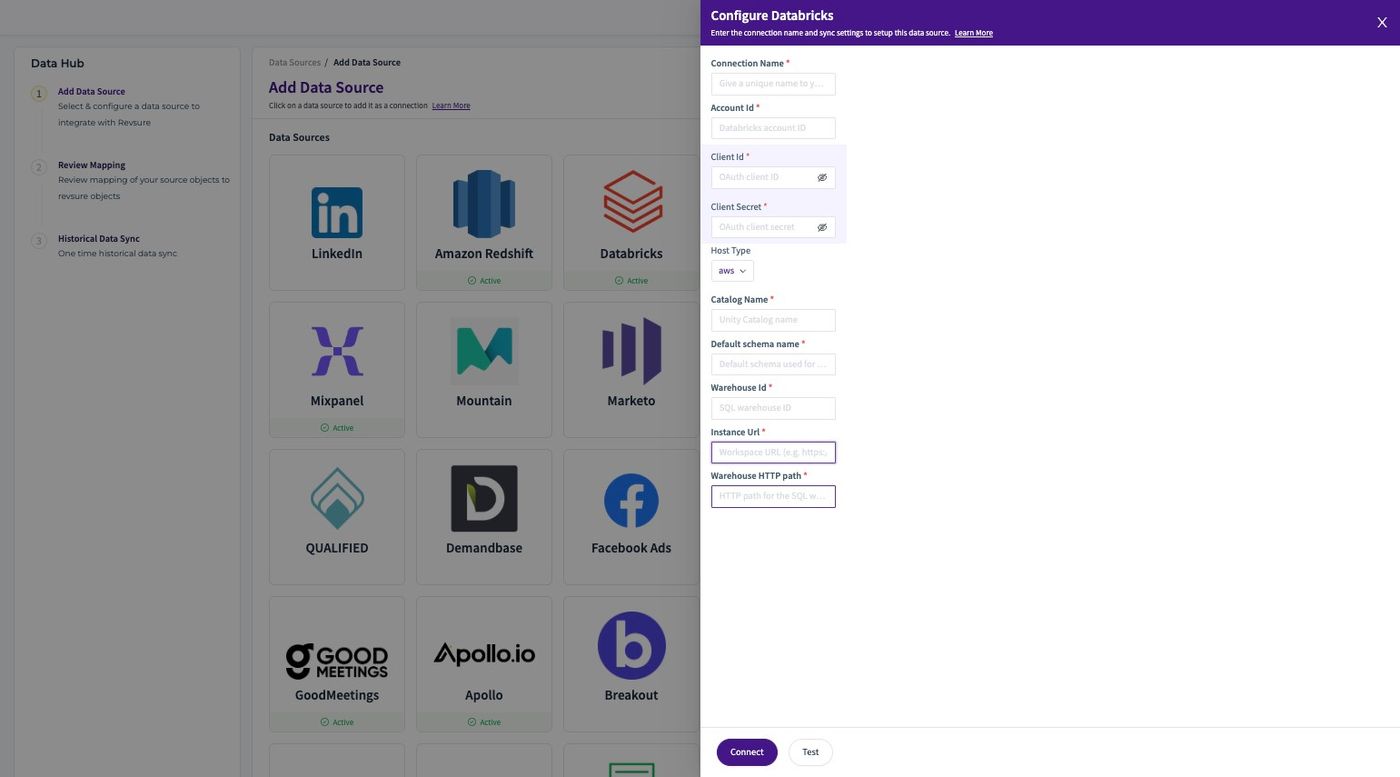
15. Click "Connect"
16. Comlplete the Oauth Flow and The Connection is Successfully Created and we can proceed to create a Workflow
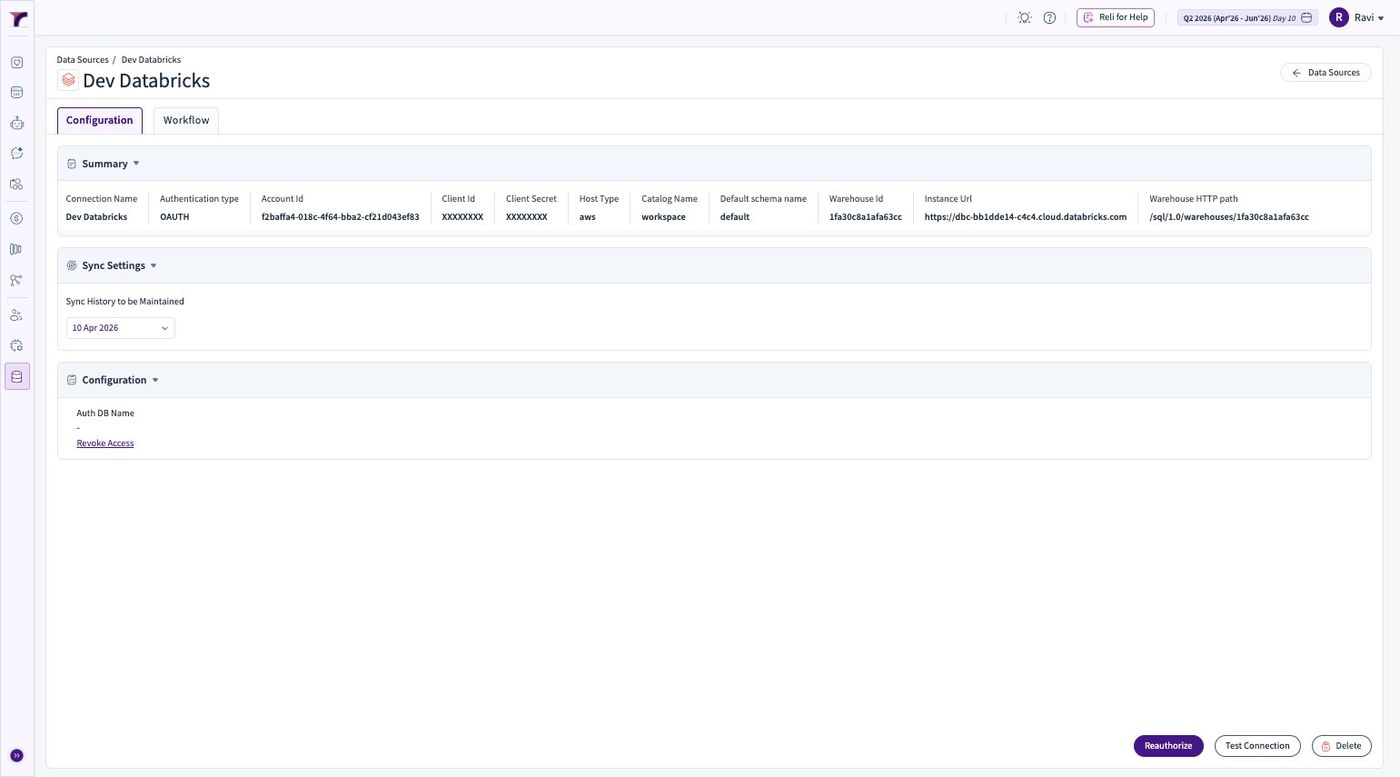
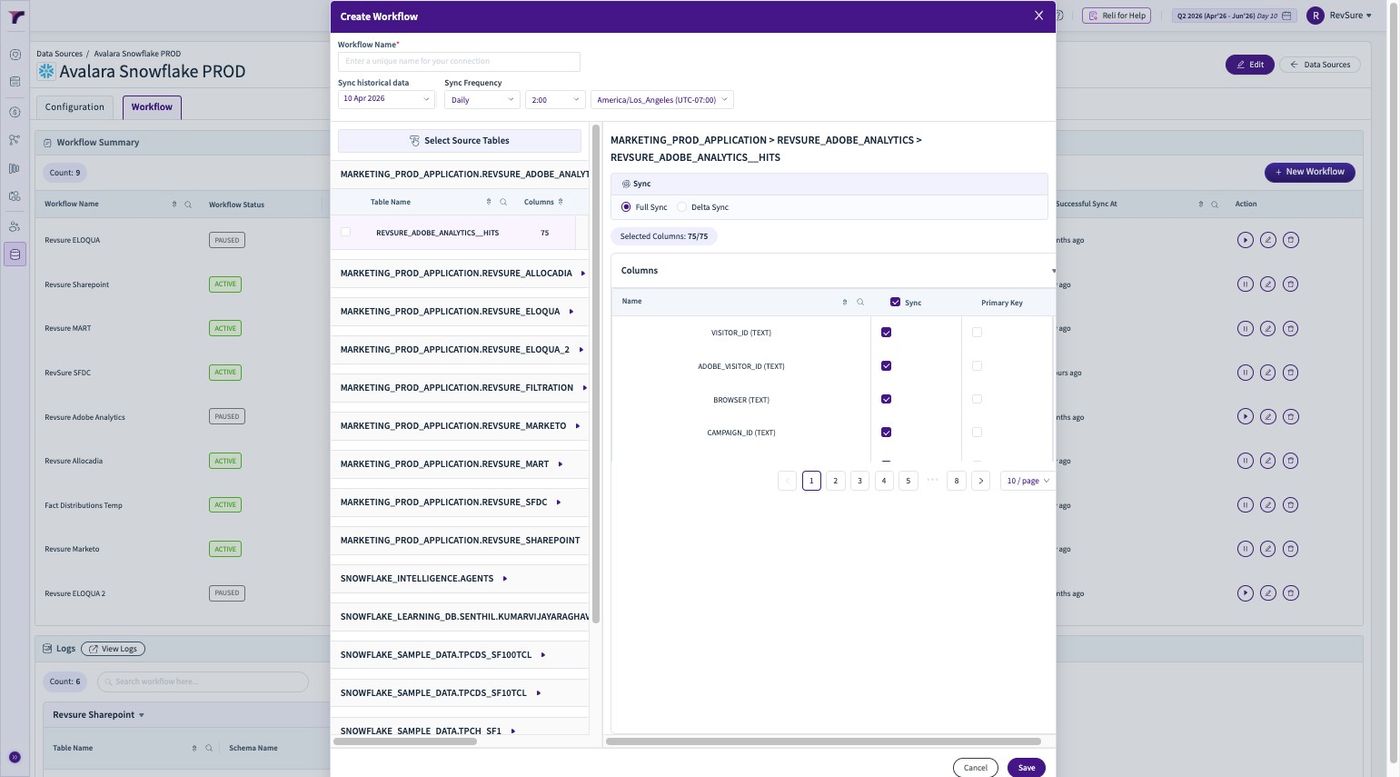
17. Click "Workflow" Tab
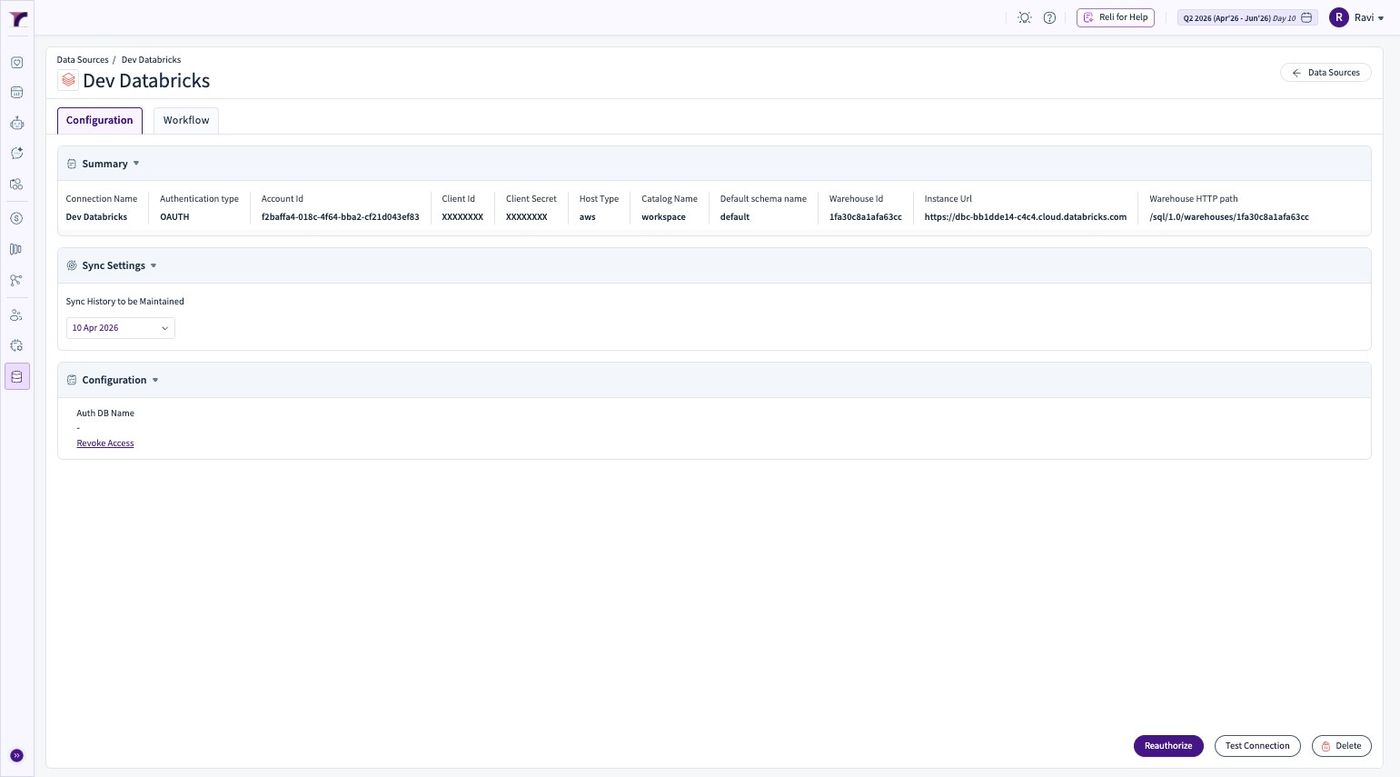
18. Click "New Workflow"
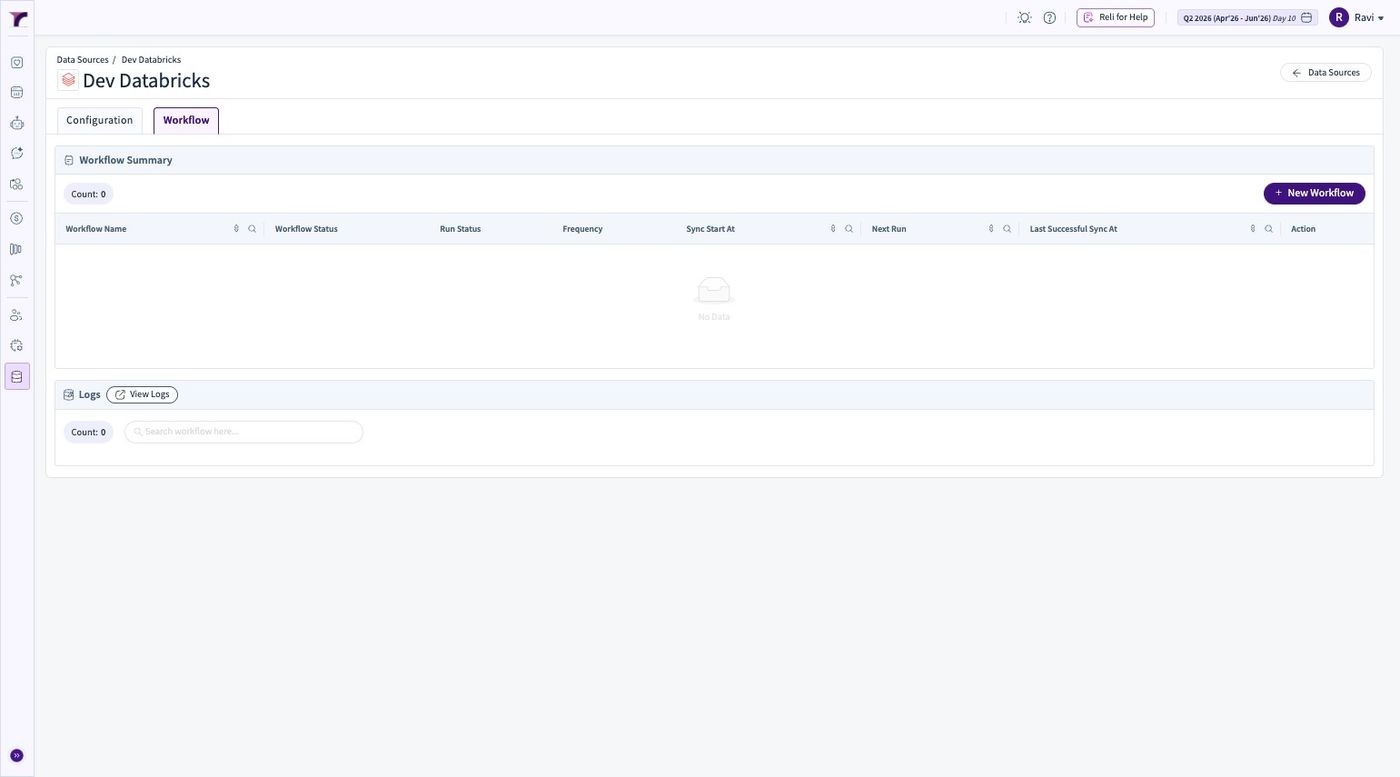
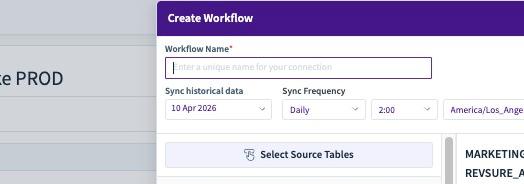
19. Give the workflow a Name
20. Select the colums and table to be synced under the workflow
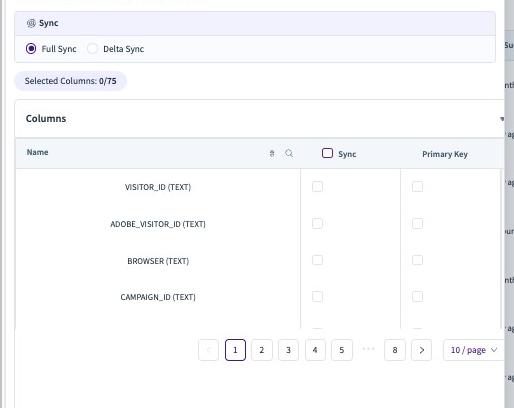
21. Click Save on the Workflow to complete the process