FAQs/Integrations & tracking/How to configure "Login with SSO" in Salesforce
Integrations & tracking · RevSure FAQs

How to configure "Login with SSO" in Salesforce

1. Navigate to your Salesforce instance

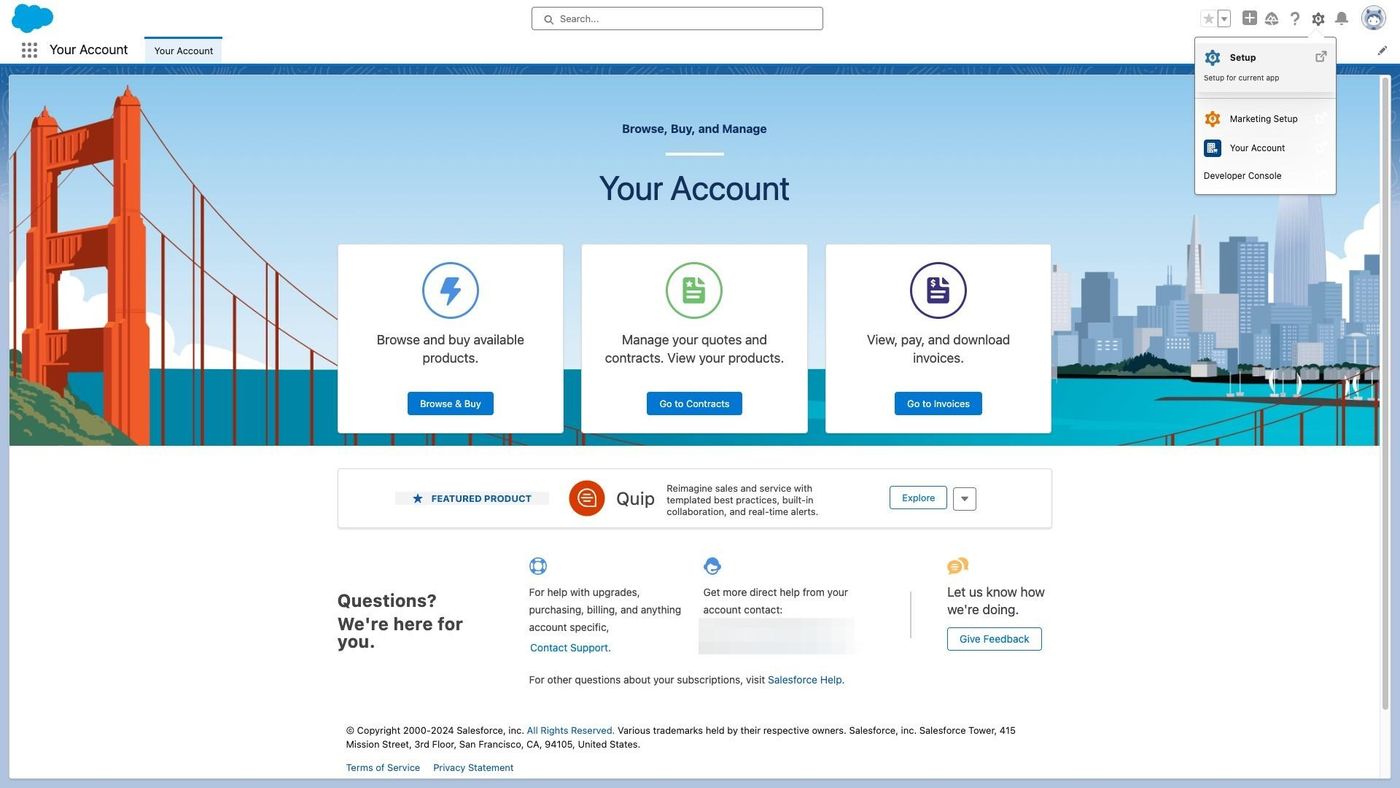
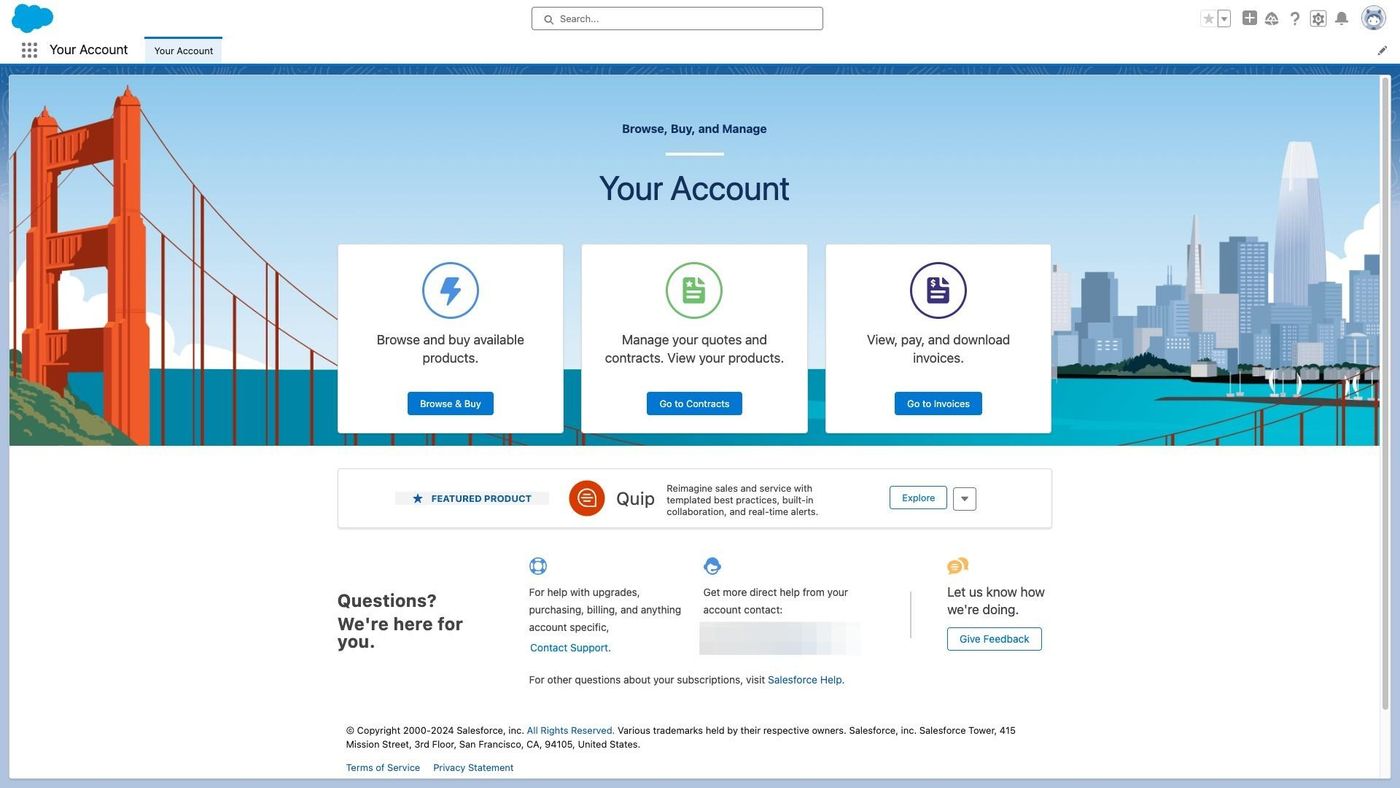
2. Click here on setting icon.
How to configure "Login with SSO" in Salesforce (figure 1)

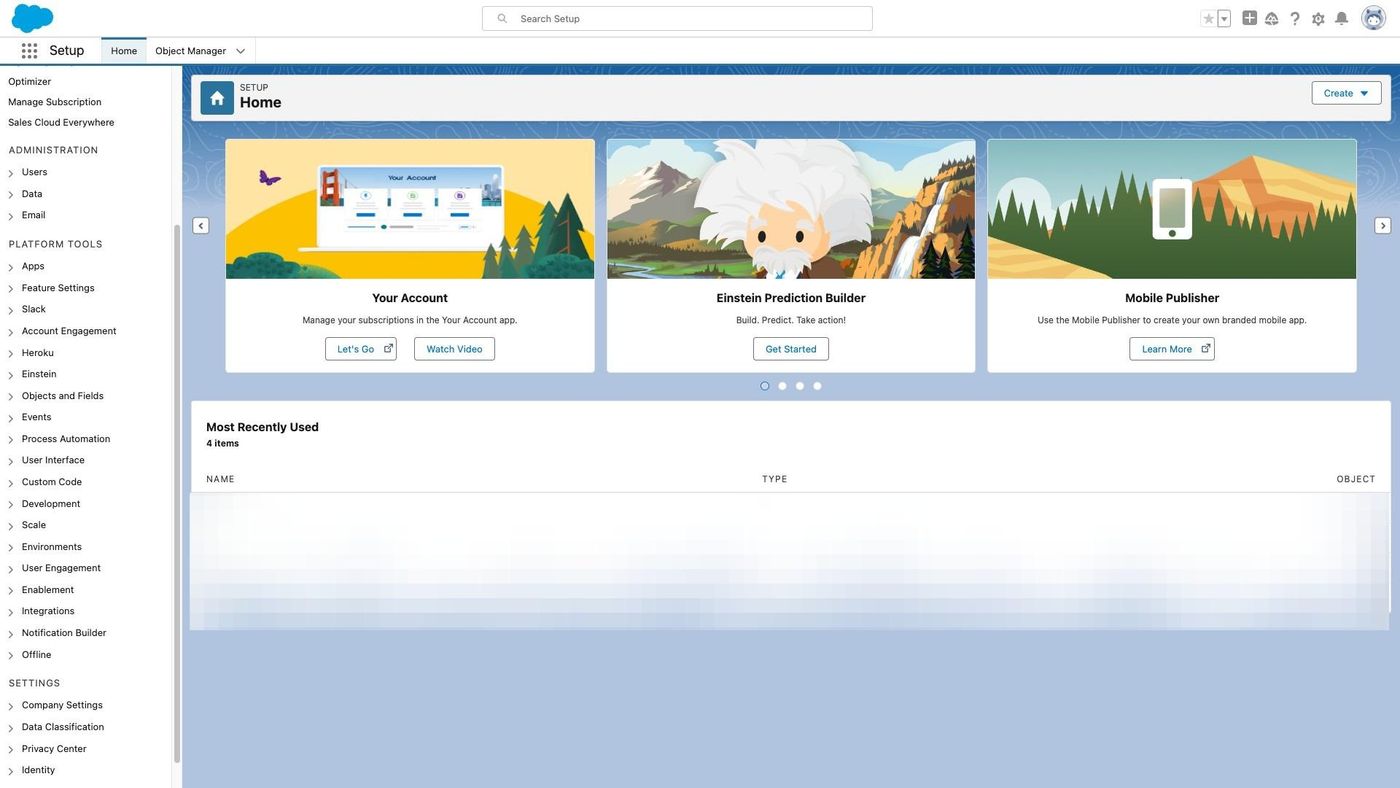
3. Click here on setup button.

How to configure "Login with SSO" in Salesforce (figure 2)

4. Click the "Search Setup" field.

How to configure "Login with SSO" in Salesforce (figure 3)

5. Type "My Domain" and Click on "My Domain" from dropdown
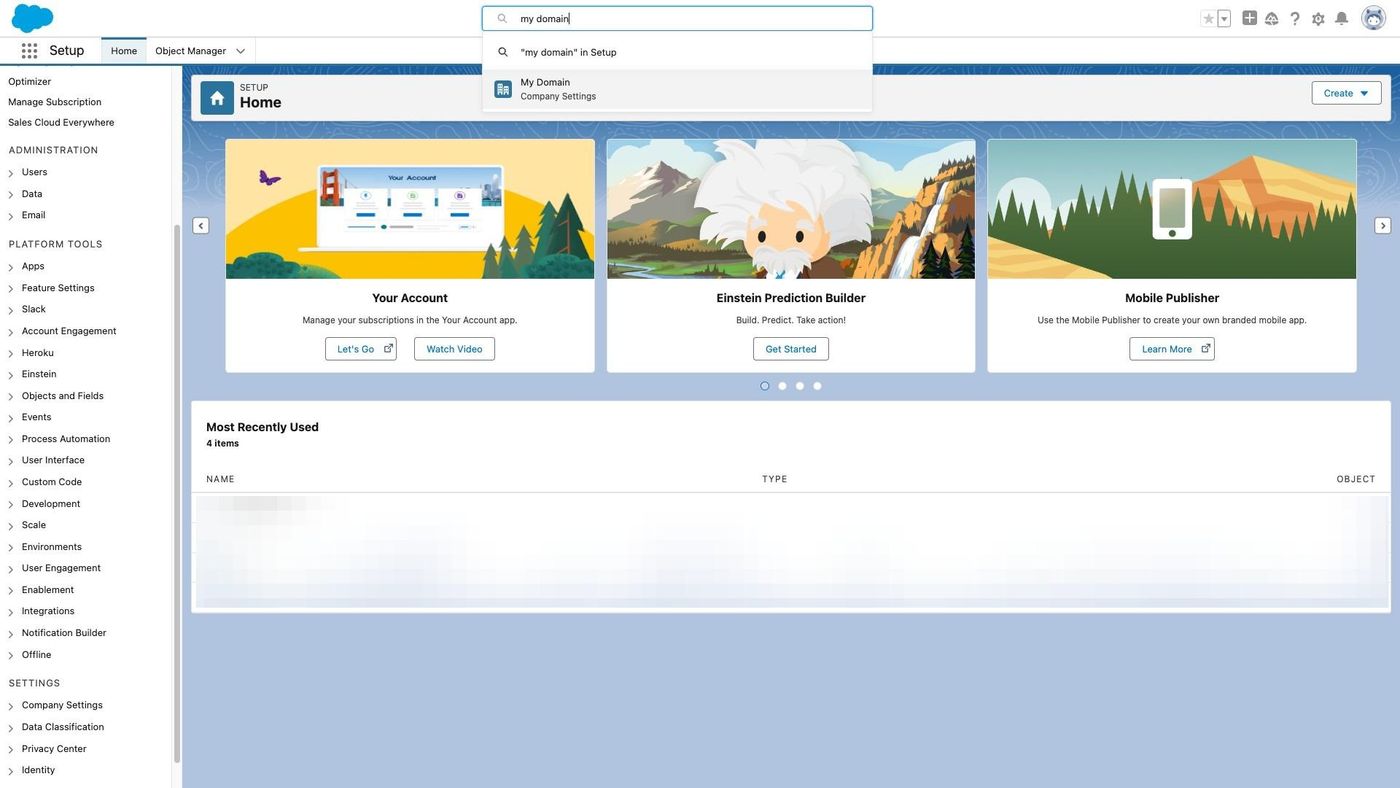
How to configure "Login with SSO" in Salesforce (figure 4)

6. Scroll down to Authentication Configuration and Click on "Edit"
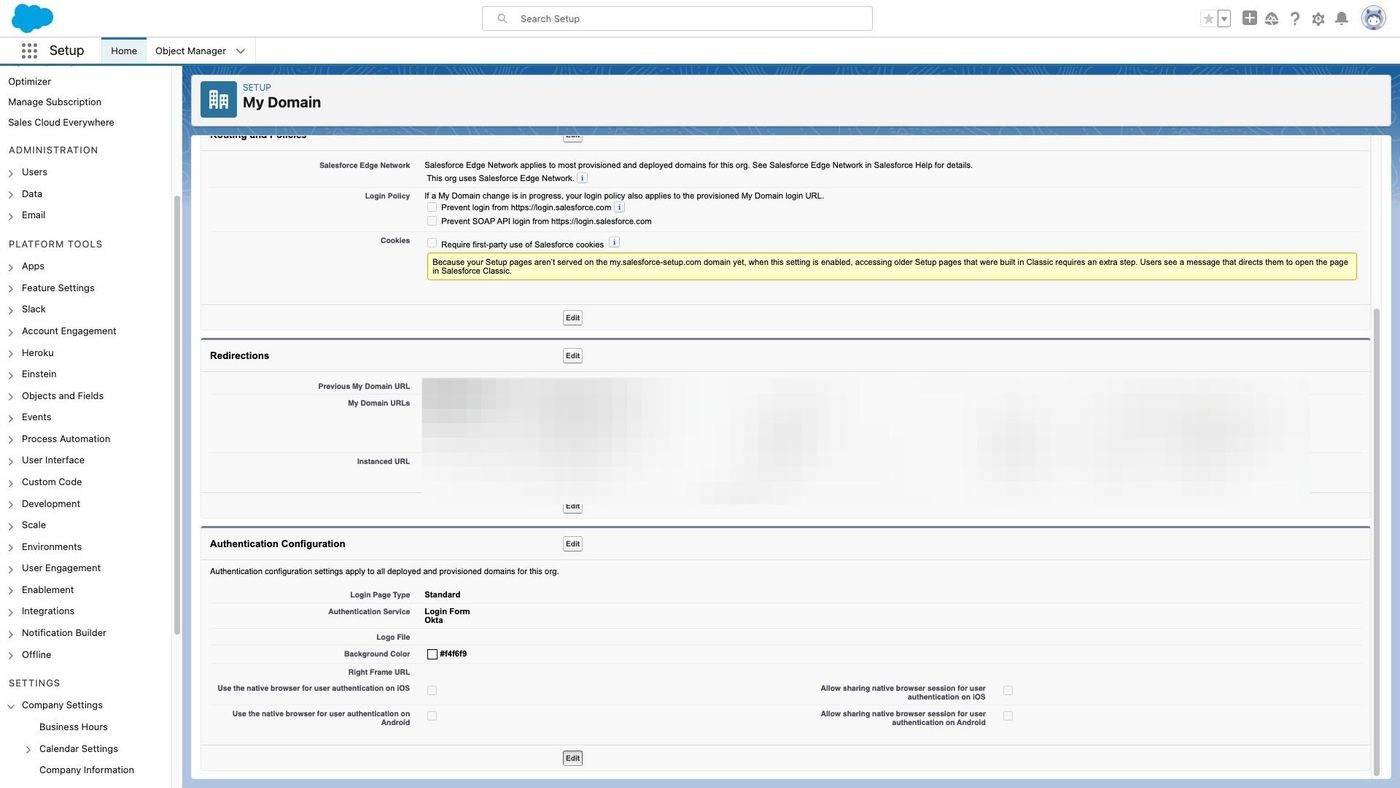
How to configure "Login with SSO" in Salesforce (figure 5)

7. Select the authentication service of SSO. Label of authentication service might defer based on your SAML configuration. Once this is done. You will be able to see "Login with SSO" in login page.
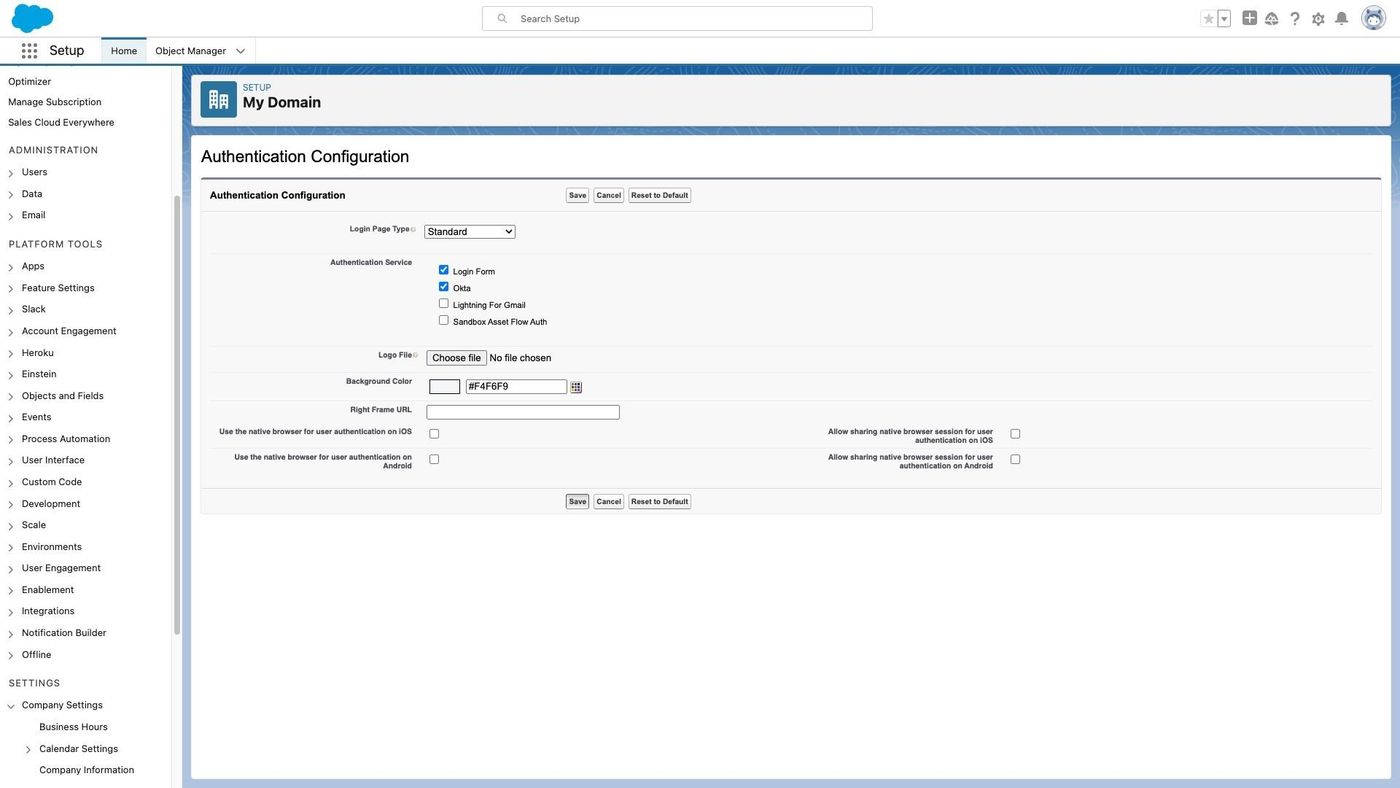
How to configure "Login with SSO" in Salesforce (figure 6)
Ready when your stack is

Still stuck? Bring it to the session

A RevSure engineer walks your exact setup on a 30-minute working session.