FAQs/Integrations & tracking/How to Add a Salesforce Data Source in Data Hub
Integrations & tracking · RevSure FAQs

How to Add a Salesforce Data Source in Data Hub

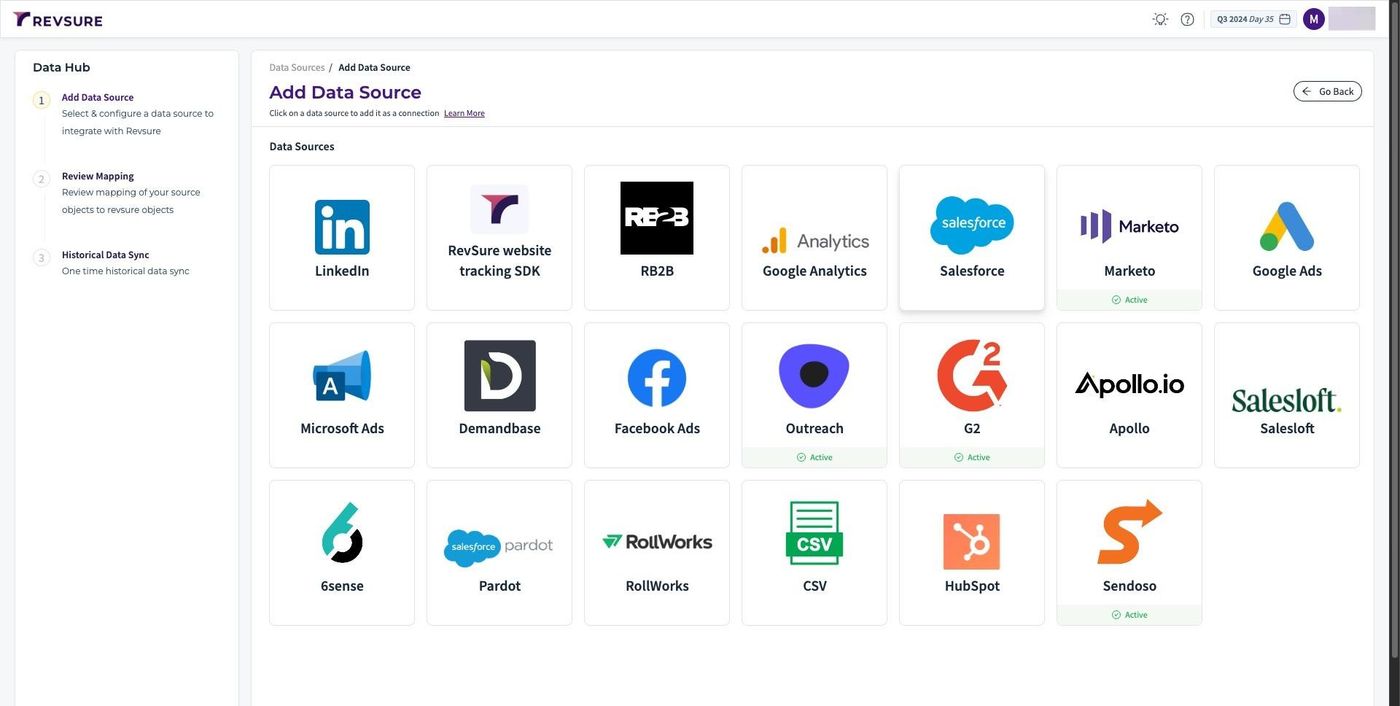
1. Navigate to your RevSure instance and go to Data Hub page

2. Click Salesforce connection and it will open a side panel.
How to Add a Salesforce Data Source in Data Hub (figure 1)

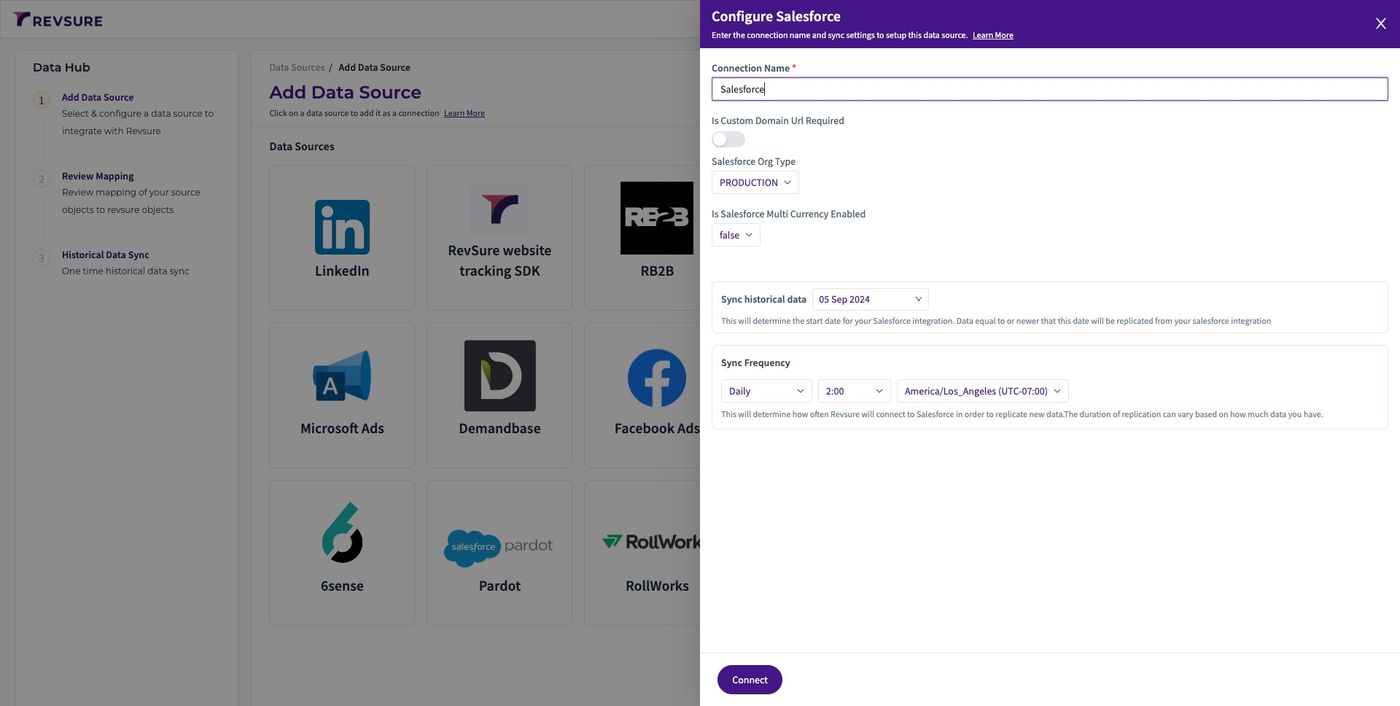
3. In the side panel, We will add connection name and enable custom domain url.
How to Add a Salesforce Data Source in Data Hub (figure 2)

4. Enter the Salesforce instance URL. This will be "my" Salesforce URL.
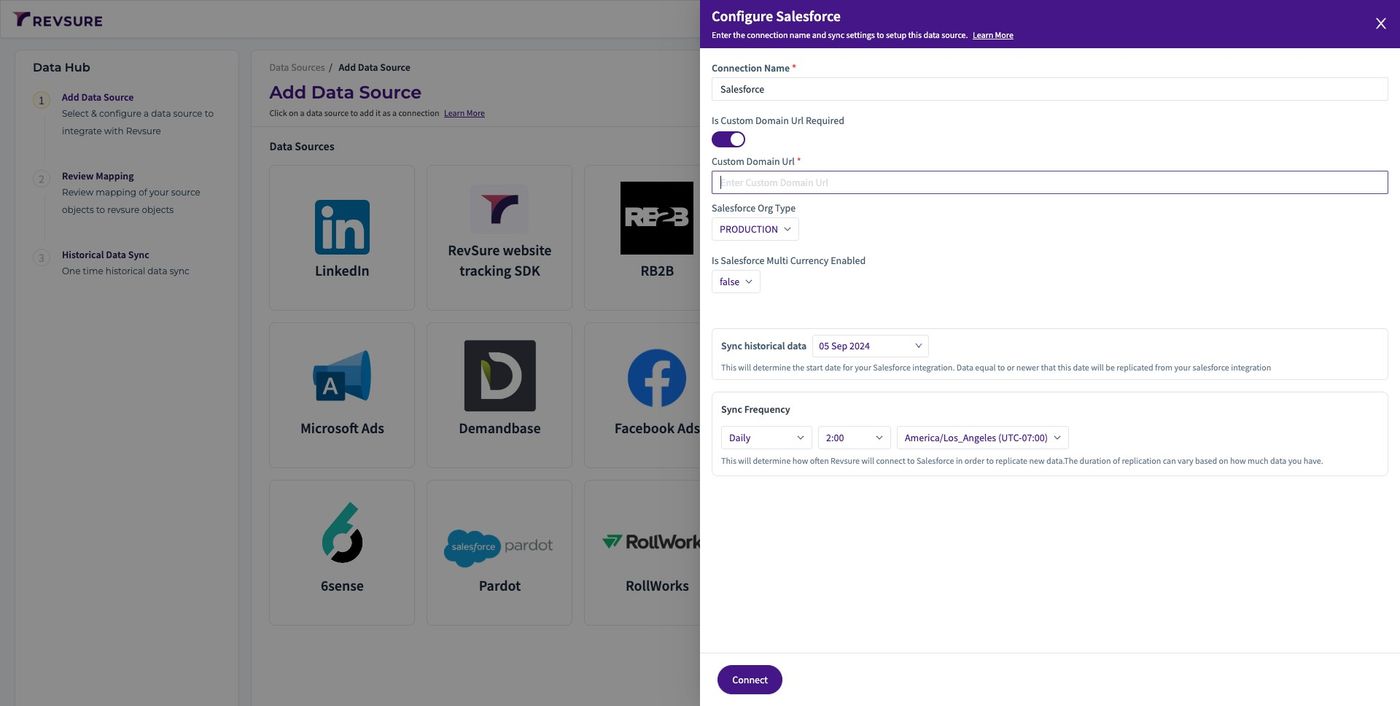
How to Add a Salesforce Data Source in Data Hub (figure 3)

5. If multi currency is enabled on the Salesforce instance, then you will have to set Is Multi currency enabled to true.
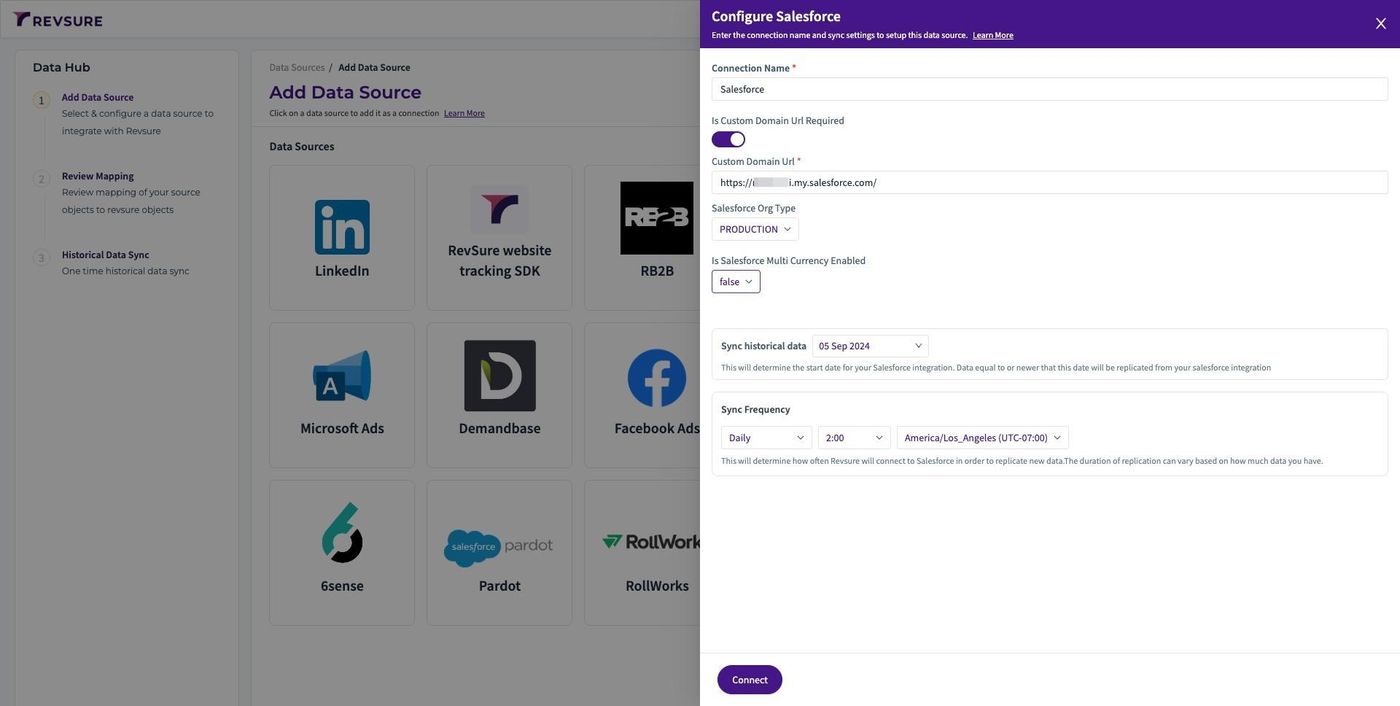
How to Add a Salesforce Data Source in Data Hub (figure 4)

6. Select historical date to sync from.
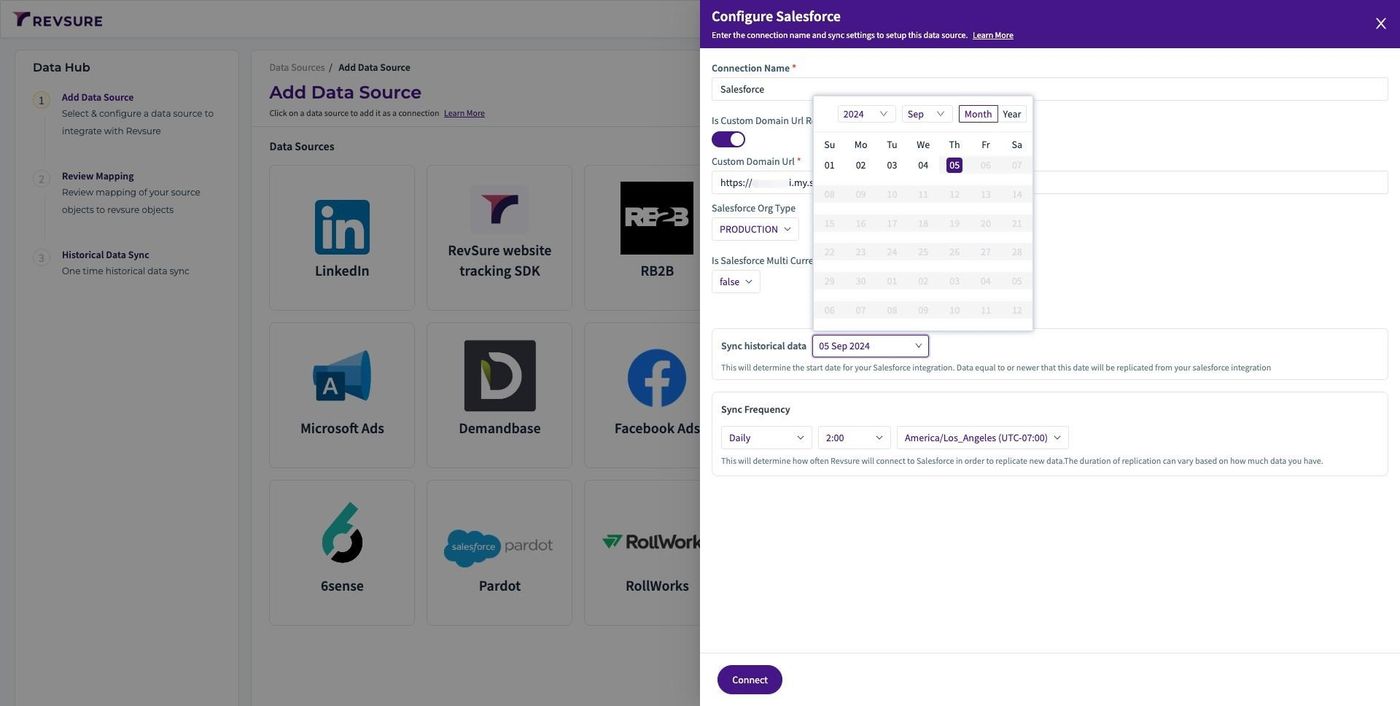
How to Add a Salesforce Data Source in Data Hub (figure 5)

7. Click "Connect" and Enter authentication details on the Salesforce SSO pop up.
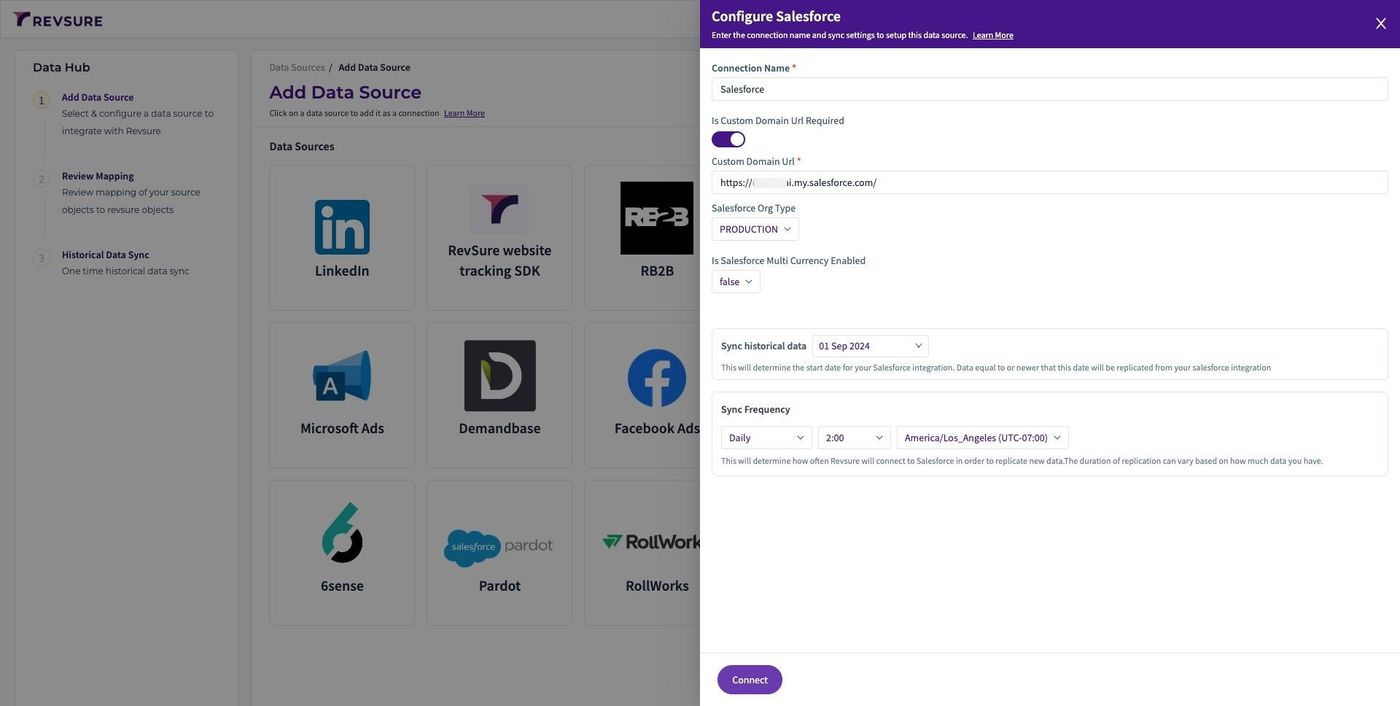
How to Add a Salesforce Data Source in Data Hub (figure 6)

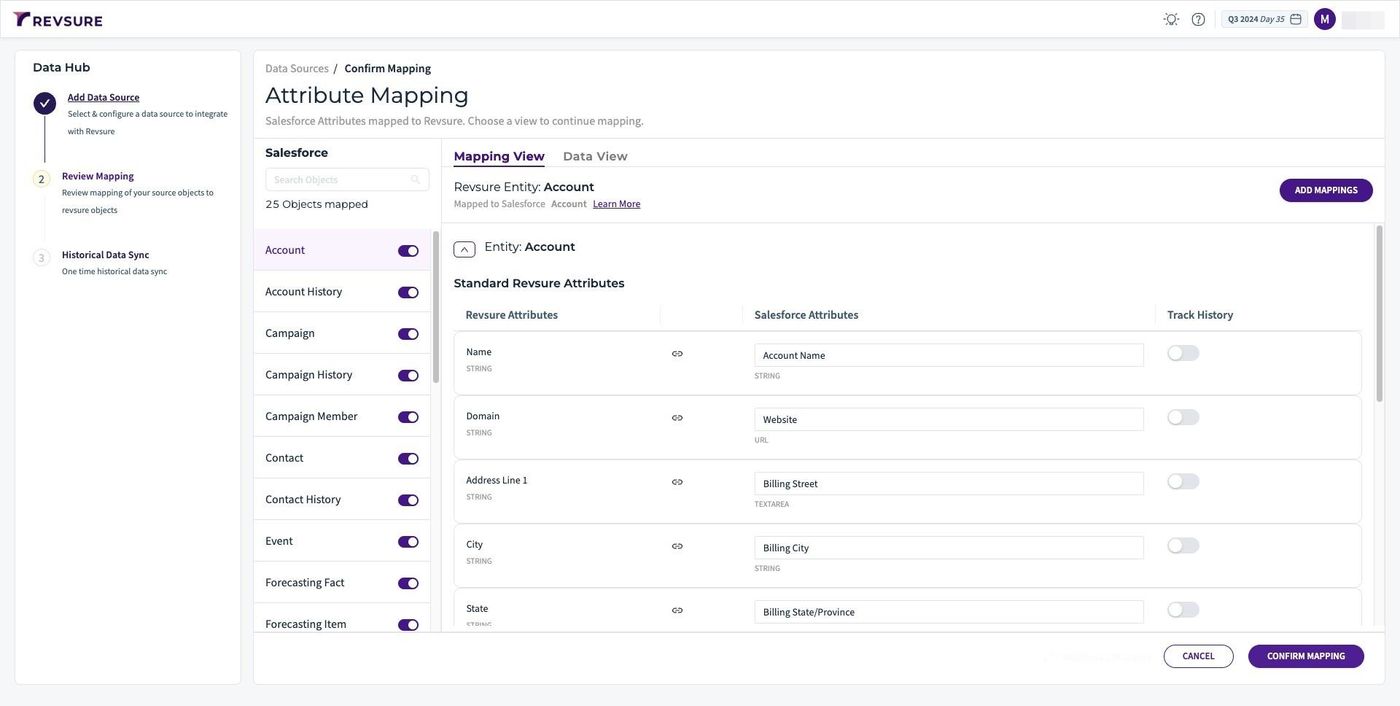
8. Review and confirm the mapping.

How to Add a Salesforce Data Source in Data Hub (figure 7)

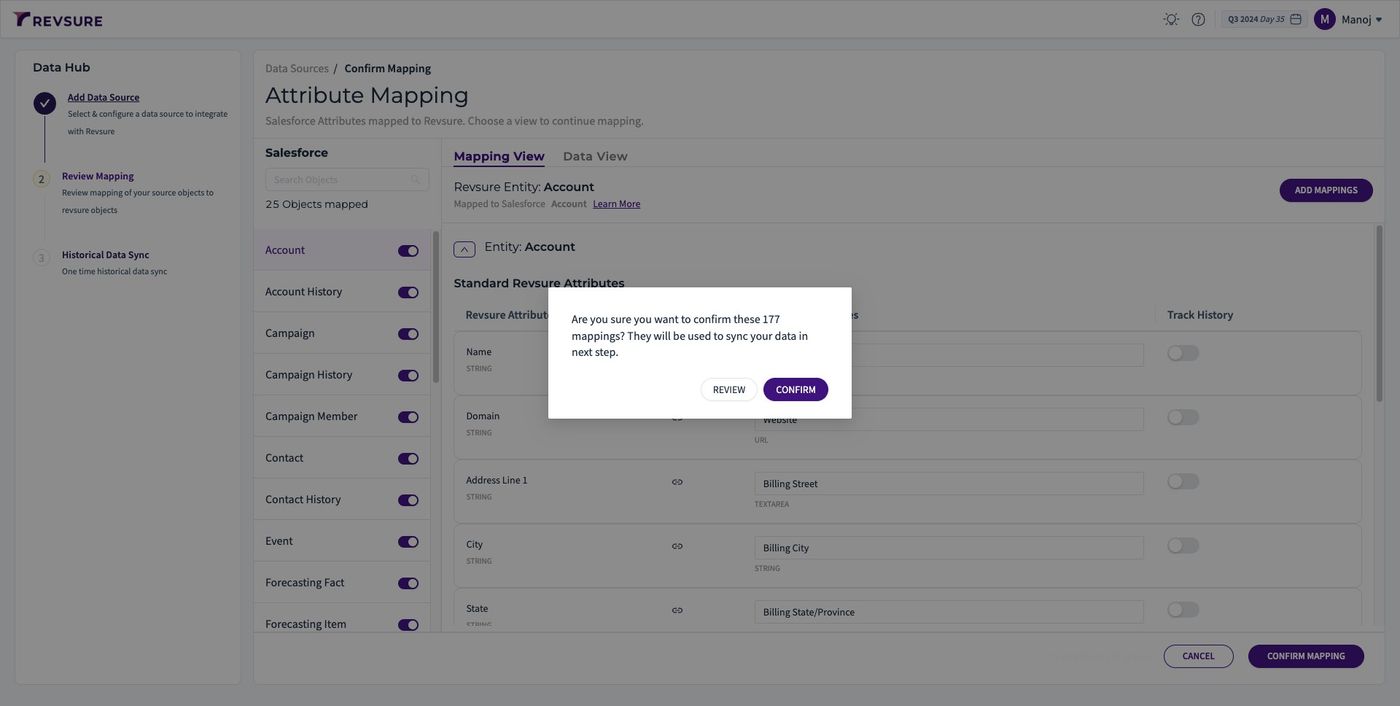
9. Click "CONFIRM"

How to Add a Salesforce Data Source in Data Hub (figure 8)
Ready when your stack is

Still stuck? Bring it to the session

A RevSure engineer walks your exact setup on a 30-minute working session.