Prerequisites
- You must be an admin of your ChatGPT workspace (Teams or Enterprise plan)
- A RevSure account with valid login credentials
- The MCP Server URL and OAuth Client ID shared by the RevSure team
📌 Before starting, make sure you have the following details from the RevSure team:
- MCP Server URL (e.g., https://mcp.revsure.cloud/<your-tenant>/mcp/)
- OAuth Client ID (e.g., <your-tenant>:chatgpt)
Step 1: Go to Workspace Settings
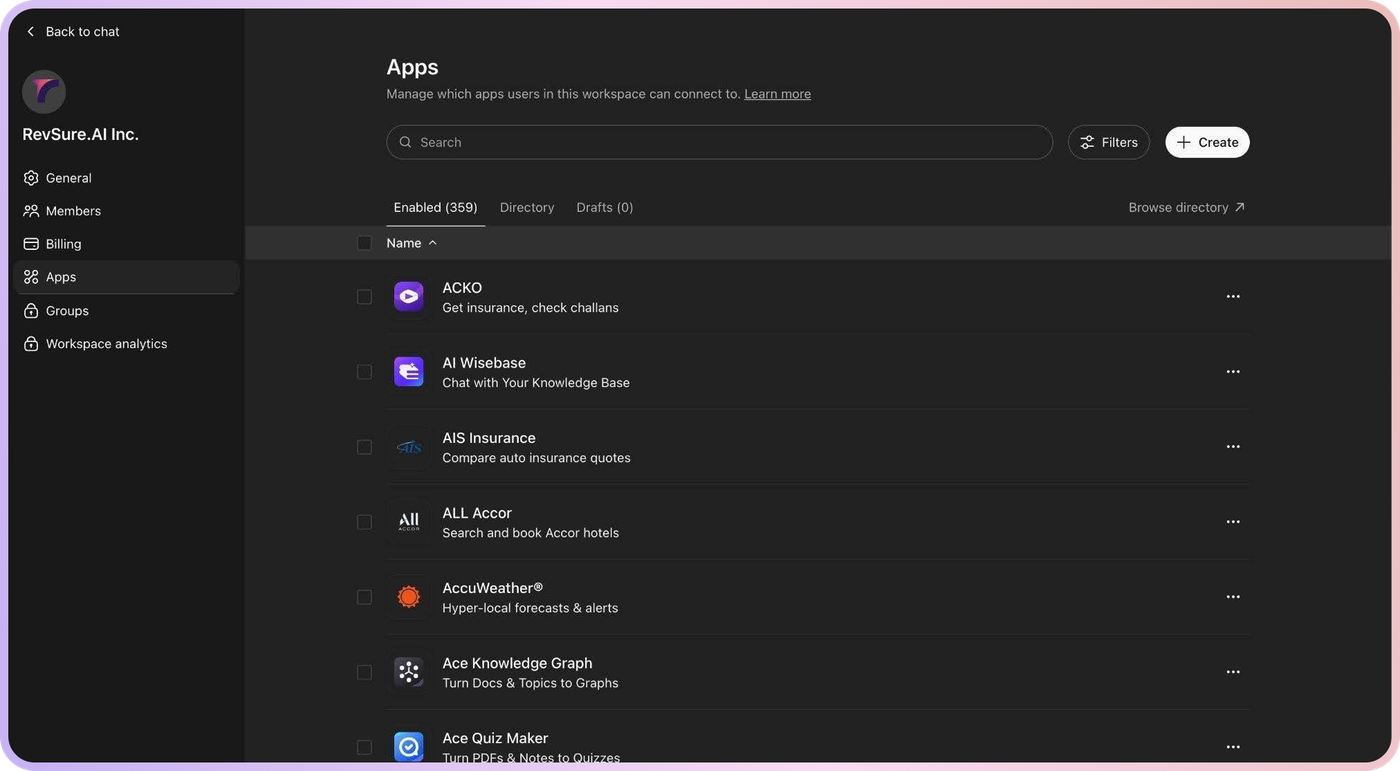
Navigate to https://chatgpt.com/admin/ca in your browser. This takes you to the Apps section of your ChatGPT workspace admin panel.
You will see the list of enabled apps for your workspace. Click the "+ Create" button in the top-right corner.
Step 2: Enable Developer Mode & Fill the Form
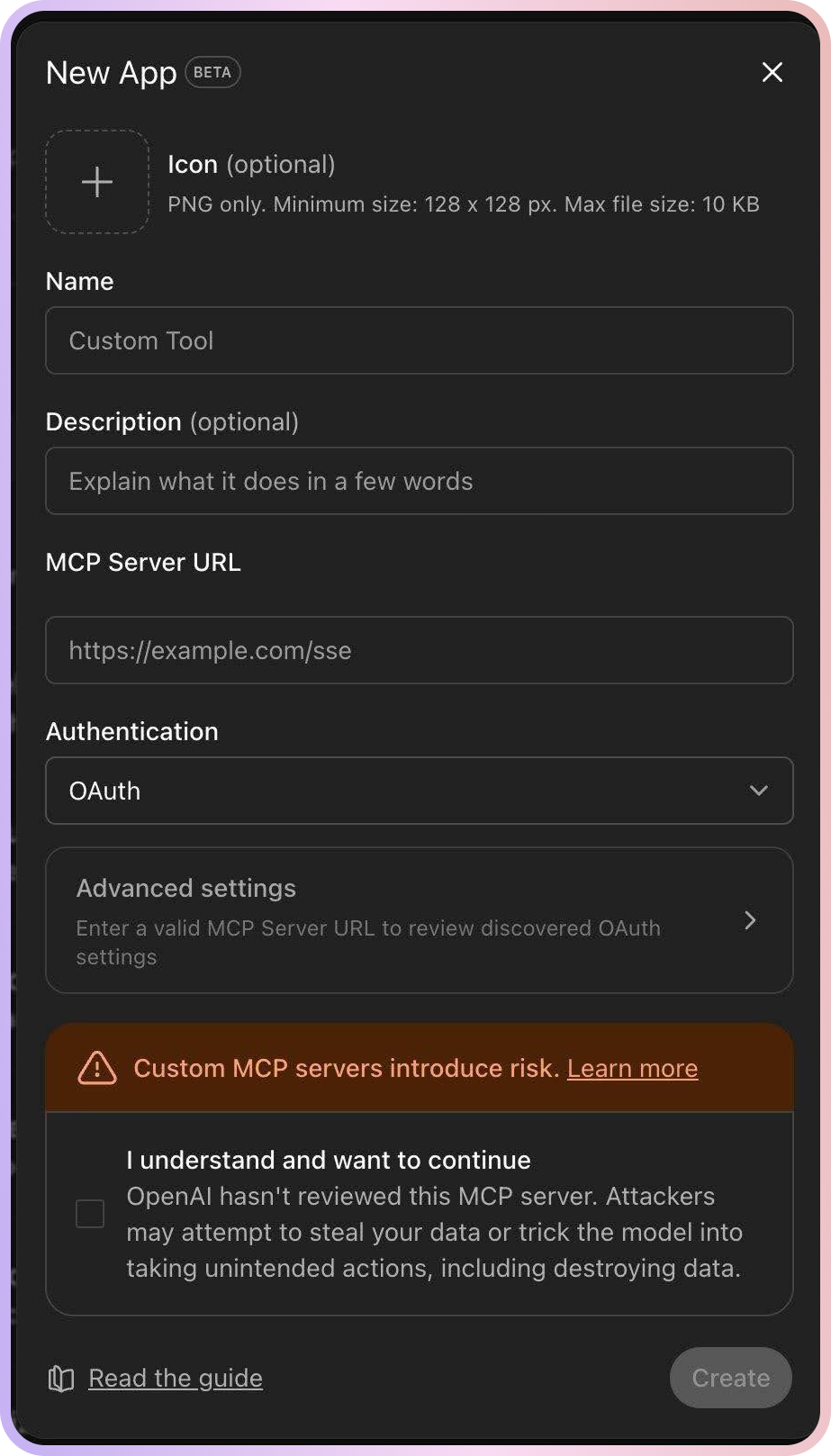
You may be asked to enable developer mode first — go ahead and enable it. Once enabled, a "New App" form will appear.
Fill in the following fields:
Name: RevSure
Description: RevSure MCP app
MCP Server URL: Enter the URL shared by the RevSure team
Authentication: Select OAuth from the dropdown
Step 3: Configure OAuth Advanced Settings
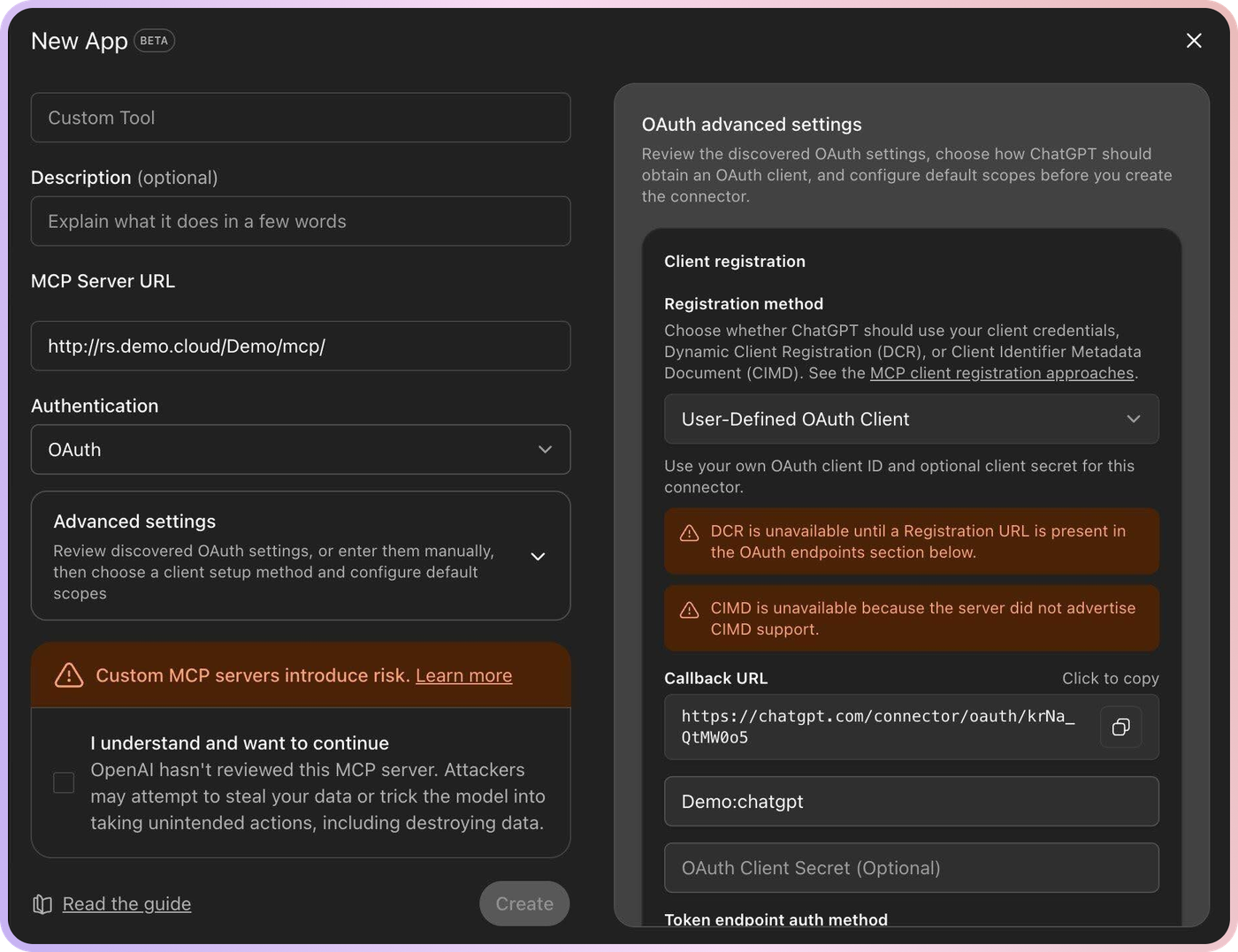
After selecting OAuth as the authentication method, click on "Advanced settings" to expand the OAuth configuration panel.
Configure the following:
- Registration Method: Select User-Defined OAuth Client
- OAuth Client ID: Enter the OAuth Client ID shared by the RevSure team
Step 4: Acknowledge & Create
Check the box next to "I understand and want to continue" to acknowledge the custom MCP server risk warning.
Then click the "Create" button.
You will be redirected to the RevSure login page. Enter your RevSure credentials to authenticate the connection.
Step 5: Publish the App
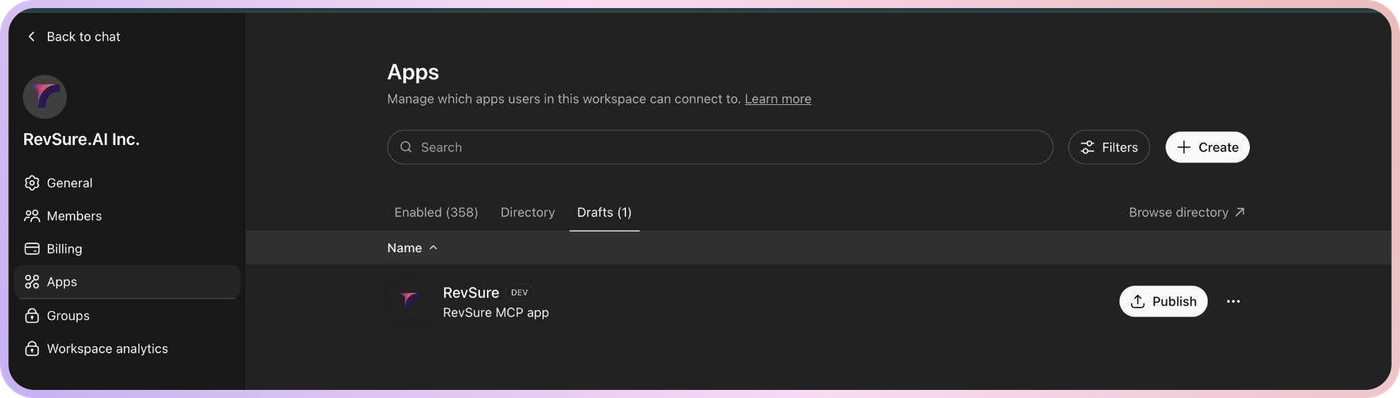
After authentication, go to https://chatgpt.com/admin/ca#drafts where you will find your RevSure app listed under the Drafts tab.
Click the "Publish" button next to the RevSure app.
Step 6: Review & Confirm Publishing
A confirmation dialog will appear asking you to review potential risks. Click on each risk review item to expand and review them:
- Review potential risk: Unauthorized data access — click to review, then confirm
- Review potential risk: Malicious app — click to review, then confirm
Check "I understand" on both items and agree with the terms and policies.
Then click "Publish" to make the app available to your entire organization.
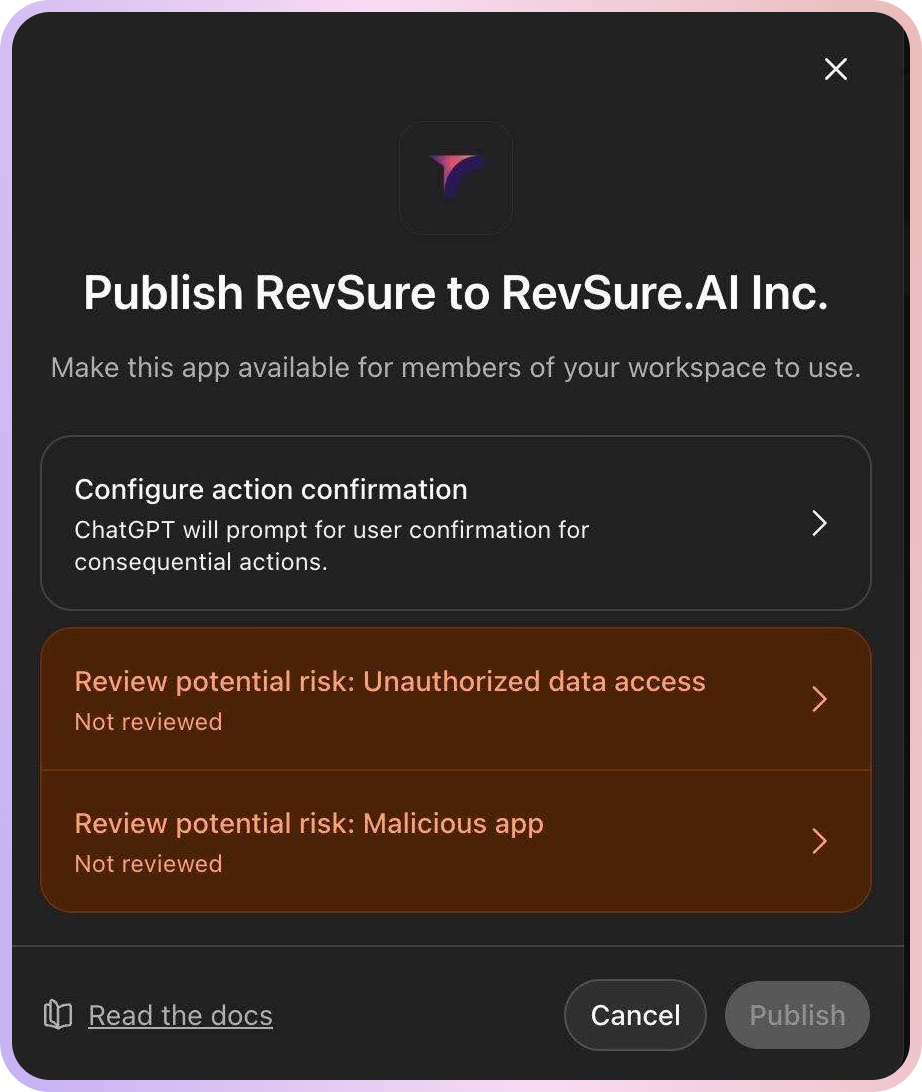
📌 Once published, everyone in your workspace can just connect and start using RevSure in ChatGPT — no individual setup needed!
Step 7: Start Using RevSure
Now anyone in your organization can use RevSure in ChatGPT. Here's how:
- Go to “Apps” in the left sidebar. On opening it, you can search for “RevSure” connector (Or whatever name your workspace admin decided for the connector.)
- Click on the app, then click "Connect". You'll be redirected to our login page — enter your credentials and log in. Once done, you'll be redirected back to ChatGPT and you're all set!
- Start a new chat in ChatGPT
- Click the + icon on the prompt box
- Click on "More"
- You will see RevSure listed (tagged as INTERNAL). Click on it to activate.
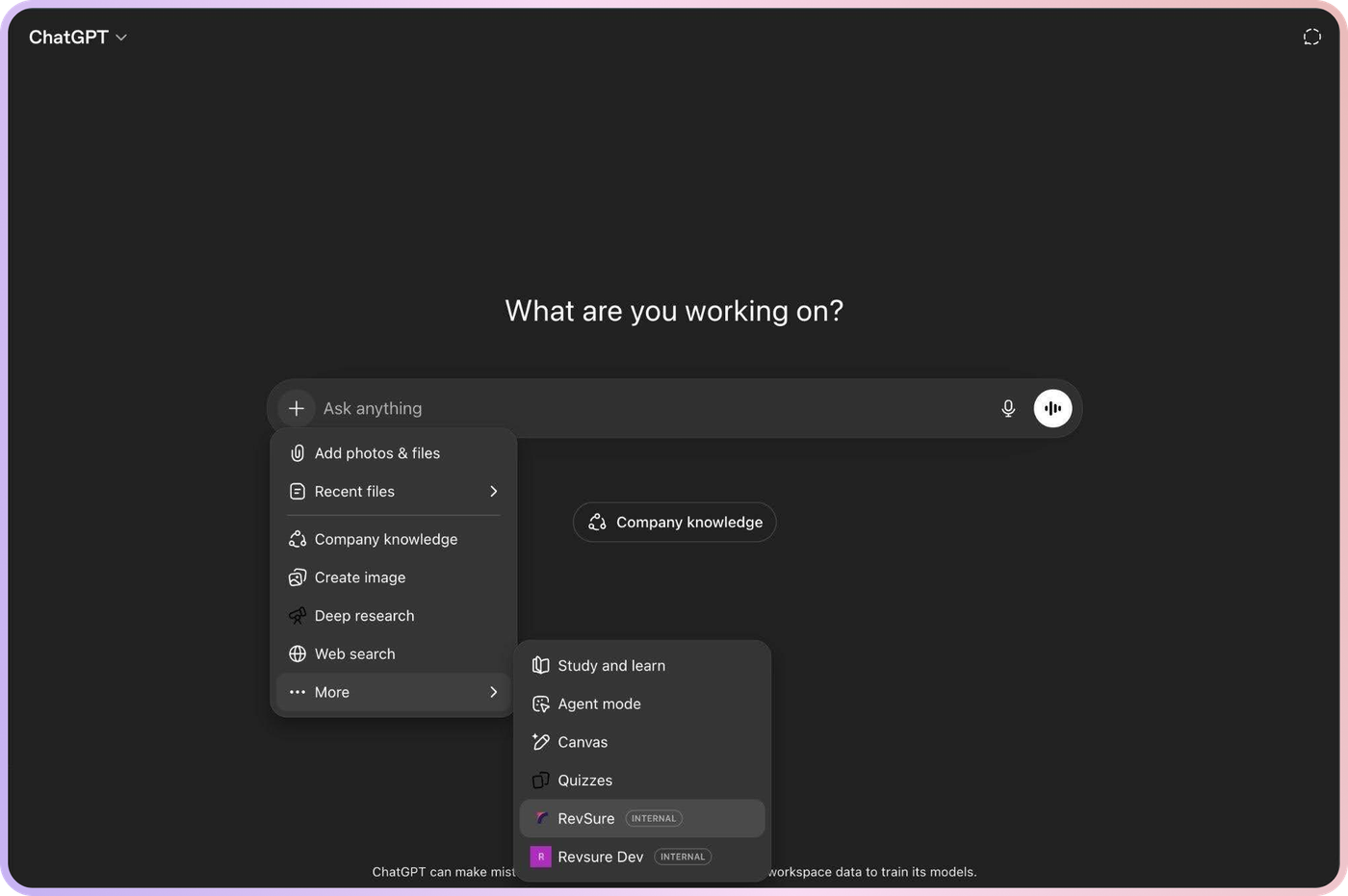
Once activated, you will see the RevSure icon in the prompt box, confirming it is ready to use.
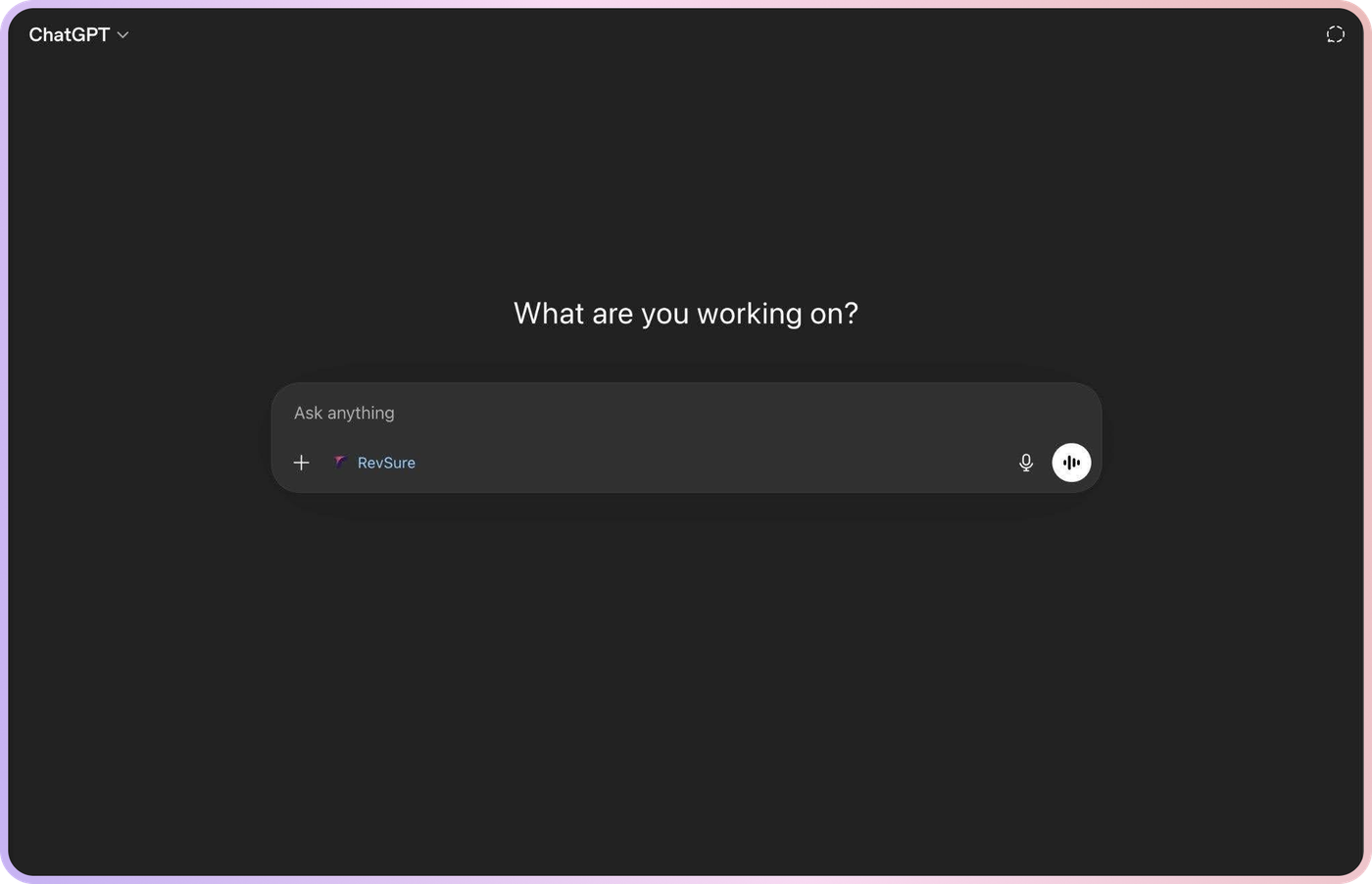
You are all set! Start asking questions and RevSure will provide insights powered by your data.
Things to Keep in Mind about the ChatGPT MCP Integration
- Reconnection Issues and Beta Instability: Since ChatGPT Apps / MCP support is still in Beta (across Business, Enterprise, and Edu plans), instability is expected — OpenAI itself notes that functionality, UI, and permissions may change as they iterate. When a connector fails, a normal reconnect usually doesn't work. The effective workaround — on all plans — is to delete the connector and re-add it, which is a quick process (~1 minute).
- Manual Updates Required: The integration does not auto-update when new tools are added or existing tool definitions change. ChatGPT uses a "frozen" snapshot of the tool list taken at publish time, so mismatches with the live RevSure server cause tool calls to error until the snapshot is refreshed. The correct path depends on the plan:
- Business plan: Apps cannot be updated after publishing. The only supported path is to recreate and republish the app — i.e., delete and re-add the connector. This is official OpenAI guidance, not a workaround.
- Enterprise / Edu plan: Admins/owners can refresh tool actions from Workspace Settings → Apps → RevSure → See Details → Refresh, and can enable/disable individual actions after publishing. In practice, users have reported for the refresh button failing, in which case delete-and-re-add remains the reliable fallback.
- Potential Org Owner Access Limitation: For some ChatGPT users, only the organization owner or admins are able to use the custom connectors, preventing other members from accessing the tool. A support ticket has been raised with OpenAI, but resolution may take time.
Note: These limitations are due to the ChatGPT Apps (Beta) platform, not our custom RevSure MCP connector.
Related Articles
To gain the best knowledge regarding apps, security, and developer mode based on your ChatGPT plan, review the following articles:
- Developer Mode and MCP Apps in ChatGPT (Beta): Learn how Developer mode, the Model Context Protocol (MCP), and custom apps are used to build and deploy secure integrations within ChatGPT Business, Enterprise, and Edu plans, covering setup, testing, and publishing.
- Apps in ChatGPT: A comprehensive guide on using apps (formerly connectors) to integrate external tools, data, and services into ChatGPT conversations, detailing availability across different plans and the general controls available to workspace admins.
- Admin Controls, Security, and Compliance in Apps for Enterprise, Edu, and Business: Review the administrative controls, Role-Based Access Control (RBAC), security features (encryption, OAuth), data privacy policies, and compliance protocols for managing apps in organizational ChatGPT workspaces.
Note: The ChatGPT Apps MCP is still in a Beta state on OpenAI's side, so you may run into occasional quirks with the connector. We're in active communication with their team to improve the experience. If you hit anything, please let us know, and we will help you through it.